-
Git clone 提示“Could not resolve hostname”解决
事情是这样的,今天我要给OpenHarmony贡献代码,于是我将项目Fork下来以后,进行clone
突然,看图吧,

于是我
ping gitee.com- 1
发现啥也不是,这个时候我想既然作为咸鱼,就做的彻底,今天不提交了,可是碰到这个问题,激动的心,再一次带着颤动的手去找解决问题的办法
于是有了下面解决方案
首先可以看到是git clone项目
提示“Could not resolve hostname”
究其原因,是域名找不到对应的映射IP。
解决方式:
找到hosts文件,添加如下映射即可:
180.97.125.228 gitee.com- 1
关于如何修改Hosts文件
Mac OS 下修改Hosts文件的方法
终端命令行修改
sudo vi /etc/hosts- 1
1.输入本机密码后,打开hosts文件,键盘输入 i (插入),修改hosts文件后,按 esc 键退出,再按shift+:键,再输入w和q,保存退出
2.不保存退出,则按q和!键
做完之后,我们开始
jianguo@jianguodeMacBook-Pro openharmony % git clone https://gitee.com/jianguo888/knowledge_demo_travel.git Cloning into 'knowledge_demo_travel'... remote: Enumerating objects: 1539, done. remote: Counting objects: 100% (1539/1539), done. remote: Compressing objects: 100% (971/971), done. remote: Total 1539 (delta 462), reused 1539 (delta 462), pack-reused 0 Receiving objects: 100% (1539/1539), 34.55 MiB | 1.29 MiB/s, done. Resolving deltas: 100% (462/462), done.- 1
- 2
- 3
- 4
- 5
- 6
- 7
- 8

成功了
好的,就是顺便记录一下生活中遇到的问题。
应用场景:
- 智慧出行。
智能汽车是集环境感知、规划决策、多等级辅助驾驶等功能于一体的智能网联综合系统,它集中运用了计算机、现代传感、信息融合、通讯、人工智能及自动控制等技术,是典型的高新技术综合体。简单的说,智能汽车的出现将逐步放松车、手、眼,让开车,用车变得简单。这样的产品对有本儿不敢上路的人来说或许是大大的福音。
在北方冬天有点冷,这个时候,去车里,温度很低,给人一种不舒服的感觉,那么有没有一种可能,就是可以通过手机App,实现对车内的一些情况的监测,答案是有的,今天做的这个App,就是这样一个App。
我要实现的功能主要有
- 用户可以解锁任何车门,
- 检查电池状态,
- 控制空调温度,
- 检查轮胎的气压。
在开始之前大家可以先预览一下我完成之后的效果。如下图所示:

是不是很炫酷呢?
搭建OpenHarmony环境
完成本篇Codelab我们首先要完成开发环境的搭建,本示例以DaYu200开发板为例,参照以下步骤进行:
-
获取OpenHarmony系统版本:标准系统解决方案(二进制)
以3.0版本为例:

-
搭建烧录环境
-
搭建开发环境
相关概念
容器组件
基础组件
通用
好的接下来我将详细讲解如何制作
开发教学
创建好的 eTS工程目录
新建工程的ETS目录如下图所示。

各个文件夹和文件的作用:
- index.ets:用于描述UI布局、样式、事件交互和页面逻辑。
- app.ets:用于全局应用逻辑和应用生命周期管理。
- pages:用于存放所有组件页面。
- resources:用于存放资源配置文件。
接下来开始正文。
我们的主要操作都是在在pages目录中,然后我将用不到10分钟的时间,带大家实现这个功能。
拆解

根据设计图,我们可以分为内容展示区和菜单。
针对这一点,我们可以用Navigation组件作为Page页面的根容器,通过属性设置来展示页面的标题、工具栏、菜单。
Navigation() { Column({ space: 20 }) { if (this.index == 0) DoorLook() else if (this.index == 1) Battery() else if (this.index == 2) Temp() else if (this.index == 3) Tyre() } .backgroundColor(Color.Black) .justifyContent(FlexAlign.SpaceAround) .alignItems(HorizontalAlign.Center) .justifyContent(FlexAlign.Center) .size({ width: '100%', height: '100%' }) } .size({ width: '100%', height: '100%' }) .toolBar(this.toolbarWidget()) .hideToolBar(this.hideToolBar) .hideTitleBar(this.hideTitleBar)- 1
- 2
- 3
- 4
- 5
- 6
- 7
- 8
- 9
- 10
- 11
- 12
- 13
- 14
- 15
- 16
- 17
- 18
- 19
- 20
具体布局
具体布局设计到一些细节的地方,例如间隔,边框,当前组件尺寸设置等一些特殊情况,基本上就是嵌套,一层一层去实现。
代码结构

编码
Index.ets
import Tyre from './tyre_page'; import Temp from './temp_page'; import Battery from './battery_page'; import DoorLook from './door_lock_page'; @Entry @Component struct ComponentTest { @State index: number = 0; // 选项卡下标,默认为第一个 @State hideToolBar: boolean = false; @State hideTitleBar: boolean = true; private imageArray: string[] = ['app.media.Lock', 'app.media.Charge', 'app.media.Temp', 'app.media.Tyre',]; // 数据源 @Builder toolbarWidget() { // 通过builder自定义toolbar Row() { Column() { Image( this.index==0?$r('app.media.lock'):$r('app.media.lock0') ) .size({ width: 36, height: 36 }).margin({ bottom: 4, top: 12 }) } .alignItems(HorizontalAlign.Center) .height('100%') .layoutWeight(1) .onClick(() => { this.index = 0; }) Column() { Image(this.index==1?$r('app.media.battery'): $r("app.media.battery0")) .size({ width: 36, height: 36 }).margin({ bottom: 4, top: 12 }) } .alignItems(HorizontalAlign.Center) .height('100%') .layoutWeight(1) .onClick(() => { this.index = 1; }) Column() { Image(this.index==2?$r('app.media.yytemp'): $r('app.media.yytem0')) .size({ width: 36, height: 36 }).margin({ bottom: 4, top: 12 }) } .alignItems(HorizontalAlign.Center) .height('100%') .layoutWeight(1) .onClick(() => { this.index = 2; }) Column() { Image( this.index==3?$r('app.media.tyre'): $r('app.media.tyre0')) .size({ width: 36, height: 36 }).margin({ bottom: 4, top: 12 }) } .alignItems(HorizontalAlign.Center) .height('100%') .layoutWeight(1) .onClick(() => { this.index = 3; }) }.backgroundColor(Color.Black) .width('100%') .height(66) } build() { Navigation() { Column({ space: 20 }) { //根据索引展示对应内容å if (this.index == 0) DoorLook() else if (this.index == 1) Battery() else if (this.index == 2) Temp() else if (this.index == 3) Tyre() } .backgroundColor(Color.Black) .justifyContent(FlexAlign.SpaceAround) .alignItems(HorizontalAlign.Center) .justifyContent(FlexAlign.Center) .size({ width: '100%', height: '100%' }) } .size({ width: '100%', height: '100%' }) .title("跟着坚果学OpenHarmony") .toolBar(this.toolbarWidget())//自定义底部菜单栏 .hideToolBar(this.hideToolBar) .hideTitleBar(this.hideTitleBar) .menus([ { value: "关", icon: 'common/images/door_lock.svg', action: () => { console.log("工具栏") } }, { value: "开", icon: 'common/images/door_unlock.svg', action: () => { } } ]) } }- 1
- 2
- 3
- 4
- 5
- 6
- 7
- 8
- 9
- 10
- 11
- 12
- 13
- 14
- 15
- 16
- 17
- 18
- 19
- 20
- 21
- 22
- 23
- 24
- 25
- 26
- 27
- 28
- 29
- 30
- 31
- 32
- 33
- 34
- 35
- 36
- 37
- 38
- 39
- 40
- 41
- 42
- 43
- 44
- 45
- 46
- 47
- 48
- 49
- 50
- 51
- 52
- 53
- 54
- 55
- 56
- 57
- 58
- 59
- 60
- 61
- 62
- 63
- 64
- 65
- 66
- 67
- 68
- 69
- 70
- 71
- 72
- 73
- 74
- 75
- 76
- 77
- 78
- 79
- 80
- 81
- 82
- 83
- 84
- 85
- 86
- 87
- 88
- 89
- 90
- 91
- 92
- 93
- 94
- 95
- 96
- 97
- 98
- 99
- 100
- 101
- 102
效果演示:
车锁页
@Entry @Component export default struct DoorLook { //车锁页 @State isRightDoorLock: boolean = false; @State isLeftDoorLock: boolean = false; @State isBonnetLock: boolean = false; @State isTrunkLock: boolean = false; build() { Column() { Stack() { Image($r("app.media.Car")) .width("100%") .height("100%") .objectFit(ImageFit.Contain) .margin({ left: 20 }) Image($r("app.media.door_lock")) .width(60).height(60).position({ x: 340, y: 50 }) .onClick(() => { }) Image($r("app.media.door_unlock")).width(60).height(60).position({ x: 50, y: 600 }) Image($r("app.media.door_unlock")).width(60).height(60).position({ x: 640, y: 600 }) Image($r("app.media.door_unlock")).width(60).height(60).position({ x: 340, y: 920 }) } .backgroundColor(Color.Black) .width("100%") .height("100%") } } }- 1
- 2
- 3
- 4
- 5
- 6
- 7
- 8
- 9
- 10
- 11
- 12
- 13
- 14
- 15
- 16
- 17
- 18
- 19
- 20
- 21
- 22
- 23
- 24
- 25
- 26
- 27
- 28
- 29
- 30
- 31
- 32
- 33
- 34
- 35
- 36
- 37
- 38
- 39
- 40
效果演示:

电池页
@Entry @Component export default struct Battery { //电池页 build() { Column() { Stack() { Image($r("app.media.Car")) .width("100%") .height("80%") .objectFit(ImageFit.Contain) .margin({ left: 20, top: 150, bottom: 300 }) Text("220 mi").fontColor(Color.White).fontWeight(FontWeight.Bold).fontSize(79).position({ x: 260, y: 20 }) Text("62 %").fontColor(Color.White).fontWeight(FontWeight.Bold).fontSize(60).position({ x: 320, y: 90 }) Text("22 mi /hr").fontColor(Color.White).fontWeight(FontWeight.Bold).fontSize(45).position({ x: 20, y: 1000 }) Text("232 v").fontColor(Color.White).fontWeight(FontWeight.Bold).fontSize(45).position({ x: 550, y: 1000 }) } .backgroundColor(Color.Black) .width("100%") .height("100%") } } }- 1
- 2
- 3
- 4
- 5
- 6
- 7
- 8
- 9
- 10
- 11
- 12
- 13
- 14
- 15
- 16
- 17
- 18
- 19
- 20
- 21
- 22
- 23
- 24
- 25
- 26
- 27
- 28
- 29
- 30
- 31
- 32
效果演示:

空调页
@Entry @Component export default struct Temp { //空调页 build() { Column() { Stack() { Image($r("app.media.Car")) .width("100%") .height("100%") .objectFit(ImageFit.Contain) .position({ x: 268, y: 90 }) .margin({ left: 20 }) Image($r("app.media.Hot_glow_4")) .width("90%") .height("90%") .objectFit(ImageFit.Contain) .position({ x: 220, y: 90 }) .margin({ left: 20 }) Text("29" + "\u2103",).fontSize(90).fontColor(Color.Orange).position({ x: 90, y: 400 }) Image($r("app.media.arrow_drop_up")) .width(60) .height(60) .position({ x: 120, y: 360 }) Image($r("app.media.arrow_drop_down")) .width(60) .height(60) .position({ x: 120, y: 480 }) Image($r("app.media.cool")).width(60).height(60).position({ x: 20, y: 40 }) Image($r("app.media.heating")) .width(60) .height(60) .position({ x: 80, y: 90 }) .borderRadius(7) .margin({ right: 40 }) Column() { Text("当前温度").fontSize(32).fontColor(Color.White).margin({ bottom: 20 }) Row({ space: 30 }) { Column() { Text("里面").fontSize(32).fontColor(Color.Orange) Text("20" + "\u2103",).fontSize(32).fontColor(Color.White) } Column() { Text("外边").fontSize(32).fontColor(Color.Yellow) Text("35" + "\u2103",).fontSize(32).fontColor(Color.White) } } }.position({ x: 20, y: 800 }) } .backgroundColor(Color.Black) .offset({ y: -20 }) .width("100%") .height("100%") } } }- 1
- 2
- 3
- 4
- 5
- 6
- 7
- 8
- 9
- 10
- 11
- 12
- 13
- 14
- 15
- 16
- 17
- 18
- 19
- 20
- 21
- 22
- 23
- 24
- 25
- 26
- 27
- 28
- 29
- 30
- 31
- 32
- 33
- 34
- 35
- 36
- 37
- 38
- 39
- 40
- 41
- 42
- 43
- 44
- 45
- 46
- 47
- 48
- 49
- 50
- 51
- 52
- 53
- 54
- 55
- 56
- 57
- 58
- 59
效果演示:

轮胎页
import { TyrePsiCard } from './tyre_psi_card' @Entry @Component export default struct Tyre { //轮胎页 build() { Column() { Stack() { Image($r("app.media.Car")) .width("100%") .height("80%") .objectFit(ImageFit.Contain) .margin({ left: 20 }) Image($r("app.media.FL_Tyre")) .width("10%") .height("10%") .objectFit(ImageFit.Contain) .position({ x: 180, y: 700 }) Image($r("app.media.FL_Tyre")) .width("10%") .height("10%") .objectFit(ImageFit.Contain) .position({ x: 500, y: 700 }) Image($r("app.media.FL_Tyre")) .width("10%") .height("10%") .objectFit(ImageFit.Contain) .position({ x: 500, y: 260 }) Image($r("app.media.FL_Tyre")) .width("10%") .height("10%") .objectFit(ImageFit.Contain) .position({ x: 180, y: 260 }) TyrePsiCard({ x: 60, y: 60, boardColor: Color.Blue }) TyrePsiCard({ x: 380, y: 60, boardColor: Color.Blue }) TyrePsiCard({ x: 60, y: 500, boardColor: Color.Blue, isBottomTwoTyre: false }) TyrePsiCard({ x: 380, y: 500, isBottomTwoTyre: false }) } .backgroundColor(Color.Black) .width("100%") .height("100%") } } }- 1
- 2
- 3
- 4
- 5
- 6
- 7
- 8
- 9
- 10
- 11
- 12
- 13
- 14
- 15
- 16
- 17
- 18
- 19
- 20
- 21
- 22
- 23
- 24
- 25
- 26
- 27
- 28
- 29
- 30
- 31
- 32
- 33
- 34
- 35
- 36
- 37
- 38
- 39
- 40
- 41
- 42
- 43
- 44
- 45
- 46
- 47
- 48
- 49
- 50
效果演示:
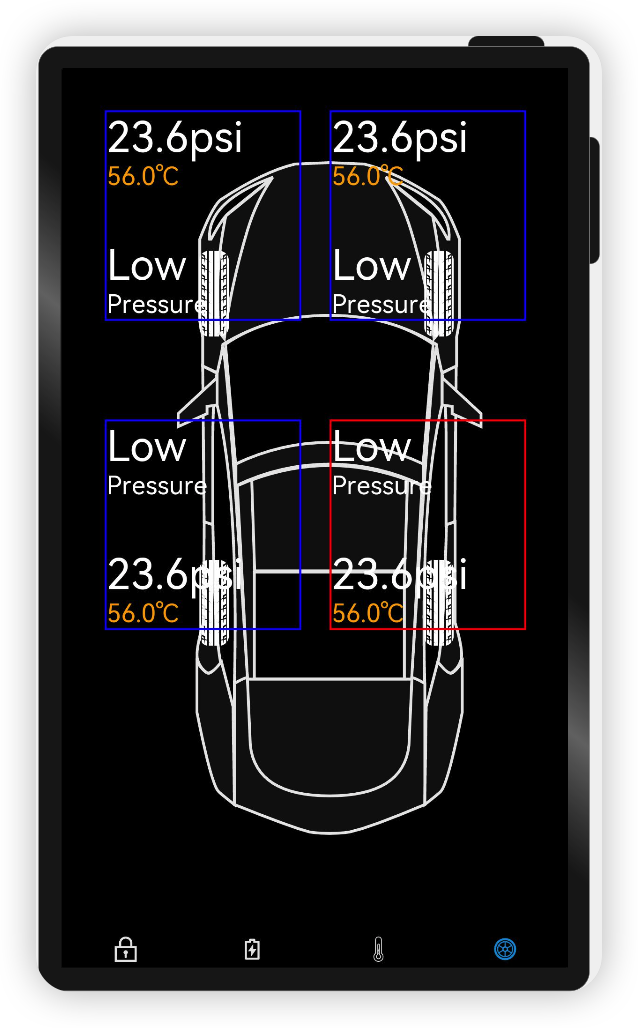
轮胎参数
/** * 轮胎详细信息 */ @Entry @Component export struct TyrePsiCard { private text: string = '' private x: number = 0 private y: number = 0 private boardColor: Color = Color.Red private isBottomTwoTyre: boolean = true; build() { Column() { if (this.isBottomTwoTyre) { Text("23.6psi",).fontSize(60) .fontColor(Color.White).margin({ right: 60 }) Text("56.0\u2103").fontSize(36) .fontColor(Color.Orange).margin({ bottom: 70 }) Text("Low").fontSize(60) .fontColor(Color.White) Text("Pressure").fontSize(36) .fontColor(Color.White) } else { Text("Low").fontSize(60).margin({ right: 60 }) .fontColor(Color.White) Text("Pressure").fontSize(36) .fontColor(Color.White).margin({ bottom: 70 }) Text("23.6psi",).fontSize(60) .fontColor(Color.White) Text("56.0\u2103").fontSize(36) .fontColor(Color.Orange) } } .border({ width: 3, color: this.boardColor }) .width(280) .justifyContent(FlexAlign.Start) .alignItems(HorizontalAlign.Start) // .padding({ left: 10, bottom: 20, top: 20 }) .position({ x: this.x, y: this.y }) } }- 1
- 2
- 3
- 4
- 5
- 6
- 7
- 8
- 9
- 10
- 11
- 12
- 13
- 14
- 15
- 16
- 17
- 18
- 19
- 20
- 21
- 22
- 23
- 24
- 25
- 26
- 27
- 28
- 29
- 30
- 31
- 32
- 33
- 34
- 35
- 36
- 37
- 38
- 39
- 40
- 41
- 42
- 43
- 44
- 45
- 46
- 47
- 48
效果演示:

恭喜你
在本文中,通过实现智联汽车App示例,我主要为大家讲解了如下ArkUI(基于TS扩展的类Web开发范式)组件
容器组件
基础组件
通用
希望通过本教程,各位开发者可以对以上基础组件具有更深刻的认识。
后面的计划:
- 一键启动
- 硬件交互
- 动画交互
-
相关阅读:
硬件设计基础----二极管
计算机毕设(附源码)JAVA-SSM基于的社区疫情管理系统
Redis网络模型
面试其他注意事项
InFusion:通过从扩散先验学习深度补全来进行图像 3D 高斯修复
PHP将相对路径URL转换为绝对路径URL
C++报错:fatal error LNK1169: 找到一个或多个多重定义的符号
OJ练习第172题——可以攻击国王的皇后
【图像处理 】003 图片处理工具类
《算法竞赛进阶指南》差分约束 区间
- 原文地址:https://blog.csdn.net/qq_39132095/article/details/125905587
