-
Android开发笔记(一百八十七)利用估值器实现弹幕动画
如今上网看电影电视越发流行了,追剧的时候经常看到视频上方数行评论向左边飘去,犹如子弹那样飞快掠过,这些评论文字因此得名“弹幕”。弹幕评论由正在观看的网友们即兴发表,故而连绵不绝从画面右端不断涌现,直到漂至画面左端才隐没消失。
虽然弹幕效果可使用平移动画实现,但平移动画比较单调,只能控制位移,不能控制速率、文字大小、文字颜色等要素。若想同时操纵视图的多种属性要素,需要采用属性动画加以实现。
然而视图的位移大小由间距属性margin控制,该属性又分为上下左右四个方向,更要命的是,这几个margin并非视图View类的属性,而是布局参数LayoutParams的属性,意味着无法通过margin***直接构造属性动画对象。为了动态调整margin这种非常规属性,就要引入估值器实时计算当前的属性值,再据此设置自定义控件的状态参数。
以间距属性为例,它的动画步骤说明如下:
1、定义一个间距估值器,它实现了接口TypeEvaluator的evaluate方法,并在该方法中返回指定时间点的间距数值;
2、调用ValueAnimator类的ofObject方法,根据间距估值器、开始位置和结束位置构建属性动画对象;
3、调用属性动画对象的addUpdateListener方法设置刷新监听器,在监听器内部获取当前的间距数值,并调整视图此时的布局参数;
具体到编码实现上,需要自定义弹幕视图,其内部在垂直方向排列,每行放置一个相对布局。发表弹幕评论时,先随机挑选某行相对布局,在该布局右侧添加文本视图,再通过前述的间距动画向左渐次滑动。弹幕视图的定义代码示例如下:- public class BarrageView extends LinearLayout {
- private Context mContext; // 声明一个上下文对象
- private int mRowCount = 5; // 弹幕行数
- private int mTextSize = 15; // 文字大小
- private List<RelativeLayout> mLayoutList = new ArrayList<>(); // 每行的相对布局列表
- private int mWidth; // 视图宽度
- private int mLastPos1 = -1, mLastPos2 = -1; // 最近两次的弹幕位置
- public BarrageView(Context context, AttributeSet attrs) {
- super(context, attrs);
- intView(context); // 初始化视图
- }
- // 初始化视图
- private void intView(Context context) {
- mContext = context;
- setOrientation(LinearLayout.VERTICAL); // 设置垂直方向
- for (int i=0; i<mRowCount; i++) {
- RelativeLayout layout = new RelativeLayout(mContext);
- RelativeLayout.LayoutParams params = new RelativeLayout.LayoutParams(
- LayoutParams.MATCH_PARENT, Utils.dip2px(mContext, 40));
- layout.setLayoutParams(params);
- mLayoutList.add(layout);
- addView(layout); // 添加至当前视图
- }
- }
- @Override
- protected void onMeasure(int widthMeasureSpec, int heightMeasureSpec) {
- super.onMeasure(widthMeasureSpec, heightMeasureSpec);
- mWidth = getMeasuredWidth(); // 获取视图的实际宽度
- }
- // 获取本次弹幕的位置。不跟最近两次在同一行,避免挨得太近
- private int getPos() {
- int pos;
- do {
- pos = new Random().nextInt(mRowCount);
- } while (pos==mLastPos1 || pos==mLastPos2);
- mLastPos2 = mLastPos1;
- mLastPos1 = pos;
- return pos;
- }
- // 给弹幕视图添加评论
- public void addComment(String comment) {
- RelativeLayout layout = mLayoutList.get(getPos()); // 获取随机位置的相对布局
- TextView tv_comment = getCommentView(comment); // 获取评论文字的文本视图
- float textWidth = MeasureUtil.getTextWidth(comment, Utils.dip2px(mContext, mTextSize));
- layout.addView(tv_comment); // 添加至当前视图
- // 根据估值器和起止位置创建一个属性动画
- ValueAnimator anim = ValueAnimator.ofObject(new MarginEvaluator(), (int) -textWidth, mWidth);
- // 添加属性动画的刷新监听器
- anim.addUpdateListener(animation -> {
- int margin = (int) animation.getAnimatedValue(); // 获取动画的当前值
- RelativeLayout.LayoutParams tv_params = (RelativeLayout.LayoutParams) tv_comment.getLayoutParams();
- tv_params.rightMargin = margin;
- if (margin > mWidth-textWidth) { // 左滑到顶了
- tv_params.leftMargin = (int) (mWidth-textWidth - margin);
- }
- tv_comment.setLayoutParams(tv_params); // 设置文本视图的布局参数
- });
- anim.setTarget(tv_comment); // 设置动画的播放目标
- anim.setDuration(5000); // 设置动画的播放时长
- anim.setInterpolator(new LinearInterpolator()); // 设置属性动画的插值器
- anim.start(); // 属性动画开始播放
- }
- // 获取评论内容的文本视图
- private TextView getCommentView(String content) {
- TextView tv = new TextView(mContext);
- tv.setText(content);
- tv.setTextSize(mTextSize);
- tv.setSingleLine(true);
- RelativeLayout.LayoutParams tv_params = new RelativeLayout.LayoutParams(
- ViewGroup.LayoutParams.WRAP_CONTENT, ViewGroup.LayoutParams.WRAP_CONTENT);
- tv_params.addRule(RelativeLayout.CENTER_VERTICAL); // 垂直方向居中
- tv_params.addRule(RelativeLayout.ALIGN_PARENT_RIGHT); // 与上级布局右对齐
- tv.setLayoutParams(tv_params); // 设置文本视图的布局参数
- return tv;
- }
- // 定义一个间距估值器,计算动画播放期间的间距大小
- public static class MarginEvaluator implements TypeEvaluator<Integer> {
- @Override
- public Integer evaluate(float fraction, Integer startValue, Integer endValue) {
- return (int) (startValue*(1-fraction) + endValue*fraction);
- }
- }
- }
然后在布局文件中添加BarrageView节点,且活动代码调用弹幕视图的addComment方法发表评论。详细的调用代码如下所示:
- BarrageView bv_comment = findViewById(R.id.bv_comment);
- findViewById(R.id.btn_comment).setOnClickListener(v -> {
- String comment = mCommentArray[new Random().nextInt(20)];
- bv_comment.addComment(comment); // 给弹幕视图添加评论
- });
运行测试App,数次点击添加按钮后,观察到弹幕效果如下图所示;
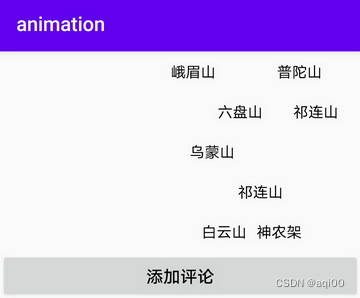
继续点击几次添加按钮,此时弹幕效果如下图所示,可见每条弹幕评论都在往左漂去。

-
相关阅读:
Electron实战之入门
Python-Flask入门,静态文件、页面跳转、错误信息、动态网页模板
Nginx之动静分离
STM32-CAN
PyCLIPS的安装
【Linux:环境变量】
vscode hide menu bar
移情别恋c++ ദ്ദി˶ー̀֊ー́ ) ——13.map&&set
YOLOv8独家改进:逐元素乘法(star operation)二次创新 | 微软新作StarNet:超强轻量级Backbone CVPR 2024
YOLO V8训练自己的数据集并测试
- 原文地址:https://blog.csdn.net/aqi00/article/details/126957405