-
Qt 之QDockwidget 自定义窗口标题栏
功能
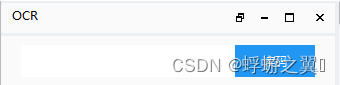
- 可自定义标题和图标
- 自定义按钮:按钮从左到右:
QPushButton* m_pButtonFloating; // 悬浮按钮 点击使之显示到屏幕中央
QPushButton* m_pButtonMin; // 最小化按钮:如果窗口悬浮,则退回到原位置
QPushButton* m_pButtonMax; // 最大化按钮;如果窗口悬浮,则充满整个屏幕
QPushButton* m_pButtonClose; // 关闭按钮; 关闭窗口 - 可以拖拽标题栏从而拖拽整个窗口
实现
自定义标题和图标
这个比较简单,就是继承QWidget,挨个添加需要的控件即可,详情见源码
自定义按钮
悬浮
效果:点击悬浮按钮,窗口悬浮在窗口正中央
三个地方注意- 构造函数
QWidget *parent不设置默认值,确保调用的时候,把QDockwidget的指针传进来
TitleBarWidget(QWidget *parent, QString titleContent = "");- 1
- 成员变量QPushButton* m_pButtonFloating; 样式
QIcon floatIcon(style()->standardPixmap(QStyle::SP_TitleBarNormalButton)); //获取qt默认图标 m_pButtonFloating = new QPushButton(floatIcon,"",this); m_pButtonFloating->setStyleSheet("background-color: rgb(250, 250, 250);border:none;");//设置样式 m_pButtonFloating->setFixedSize(QSize(BUTTON_WIDTH, BUTTON_HEIGHT)); m_pButtonFloating->setToolTip(QStringLiteral("浮动")); QHBoxLayout* mylayout = new QHBoxLayout(this); mylayout->addWidget(m_pButtonFloating); ... mylayout->setContentsMargins(5, 0, 0, 5); mylayout->setSpacing(0); m_pTitleContent->setSizePolicy(QSizePolicy::Expanding, QSizePolicy::Fixed); this->setFixedHeight(TITLE_HEIGHT); this->setWindowFlags(Qt::FramelessWindowHint);- 1
- 2
- 3
- 4
- 5
- 6
- 7
- 8
- 9
- 10
- 11
- 12
- 13
- 槽函数
connect(m_pButtonFloating, SIGNAL(clicked()), this, SLOT(onButtonFloatingClicked())); void TitleBarWidget::onButtonFloatingClicked() { QDockWidget *dw = qobject_cast<QDockWidget*>(parentWidget()); Q_ASSERT(dw != 0); if (!dw->isFloating()) //判断是否变为浮动窗口 { //this->resize(600, 400); //改变初始化大小 dw->setFloating(true); QDesktopWidget *desk = QApplication::desktop(); dw->move((desk->width() - dw->width()) / 2, (desk->height() - dw->height()) / 2); dw->show(); } }- 1
- 2
- 3
- 4
- 5
- 6
- 7
- 8
- 9
- 10
- 11
- 12
- 13
- 14
- 15
首先要获取 QDockWidget的指针
如果它没有悬浮则。设置悬浮属性为true。然后计算放置的位置 move过去最大化
最小化
关闭
按住标题栏拖动
// 以下通过mousePressEvent、mouseMoveEvent、mouseReleaseEvent三个事件实现了鼠标拖动标题栏移动窗口的效果; void TitleBarWidget::mousePressEvent(QMouseEvent *event) { m_isPressed = true; m_startMovePos = event->globalPos(); return QWidget::mousePressEvent(event); } void TitleBarWidget::mouseMoveEvent(QMouseEvent *event) { if (m_isPressed) { QPoint movePoint = event->globalPos() - m_startMovePos; QPoint widgetPos = this->parentWidget()->pos(); m_startMovePos = event->globalPos(); this->parentWidget()->move(widgetPos.x() + movePoint.x(), widgetPos.y() + movePoint.y()); } return QWidget::mouseMoveEvent(event); } void TitleBarWidget::mouseReleaseEvent(QMouseEvent *event) { m_isPressed = false; return QWidget::mouseReleaseEvent(event); }- 1
- 2
- 3
- 4
- 5
- 6
- 7
- 8
- 9
- 10
- 11
- 12
- 13
- 14
- 15
- 16
- 17
- 18
- 19
- 20
- 21
- 22
- 23
- 24
- 25
- 26
- 27
必须要重写这三个函数 不然拖不动
源码
头文件
#include#include #include #include class TitleBarWidget : public QWidget { Q_OBJECT public: TitleBarWidget(QWidget *parent, QString titleContent = ""); //这里parent没有给默认值NULL,保证在创建TitleBarWidget对象时父指针必须得赋值;且赋值不为NULL; ~TitleBarWidget(); // 设置标题栏背景色及是否设置标题栏背景色透明; void setBackgroundColor(int r, int g, int b, bool isTransparent = false); // 设置标题栏图标; void setTitleIcon(QString filePath, QSize IconSize = QSize(25, 25)); // 设置标题内容; void setTitleContent(QString titleContent, int titleFontSize = 9); // 设置标题栏长度; void setTitleWidth(int width); // 设置标题栏中的标题是否会滚动;具体可以看效果; void setTitleRoll(); // 设置窗口边框宽度; void setWindowBorderWidth(int borderWidth); // 保存/获取 最大化前窗口的位置及大小; void saveRestoreInfo(const QPoint point, const QSize size); void getRestoreInfo(QPoint& point, QSize& size); private: void paintEvent(QPaintEvent *event); void mouseDoubleClickEvent(QMouseEvent *event); void mousePressEvent(QMouseEvent *event); void mouseMoveEvent(QMouseEvent *event); void mouseReleaseEvent(QMouseEvent *event); // 初始化控件; void initControl(); // 信号槽的绑定; void initConnections(); private slots: // 按钮触发的槽; void onButtonFloatingClicked(); void onButtonMinClicked(); void onButtonMaxClicked(); void onButtonCloseClicked(); void onRollTitle(); private: QLabel* m_pIcon; // 标题栏图标; QLabel* m_pTitleContent; // 标题栏内容; QPushButton* m_pButtonMin; // 最小化按钮; QPushButton* m_pButtonFloating; // 悬浮按钮 QPushButton* m_pButtonMax; // 最大化按钮; QPushButton* m_pButtonClose; // 关闭按钮; // 标题栏背景色; int m_colorR; int m_colorG; int m_colorB; // 最大化,最小化变量; QPoint m_restorePos; QSize m_restoreSize; // 移动窗口的变量; bool m_isPressed; QPoint m_startMovePos; // 标题栏跑马灯效果时钟; QTimer m_titleRollTimer; // 标题栏内容; QString m_titleContent; // 窗口边框宽度; int m_windowBorderWidth; // 标题栏是否透明; bool m_isTransparent; }; - 1
- 2
- 3
- 4
- 5
- 6
- 7
- 8
- 9
- 10
- 11
- 12
- 13
- 14
- 15
- 16
- 17
- 18
- 19
- 20
- 21
- 22
- 23
- 24
- 25
- 26
- 27
- 28
- 29
- 30
- 31
- 32
- 33
- 34
- 35
- 36
- 37
- 38
- 39
- 40
- 41
- 42
- 43
- 44
- 45
- 46
- 47
- 48
- 49
- 50
- 51
- 52
- 53
- 54
- 55
- 56
- 57
- 58
- 59
- 60
- 61
- 62
- 63
- 64
- 65
- 66
- 67
- 68
- 69
- 70
- 71
- 72
- 73
- 74
- 75
- 76
- 77
- 78
- 79
- 80
- 81
- 82
实现
#include "TitleBarWidget.h" #include#include #include #include #include #include #include #include #define BUTTON_HEIGHT 30 // 按钮高度; #define BUTTON_WIDTH 30 // 按钮宽度; #define TITLE_HEIGHT 30 // 标题栏高度; TitleBarWidget::TitleBarWidget(QWidget *parent, QString titleContent ) : QWidget(parent) , m_colorR(250) , m_colorG(250) , m_colorB(250) , m_isPressed(false) , m_windowBorderWidth(0) , m_isTransparent(false) { // 初始化; initControl(); initConnections(); if (!titleContent.isEmpty()) { setTitleContent(titleContent); } } TitleBarWidget::~TitleBarWidget() { } // 初始化控件; void TitleBarWidget::initControl() { m_pIcon = new QLabel; m_pTitleContent = new QLabel; QIcon minIcon(style()->standardPixmap(QStyle::SP_TitleBarMinButton)); m_pButtonMin = new QPushButton(minIcon, "", this); m_pButtonMin->setStyleSheet("background-color: rgb(250, 250, 250);border:none;"); QIcon floatIcon(style()->standardPixmap(QStyle::SP_TitleBarNormalButton)); m_pButtonFloating = new QPushButton(floatIcon,"",this); m_pButtonFloating->setStyleSheet("background-color: rgb(250, 250, 250);border:none;"); QIcon maxIcon(style()->standardPixmap(QStyle::SP_TitleBarMaxButton)); m_pButtonMax = new QPushButton(maxIcon, "", this); m_pButtonMax->setStyleSheet("background-color: rgb(250, 250, 250);border:none;"); QIcon closeIcon(style()->standardPixmap(QStyle::SP_TitleBarCloseButton)); m_pButtonClose = new QPushButton(closeIcon, "", this); m_pButtonClose->setStyleSheet("background-color: rgb(250, 250, 250);border:none;"); m_pButtonFloating->setFixedSize(QSize(BUTTON_WIDTH, BUTTON_HEIGHT)); m_pButtonMax->setFixedSize(QSize(BUTTON_WIDTH, BUTTON_HEIGHT)); m_pButtonClose->setFixedSize(QSize(BUTTON_WIDTH, BUTTON_HEIGHT)); m_pButtonFloating->setToolTip(QStringLiteral("浮动")); m_pButtonMin->setToolTip(QStringLiteral("停止浮动")); m_pButtonMax->setToolTip(QStringLiteral("最大化")); m_pButtonClose->setToolTip(QStringLiteral("关闭")); QHBoxLayout* mylayout = new QHBoxLayout(this); mylayout->addWidget(m_pIcon); mylayout->addWidget(m_pTitleContent); mylayout->addWidget(m_pButtonFloating); mylayout->addWidget(m_pButtonMin); mylayout->addWidget(m_pButtonMax); mylayout->addWidget(m_pButtonClose); mylayout->setContentsMargins(5, 0, 0, 5); mylayout->setSpacing(0); m_pTitleContent->setSizePolicy(QSizePolicy::Expanding, QSizePolicy::Fixed); this->setFixedHeight(TITLE_HEIGHT); this->setWindowFlags(Qt::FramelessWindowHint); } // 信号槽的绑定; void TitleBarWidget::initConnections() { connect(m_pButtonFloating, SIGNAL(clicked()), this, SLOT(onButtonFloatingClicked())); connect(m_pButtonMin, SIGNAL(clicked()), this, SLOT(onButtonMinClicked())); connect(m_pButtonMax, SIGNAL(clicked()), this, SLOT(onButtonMaxClicked())); connect(m_pButtonClose, SIGNAL(clicked()), this, SLOT(onButtonCloseClicked())); } // 设置标题栏背景色,在paintEvent事件中进行绘制标题栏背景色; // 在构造函数中给了默认值,可以外部设置颜色值改变标题栏背景色; void TitleBarWidget::setBackgroundColor(int r, int g, int b, bool isTransparent) { m_colorR = r; m_colorG = g; m_colorB = b; m_isTransparent = isTransparent; // 重新绘制(调用paintEvent事件); update(); } // 设置标题栏图标; void TitleBarWidget::setTitleIcon(QString filePath, QSize IconSize) { QPixmap titleIcon(filePath); m_pIcon->setPixmap(titleIcon.scaled(IconSize)); } // 设置标题内容; void TitleBarWidget::setTitleContent(QString titleContent, int titleFontSize) { // 设置标题字体大小; QFont font = m_pTitleContent->font(); font.setPointSize(titleFontSize); m_pTitleContent->setFont(font); // 设置标题内容; m_pTitleContent->setText(titleContent); m_titleContent = titleContent; } // 设置标题栏长度; void TitleBarWidget::setTitleWidth(int width) { this->setFixedWidth(width); } // 设置标题栏中的标题是否会自动滚动,跑马灯的效果; // 一般情况下标题栏中的标题内容是不滚动的,但是既然自定义就看自己需要嘛,想怎么设计就怎么搞O(∩_∩)O! void TitleBarWidget::setTitleRoll() { connect(&m_titleRollTimer, SIGNAL(timeout()), this, SLOT(onRollTitle())); m_titleRollTimer.start(200); } // 设置窗口边框宽度; void TitleBarWidget::setWindowBorderWidth(int borderWidth) { m_windowBorderWidth = borderWidth; } // 保存窗口最大化前窗口的位置以及大小; void TitleBarWidget::saveRestoreInfo(const QPoint point, const QSize size) { m_restorePos = point; m_restoreSize = size; } // 获取窗口最大化前窗口的位置以及大小; void TitleBarWidget::getRestoreInfo(QPoint& point, QSize& size) { point = m_restorePos; size = m_restoreSize; } // 绘制标题栏背景色; void TitleBarWidget::paintEvent(QPaintEvent *event) { // 是否设置标题透明; if (!m_isTransparent) { //设置背景色; QPainter painter(this); QPainterPath pathBack; pathBack.setFillRule(Qt::WindingFill); pathBack.addRoundedRect(QRect(0, 0, this->width(), this->height()), 3, 3); painter.setRenderHint(QPainter::Antialiasing, true); painter.fillPath(pathBack, QBrush(QColor(m_colorR, m_colorG, m_colorB))); } // 当窗口最大化或者还原后,窗口长度变了,标题栏的长度应当一起改变; // 这里减去m_windowBorderWidth ,是因为窗口可能设置了不同宽度的边框; // 如果窗口有边框则需要设置m_windowBorderWidth的值,否则m_windowBorderWidth默认为0; if (this->width() != (this->parentWidget()->width() - m_windowBorderWidth)) { this->setFixedWidth(this->parentWidget()->width() - m_windowBorderWidth); } QWidget::paintEvent(event); } // 双击响应事件,主要是实现双击标题栏进行最大化和最小化操作; void TitleBarWidget::mouseDoubleClickEvent(QMouseEvent *event) { // 通过最大化按钮的状态判断当前窗口是处于最大化还是原始大小状态; // 或者通过单独设置变量来表示当前窗口状态; if (m_pButtonMax->isVisible()) { onButtonMaxClicked(); } return QWidget::mouseDoubleClickEvent(event); } // 以下通过mousePressEvent、mouseMoveEvent、mouseReleaseEvent三个事件实现了鼠标拖动标题栏移动窗口的效果; void TitleBarWidget::mousePressEvent(QMouseEvent *event) { m_isPressed = true; m_startMovePos = event->globalPos(); return QWidget::mousePressEvent(event); } void TitleBarWidget::mouseMoveEvent(QMouseEvent *event) { if (m_isPressed) { QPoint movePoint = event->globalPos() - m_startMovePos; QPoint widgetPos = this->parentWidget()->pos(); m_startMovePos = event->globalPos(); this->parentWidget()->move(widgetPos.x() + movePoint.x(), widgetPos.y() + movePoint.y()); } return QWidget::mouseMoveEvent(event); } void TitleBarWidget::mouseReleaseEvent(QMouseEvent *event) { m_isPressed = false; return QWidget::mouseReleaseEvent(event); } // 以下为按钮操作响应的槽; void TitleBarWidget::onButtonFloatingClicked() { m_pButtonMax->setVisible(true); QDockWidget *dw = qobject_cast<QDockWidget*>(parentWidget()); Q_ASSERT(dw != 0); if (!dw->isFloating()) //判断是否变为浮动窗口 { //this->resize(600, 400); //改变初始化大小 dw->setFloating(true); QDesktopWidget *desk = QApplication::desktop(); dw->move((desk->width() - dw->width()) / 2, (desk->height() - dw->height()) / 2); dw->show(); } } void TitleBarWidget::onButtonMinClicked() { QDockWidget *dw = qobject_cast<QDockWidget*>(parentWidget()); Q_ASSERT(dw != 0); if (dw->isFloating()) //判断是否变为浮动窗口 { dw->setFloating(false); //设置浮动标志为false } } void TitleBarWidget::onButtonMaxClicked() { m_pButtonMax->setVisible(false); QDockWidget *dw = qobject_cast<QDockWidget*>(parentWidget()); Q_ASSERT(dw != 0); dw->showMaximized(); } void TitleBarWidget::onButtonCloseClicked() { QDockWidget *dw = qobject_cast<QDockWidget*>(parentWidget()); Q_ASSERT(dw != 0); dw->close(); } // 该方法主要是让标题栏中的标题显示为滚动的效果; void TitleBarWidget::onRollTitle() { static int nPos = 0; QString titleContent = m_titleContent; // 当截取的位置比字符串长时,从头开始; if (nPos > titleContent.length()) nPos = 0; m_pTitleContent->setText(titleContent.mid(nPos)); nPos++; } - 1
- 2
- 3
- 4
- 5
- 6
- 7
- 8
- 9
- 10
- 11
- 12
- 13
- 14
- 15
- 16
- 17
- 18
- 19
- 20
- 21
- 22
- 23
- 24
- 25
- 26
- 27
- 28
- 29
- 30
- 31
- 32
- 33
- 34
- 35
- 36
- 37
- 38
- 39
- 40
- 41
- 42
- 43
- 44
- 45
- 46
- 47
- 48
- 49
- 50
- 51
- 52
- 53
- 54
- 55
- 56
- 57
- 58
- 59
- 60
- 61
- 62
- 63
- 64
- 65
- 66
- 67
- 68
- 69
- 70
- 71
- 72
- 73
- 74
- 75
- 76
- 77
- 78
- 79
- 80
- 81
- 82
- 83
- 84
- 85
- 86
- 87
- 88
- 89
- 90
- 91
- 92
- 93
- 94
- 95
- 96
- 97
- 98
- 99
- 100
- 101
- 102
- 103
- 104
- 105
- 106
- 107
- 108
- 109
- 110
- 111
- 112
- 113
- 114
- 115
- 116
- 117
- 118
- 119
- 120
- 121
- 122
- 123
- 124
- 125
- 126
- 127
- 128
- 129
- 130
- 131
- 132
- 133
- 134
- 135
- 136
- 137
- 138
- 139
- 140
- 141
- 142
- 143
- 144
- 145
- 146
- 147
- 148
- 149
- 150
- 151
- 152
- 153
- 154
- 155
- 156
- 157
- 158
- 159
- 160
- 161
- 162
- 163
- 164
- 165
- 166
- 167
- 168
- 169
- 170
- 171
- 172
- 173
- 174
- 175
- 176
- 177
- 178
- 179
- 180
- 181
- 182
- 183
- 184
- 185
- 186
- 187
- 188
- 189
- 190
- 191
- 192
- 193
- 194
- 195
- 196
- 197
- 198
- 199
- 200
- 201
- 202
- 203
- 204
- 205
- 206
- 207
- 208
- 209
- 210
- 211
- 212
- 213
- 214
- 215
- 216
- 217
- 218
- 219
- 220
- 221
- 222
- 223
- 224
- 225
- 226
- 227
- 228
- 229
- 230
- 231
- 232
- 233
- 234
- 235
- 236
- 237
- 238
- 239
- 240
- 241
- 242
- 243
- 244
- 245
- 246
- 247
- 248
- 249
- 250
- 251
- 252
- 253
- 254
- 255
- 256
- 257
- 258
- 259
- 260
- 261
- 262
- 263
- 264
- 265
- 266
- 267
- 268
- 269
- 270
- 271
- 272
- 273
- 274
- 275
- 276
根据下面的代码修改
Qt 之 自定义窗口标题栏
Qt软件开发文档6—dockWidget自定义标题栏 -
相关阅读:
C#中.NET Framework4.8 Windows窗体应用通过EF访问数据库并对数据库追加、删除记录
Postgresql systemctl设置开机自启动
环保行业智能供应商管理系统精细化管理助推环保企业创新发展
嵌入式Linux应用开发-第十三章APP怎么读取按键值
创建一个简单的外卖订餐系统
【Spring注解必知必会】深度解析@Configuration注解
Linux基础命令
2024-06-02 问AI: 在大语言模型中,什么是multi agent?
TOGAF®10标准读书会首场活动圆满举办,精彩时刻回顾!
【Java 解析全国详细地址】Java 利用正则表达式完美解析全国省市区地址
- 原文地址:https://blog.csdn.net/fuyouzhiyi/article/details/126527085
