-
Elasticsearch 8.3.2 集群安装部署
Elasticsearch 8.3.2 集群安装部署,还是有很多坑的,按照这个文档安装 部署肯定可以成功!
下载安装包
https://www.elastic.co/cn/elasticsearch/
当前2022-7-28的最新版本为 8.3.2
集群规划
服务器 角色 lsyk01 master\data lsyk02 master\data lsyk03 master\data 创建用户
es是不能使用root启动,为了安全。
需要每台机器都执行:
# 新增 es 用户 useradd es # 为 es 用户设置密码 passwd es # 密码为 fa- 1
- 2
- 3
- 4
调整操作系统参数
- es要求进程最大打开文件数数量为最低65536,每台都执行:
vi /etc/security/limits.conf * soft nofile 65536 * hard nofile 65536- 1
- 2
- 3
-
修改/etc/sysctl.conf文件,增加配置vm.max_map_count=262144
vi /etc/sysctl.conf # 最后增加一行: vm.max_map_count = 262144 # 退出执行 sysctl -p- 1
- 2
- 3
- 4
- 5
- 6
安装软件
解压安装
tar -xvf /softw/elasticsearch-8.3.2-linux-x86_64.tar.gz -C /opt- 1
自带的jdk,版本很高:openjdk 18

因为es8.3.2需要jdk18,所以环境变量需要修改,否则会报错:

vi /etc/profile # 做如下修改: # export JAVA_HOME=/usr/java/jdk1.8.0_333 # export JAVA_HOME=/usr/java/jdk-11.0.15.1 export JAVA_HOME=/opt/elasticsearch-8.3.2/jdk export ES_HOME=/opt/elasticsearch-8.3.2 export PATH=$ES_HOME/bin:$PATH # 分发给 其他节点- 1
- 2
- 3
- 4
- 5
- 6
- 7
- 8
- 9
- 10
配置es
- 创建数据文件,证书目录, 并修改 Elasticsearch 文件拥有者
# 创建数据文件目录 mkdir /opt/elasticsearch-8.3.2/data # 创建证书目录 mkdir /opt/elasticsearch-8.3.2/config/certs #切换目录 cd /opt/elasticsearch-8.3.2 # 修改文件拥有者 chown -R es:es /opt/elasticsearch-8.3.2 # 分发到其他节点,并chown scp -r /opt/elasticsearch-8.3.2 lsyk02:/opt scp -r /opt/elasticsearch-8.3.2 lsyk03:/opt ssh lsyk02 chown -R es:es /opt/elasticsearch-8.3.2 ssh lsyk03 chown -R es:es /opt/elasticsearch-8.3.2- 1
- 2
- 3
- 4
- 5
- 6
- 7
- 8
- 9
- 10
- 11
- 12
- 13
- 14
-
在第一台服务器节点lsyk01 设置集群多节点通信密钥
# 切换用户 su - es # 签发 ca 证书,过程中需按两次回车键,生成目录:es的home:/opt/elasticsearch-8.3.2/ cd /opt/elasticsearch-8.3.2/bin ./elasticsearch-certutil ca # 两次回车即可 # 用 ca 证书签发节点证书,过程中需按三次回车键,生成目录:es的home:/opt/elasticsearch-8.3.2/ ./elasticsearch-certutil cert --ca elastic-stack-ca.p12 # 将生成的证书文件移动到 config/certs 目录中 mv /opt/elasticsearch-8.3.2/elastic-stack-ca.p12 /opt/elasticsearch-8.3.2/elastic-certificates.p12 /opt/elasticsearch-8.3.2/config/certs- 1
- 2
- 3
- 4
- 5
- 6
- 7
- 8
- 9
- 10
- 11
- 12
- 13


-
在第一台服务器节点 lsyk01 设置集群多节点 HTTP 证书
# 签发 Https 证书 cd /opt/elasticsearch-8.3.2/bin ./elasticsearch-certutil http # Generate a CSR? [y/N] 输入N # Use an existing CA? [y/N] 输入y # CA Path: 输入 /opt/elasticsearch-8.3.2/config/certs/elastic-stack-ca.p12 # Password for elastic-stack-ca.p12: 无需密码,直接回车 # For how long should your certificate be valid? [5y] 输入5y # Generate a certificate per node? [y/N] 输入N # Enter all the hostnames that you need, one per line:输入lsyk01、lsyk02、lsyk03,每个一行 # Is this correct [Y/n] 输入Y # Enter all the IP addresses that you need, one per line. 输入:三台机器的ip:192.168.126.31-33 # Is this correct [Y/n] 输入 Y # Do you wish to change any of these options? [y/N] 输入N # 连续两次enter # Zip file written to /opt/elasticsearch-8.3.2/elasticsearch-ssl-http.zip- 1
- 2
- 3
- 4
- 5
- 6
- 7
- 8
- 9
- 10
- 11
- 12
- 13
- 14
- 15
- 16
- 17
- 18
具体交互如下:
./elasticsearch-certutil http warning: ignoring JAVA_HOME=/opt/elasticsearch-8.3.2/jdk; using bundled JDK ## Elasticsearch HTTP Certificate Utility The 'http' command guides you through the process of generating certificates for use on the HTTP (Rest) interface for Elasticsearch. This tool will ask you a number of questions in order to generate the right set of files for your needs. ## Do you wish to generate a Certificate Signing Request (CSR)? A CSR is used when you want your certificate to be created by an existing Certificate Authority (CA) that you do not control (that is, you don't have access to the keys for that CA). If you are in a corporate environment with a central security team, then you may have an existing Corporate CA that can generate your certificate for you. Infrastructure within your organisation may already be configured to trust this CA, so it may be easier for clients to connect to Elasticsearch if you use a CSR and send that request to the team that controls your CA. If you choose not to generate a CSR, this tool will generate a new certificate for you. That certificate will be signed by a CA under your control. This is a quick and easy way to secure your cluster with TLS, but you will need to configure all your clients to trust that custom CA. Generate a CSR? [y/N]N ## Do you have an existing Certificate Authority (CA) key-pair that you wish to use to sign your certificate? If you have an existing CA certificate and key, then you can use that CA to sign your new http certificate. This allows you to use the same CA across multiple Elasticsearch clusters which can make it easier to configure clients, and may be easier for you to manage. If you do not have an existing CA, one will be generated for you. Use an existing CA? [y/N]y ## What is the path to your CA? Please enter the full pathname to the Certificate Authority that you wish to use for signing your new http certificate. This can be in PKCS#12 (.p12), JKS (.jks) or PEM (.crt, .key, .pem) format. CA Path: /opt/elasticsearch-8.3.2/config/certs/elastic-stack-ca.p12 Reading a PKCS12 keystore requires a password. It is possible for the keystore's password to be blank, in which case you can simply press <ENTER> at the prompt Password for elastic-stack-ca.p12: ## How long should your certificates be valid? Every certificate has an expiry date. When the expiry date is reached clients will stop trusting your certificate and TLS connections will fail. Best practice suggests that you should either: (a) set this to a short duration (90 - 120 days) and have automatic processes to generate a new certificate before the old one expires, or (b) set it to a longer duration (3 - 5 years) and then perform a manual update a few months before it expires. You may enter the validity period in years (e.g. 3Y), months (e.g. 18M), or days (e.g. 90D) For how long should your certificate be valid? [5y] 5y ## Do you wish to generate one certificate per node? If you have multiple nodes in your cluster, then you may choose to generate a separate certificate for each of these nodes. Each certificate will have its own private key, and will be issued for a specific hostname or IP address. Alternatively, you may wish to generate a single certificate that is valid across all the hostnames or addresses in your cluster. If all of your nodes will be accessed through a single domain (e.g. node01.es.example.com, node02.es.example.com, etc) then you may find it simpler to generate one certificate with a wildcard hostname (*.es.example.com) and use that across all of your nodes. However, if you do not have a common domain name, and you expect to add additional nodes to your cluster in the future, then you should generate a certificate per node so that you can more easily generate new certificates when you provision new nodes. Generate a certificate per node? [y/N]N ## Which hostnames will be used to connect to your nodes? These hostnames will be added as "DNS" names in the "Subject Alternative Name" (SAN) field in your certificate. You should list every hostname and variant that people will use to connect to your cluster over http. Do not list IP addresses here, you will be asked to enter them later. If you wish to use a wildcard certificate (for example *.es.example.com) you can enter that here. Enter all the hostnames that you need, one per line. When you are done, press <ENTER> once more to move on to the next step. lsyk01 lsyk02 lsyk03 You entered the following hostnames. - lsyk01 - lsyk02 - lsyk03 Is this correct [Y/n] ## Which IP addresses will be used to connect to your nodes? If your clients will ever connect to your nodes by numeric IP address, then you can list these as valid IP "Subject Alternative Name" (SAN) fields in your certificate. If you do not have fixed IP addresses, or not wish to support direct IP access to your cluster then you can just press <ENTER> to skip this step. Enter all the IP addresses that you need, one per line. When you are done, press <ENTER> once more to move on to the next step. 192.168.126.31 192.168.126.31^H2 Error: 192.168.126.32 is not a valid IP address 192.168.126.32 192.168.126.33 You entered the following IP addresses. - 192.168.126.31 - 192.168.126.32 - 192.168.126.33 Is this correct [Y/n]Y ## Other certificate options The generated certificate will have the following additional configuration values. These values have been selected based on a combination of the information you have provided above and secure defaults. You should not need to change these values unless you have specific requirements. Key Name: lsyk01 Subject DN: CN=lsyk01 Key Size: 2048 Do you wish to change any of these options? [y/N]N ## What password do you want for your private key(s)? Your private key(s) will be stored in a PKCS#12 keystore file named "http.p12". This type of keystore is always password protected, but it is possible to use a blank password. If you wish to use a blank password, simply press <enter> at the prompt below. Provide a password for the "http.p12" file: [<ENTER> for none] ## Where should we save the generated files? A number of files will be generated including your private key(s), public certificate(s), and sample configuration options for Elastic Stack products. These files will be included in a single zip archive. What filename should be used for the output zip file? [/opt/elasticsearch-8.3.2/elasticsearch-ssl-http.zip] Zip file written to /opt/elasticsearch-8.3.2/elasticsearch-ssl-http.zip- 1
- 2
- 3
- 4
- 5
- 6
- 7
- 8
- 9
- 10
- 11
- 12
- 13
- 14
- 15
- 16
- 17
- 18
- 19
- 20
- 21
- 22
- 23
- 24
- 25
- 26
- 27
- 28
- 29
- 30
- 31
- 32
- 33
- 34
- 35
- 36
- 37
- 38
- 39
- 40
- 41
- 42
- 43
- 44
- 45
- 46
- 47
- 48
- 49
- 50
- 51
- 52
- 53
- 54
- 55
- 56
- 57
- 58
- 59
- 60
- 61
- 62
- 63
- 64
- 65
- 66
- 67
- 68
- 69
- 70
- 71
- 72
- 73
- 74
- 75
- 76
- 77
- 78
- 79
- 80
- 81
- 82
- 83
- 84
- 85
- 86
- 87
- 88
- 89
- 90
- 91
- 92
- 93
- 94
- 95
- 96
- 97
- 98
- 99
- 100
- 101
- 102
- 103
- 104
- 105
- 106
- 107
- 108
- 109
- 110
- 111
- 112
- 113
- 114
- 115
- 116
- 117
- 118
- 119
- 120
- 121
- 122
- 123
- 124
- 125
- 126
- 127
- 128
- 129
- 130
- 131
- 132
- 133
- 134
- 135
- 136
- 137
- 138
- 139
- 140
- 141
- 142
- 143
- 144
- 145
- 146
- 147
- 148
- 149
- 150
- 151
- 152
- 153
- 154
- 155
- 156
- 157
- 158
- 159
- 160
- 161
- 162
- 163
- 164
- 165
- 166
- 167
- 168
- 169
- 170
- 171
- 172
- 173
解压证书:
# 解压 cd /opt/elasticsearch-8.3.2 unzip elasticsearch-ssl-http.zip # 移动证书 mv ./elasticsearch/http.p12 ./kibana/elasticsearch-ca.pem ./config/certs # 将证书分发到其他节点 cd /opt/elasticsearch-8.3.2/config/certs scp * lsyk02:/opt/elasticsearch-8.3.2/config/certs- 1
- 2
- 3
- 4
- 5
- 6
- 7
- 8
- 9
- 10

-
修改主配置文件:./config/elasticsearch.yml
# 设置 ES 集群名称 cluster.name: es-fa # 设置集群中当前节点名称 node.name: es-lsyk01 # 设置数据,日志文件路径 path.data: /opt/elasticsearch-8.3.2/data path.logs: /opt/elasticsearch-8.3.2/logs # 设置网络访问节点 # network和端口号一定要配置,如果怕安全问题,把host设置成访问此elasticsearch服务器的ip地址,就是设置成唯一访问。 可以配置成 network.host: 0.0.0.0 network.host: lsyk01 # 设置网络访问端口 http.port: 9200 # 初始节点 discovery.seed_hosts: ["lsyk01"] cluster.initial_master_nodes: ["es-lsyk01", "es-lsyk02", "es-lsyk03"] # 安全认证 xpack.security.enabled: true xpack.security.enrollment.enabled: true xpack.security.http.ssl: enabled: true # 注意第一个空格 keystore.path: /opt/elasticsearch-8.3.2/config/certs/http.p12 truststore.path: /opt/elasticsearch-8.3.2/config/certs/http.p12 xpack.security.transport.ssl: enabled: true verification_mode: certificate keystore.path: /opt/elasticsearch-8.3.2/config/certs/elastic-certificates.p12 truststore.path: /opt/elasticsearch-8.3.2/config/certs/elastic-certificates.p12 # 此处需注意,es-lsyk01 为上面配置的节点名称 http.host: [_local_, _site_] ingest.geoip.downloader.enabled: false xpack.security.http.ssl.client_authentication: none- 1
- 2
- 3
- 4
- 5
- 6
- 7
- 8
- 9
- 10
- 11
- 12
- 13
- 14
- 15
- 16
- 17
- 18
- 19
- 20
- 21
- 22
- 23
- 24
- 25
- 26
- 27
- 28
- 29
- 30
- 31
启动es
# es 用户启动 /opt/elasticsearch-8.3.2/bin/elasticsearch- 1
- 2
第一次成功启动后,会显示密码,请记住,访问时需要。只有第一次才有

ℹ️ Password for the elastic user (reset with `bin/elasticsearch-reset-password -u elastic`): iRw+3g9Z2y29alnE_w_P ❌ Unable to generate an enrollment token for Kibana instances, try invoking `bin/elasticsearch-create-enrollment-token -s kibana`. ❌ An enrollment token to enroll new nodes wasn't generated. To add nodes and enroll them into this cluster: • On this node: ⁃ Create an enrollment token with `bin/elasticsearch-create-enrollment-token -s node`. ⁃ Restart Elasticsearch. • On other nodes: ⁃ Start Elasticsearch with `bin/elasticsearch --enrollment-token <token>`, using the enrollment token that you generated.- 1
- 2
- 3
- 4
- 5
- 6
- 7
- 8
- 9
- 10
- 11
- 12
修改密码:
bin/elasticsearch-reset-password -u elastic -i # 输入:fafafa- 1
- 2
登录网页
https://lsyk01:9200/
因为配置了安全协议,所以使用 https 协议进行访问,但由于证书是自己生成的,并不可靠,所以会有安全提示:

输入账号: fafafa


其他节点配置
安装文件、配置文件和证书前期已经copy完了,这里只需要修改配置文件即可
lsyk02修改 config/elasticsearch.yml
vi config/elasticsearch.yml # 设置节点名称 node.name: es-lsyk02 # 设置网络访问主机 network.host: lsyk02- 1
- 2
- 3
- 4
- 5
- 6
lsyk03修改 config/elasticsearch.yml
config/elasticsearch.yml # 设置节点名称 node.name: es-lsyk03 # 设置网络访问主机 network.host: lsyk03- 1
- 2
- 3
- 4
- 5
- 6
启动集群
每台节点依次启动(无顺序要求,只要多于2台,就可以启动集群,这就是es的无主模式,自动识别集群,选举master):
/opt/elasticsearch-8.3.2/bin/elasticsearch -d- 1

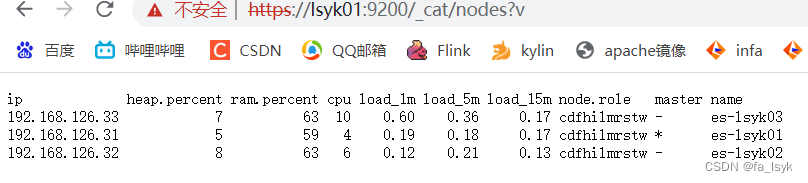
登录网页,都与之前的密码一致:elastic/fafafa
https://lsyk01:9200/_cat/nodes?v


停止服务
直接kill
为了测试master自动漂移,先把lsyk01停掉
ps -ef |grep elasticsearch # 查出来pid kill -9 pid- 1
- 2
- 3
- 4
发现maser的确变了:

再次起来:
/opt/elasticsearch-8.3.2/bin/elasticsearch -d- 1

简单使用
请见我的其他文章
Elasticsearch 8.3.2 使用
-
相关阅读:
LeetCode_链表的回文结构
Axios 请求响应结果的结构
Shader中的渲染路径LightMode
华为云应用中间件DCS系列—Redis实现(社交APP)实时评论
web安全学习笔记(12)
限流器 github的ratelimiter
class.forName() 里面都发生了啥?一文搞懂 Spi 机制
Web 应用开发之文件下载
2020年计网408
JVM
- 原文地址:https://blog.csdn.net/qq_41187116/article/details/126058027
