-
部署wordpress项目
项目wordpress
实验目的:
熟悉yum和编译安装操作
锻炼关联性思维,便于以后做项目
nginx 编译安装
1、安装源码包
[root@linux-server ~]# yum -y install gcc make zlib-devel pcre pcre-devel openssl-devel [root@linux-server ~]# wget http://nginx.org/download/nginx-1.16.1.tar.gz [root@linux-server ~]# tar xzf nginx-1.16.1.tar.gz- 1
- 2
- 3
2、编译安装
[root@linux-server nginx-1.16.1]# ./configure --user=www --group=www --prefix=/usr/local/nginx [root@linux-server nginx-1.16.1]# make #编译文件 [root@linux-server nginx-1.16.1]# make install #安装文件- 1
- 2
- 3
- 4
3、nginx 操作
[root@linux-server ~]# useradd www #创建nginx用户 [root@linux-server ~]# /usr/local/nginx/sbin/nginx #启动nginx [root@linux-server ~]# systemctl stop firewalld #关闭防火墙 停止nginx [root@linux-server nginx-1.16.1]# /usr/local/nginx/sbin/nginx -s stop- 1
- 2
- 3
- 4
- 5
- 6
4、访问

mysql 编译安装
1、清理安装环境
# systemctl stop mariadb mysqld # yum erase mariadb mariadb-server mariadb-libs mariadb-devel -y # userdel -r mysql # rm -rf /etc/my* # rm -rf /var/lib/mysql- 1
- 2
- 3
- 4
- 5
2、创建mysql用户
[root@mysql-server ~]# useradd -r mysql -M -s /bin/nologin -M 不创建用户的家目录- 1
- 2
3、从官网下载tar包
wget https://dev.mysql.com/get/Downloads/MySQL-5.7/mysql-boost-5.7.27.tar.gz
4、安装编译工具
# 请确保yum源可以用 [base|epel] # yum -y install ncurses ncurses-devel openssl-devel bison gcc gcc-c++ make cmake- 1
- 2
5、创建mysql目录
[root@mysql-server ~]# mkdir -p /usr/local/{data,mysql,log}- 1
6、解压
[root@mysql-server ~]# tar xzvf mysql-boost-5.7.27.tar.gz- 1
7、编译安装
cd 解压的mysql目录 [root@mysql-server ~]# cd mysql-5.7.27/ [root@mysql-server mysql-5.7.27]# cmake . \ -DWITH_BOOST=boost/boost_1_59_0/ \ -DCMAKE_INSTALL_PREFIX=/usr/local/mysql \ -DSYSCONFDIR=/etc \ -DMYSQL_DATADIR=/usr/local/data \ -DINSTALL_MANDIR=/usr/share/man \ -DMYSQL_TCP_PORT=3306 \ -DMYSQL_UNIX_ADDR=/tmp/mysql.sock \ -DDEFAULT_CHARSET=utf8 \ -DEXTRA_CHARSETS=all \ -DDEFAULT_COLLATION=utf8_general_ci \ -DWITH_READLINE=1 \ -DWITH_SSL=system \ -DWITH_EMBEDDED_SERVER=1 \ -DENABLED_LOCAL_INFILE=1 \ -DWITH_INNOBASE_STORAGE_ENGINE=1- 1
- 2
- 3
- 4
- 5
- 6
- 7
- 8
- 9
- 10
- 11
- 12
- 13
- 14
- 15
- 16
- 17
- 18
- 19
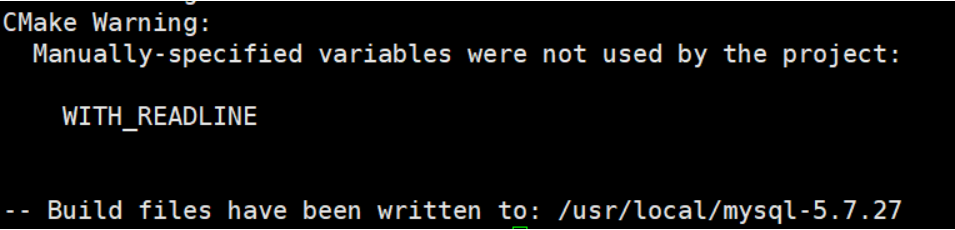
[root@mysql-server mysql-5.7.27]# make && make install 如果安装出错,想重新安装: 不用重新解压,只需要删除安装目录中的缓存文件CMakeCache.txt- 1
- 2
- 3

**需要很长时间!**大约半小时
8、初始化
[root@mysql-server mysql-5.7.27]# cd /usr/local/mysql [root@mysql-server mysql]# chown -R mysql.mysql . [root@mysql-server mysql]# ./bin/mysqld --initialize --user=mysql --basedir=/usr/local/mysql --datadir=/usr/local/data ---初始化完成之后,一定要记住提示最后的密码用于登陆或者修改密码- 1
- 2
- 3

初始化,只需要初始化一次
[root@mysql-server ~]# vim /etc/my.cnf ---如果打开文件有内容将文件中所有内容注释掉,在添加如下内容 [mysqld] basedir=/usr/local/mysql #指定安装目录 datadir=/usr/local/data #指定数据存放目录- 1
- 2
- 3
- 4

9、启动mysql
[root@mysql-server ~]# cd /usr/local/mysql [root@mysql-server mysql]# ./bin/mysqld_safe --user=mysql & 启动之后再按一下回车!即可后台运行- 1
- 2
- 3
- 4

10、systemctl启动方式
- 拷贝启动脚本到/etc/init.d/目录下,并改名mysqld
[root@qfedu.com mysql]# cp support-files/mysql.server /etc/init.d/mysqld [root@qfedu.com mysql]# ls -l /etc/init.d/mysqld -rwxr-xr-x 1 root root 10588 Aug 1 18:33 /etc/init.d/mysqld- 1
- 2
- 3
- 重新加载系统服务
[root@localhost mysql]# systemctl daemon-reload- 1
- 启动MySQL数据库,并检查端口监听状态
[root@localhost mysql]# systemctl stop mysqld --停止mysqld # 或者 [root@localhost mysql]# systemctl start mysqld --启动mysqld Starting MySQL. SUCCESS! [root@localhost mysql]# netstat -lntp | grep 3306 tcp6 0 0 :::3306 :::* LISTEN 16744/mysqld- 1
- 2
- 3
- 4
- 5
- 6
- 7
11、创建密码并修改数据库
[root@mysql-server mysql]# /usr/local/mysql/bin/mysql -uroot -p'GP9TKGgY9i/8' mysql: [Warning] Using a password on the command line interface can be insecure. Welcome to the MySQL monitor. Commands end with ; or \g. Your MySQL connection id is 2 Server version: 5.7.27 Copyright (c) 2000, 2019, Oracle and/or its affiliates. All rights reserved. Oracle is a registered trademark of Oracle Corporation and/or its affiliates. Other names may be trademarks of their respective owners. Type 'help;' or '\h' for help. Type '\c' to clear the current input statement. mysql> create database wordpress mysql> exit- 1
- 2
- 3
- 4
- 5
- 6
- 7
- 8
- 9
- 10
- 11
- 12
- 13
- 14
- 15
- 16
yum安装php
[root@mysql-server ~]# yum install -y http://rpms.remirepo.net/enterprise/remi-release-7.rpm [root@mysql-server ~]# yum install php80-php-xsl php80-php php80-php-cli php80-php-devel php80-php-gd php80-php-pdo php80-php-mysql php80-php-fpm -y [root@mysql-server ~]# systemctl start php80-php-fpm- 1
- 2
- 3
测试各软件
[root@localhost ~]# ss -tnlp | grep -P ":80|:3306|:9000" LISTEN 0 128 *:80 *:* users:(("nginx",pid=121623,fd=6),("nginx",pid=94310,fd=6)) LISTEN 0 128 127.0.0.1:9000 *:* users:(("php-fpm",pid=123775,fd=9),("php-fpm",pid=96348,fd=9),("php-fpm",pid=96347,fd=9),("php-fpm",pid=96346,fd=9),("php-fpm",pid=96345,fd=9),("php-fpm",pid=96344,fd=9),("php-fpm",pid=96343,fd=7),("php-fpm",pid=11326,fd=9),("php-fpm",pid=10570,fd=9)) LISTEN 0 80 [::]:3306 [::]:* users:(("mysqld",pid=71720,fd=28))- 1
- 2
- 3
- 4
- 5

代码上线
1、拷贝代码包到系统并解压

2、拷贝到nginx项目目录
rm -rf /usr/local/nginx/html/* cp -r wordpress/* /usr/local/nginx/html/- 1
- 2
3、修改配置并重启
vim /usr/local/nginx/conf/nginx.conf # 修改nginx配置,删除35-79行内容,添加php后端,并重启nginx # nginx 配置文件设置 server { listen 80; server_name _; location / { root html; index index.php; } location ~ \.php$ { root html; #指定网站目录 fastcgi_pass 127.0.0.1:9000; fastcgi_index index.php; fastcgi_param SCRIPT_FILENAME $document_root$fastcgi_script_name; include fastcgi_params; } } /usr/local/nginx/sbin/nginx -s reload- 1
- 2
- 3
- 4
- 5
- 6
- 7
- 8
- 9
- 10
- 11
- 12
- 13
- 14
- 15
- 16
- 17
- 18
- 19
访问并安装
-
相关阅读:
d八月会议
SpringSecurity原理:探究SpringSecurity运作流程
使用Python查询国内 COVID-19 疫情
操作系统computer operate system
@Transactional 注意事项
实验三 利用flask框架和Echarts实现电影榜单可视化
地震勘探原理部分问题解答
开源笔记leanote搭建记录
代码随想录 | Day 59 - LeetCode 503. 下一个更大元素II、LeetCode 42. 接雨水
ZROI Easy Sum(生成函数,分块,dp,组合,多项式)
- 原文地址:https://blog.csdn.net/lxhhk1/article/details/136616744
