-
用echarts在vue2中实现3d饼图
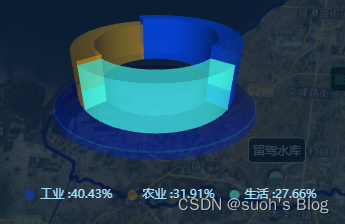
先看效果,再看文章:
一、安装插件
3d的图不仅用到echarts,还用到了echarts-gl,因此都需要安装一下哦~
- npm install echarts
- npm install echarts-gl@2.0.9 //可以指定版本,也可不指定
二、在main.js中引入
- import * as echarts from "echarts";
- import 'echarts-gl';
- Vue.prototype.$echarts = echarts;
三、在组件中使用
直接复制粘贴吧,省事
- <template>
- <div class="ybjgtzz">
- <!-- 饼图 -->
- <div class="container">
- <div class="chartsGl" id="charts"></div>
- <!-- 饼图下面的底座 -->
- <div class="buttomCharts"></div>
- </div>
- </div>
- </template>
- <script>
- export default {
- name: "Zysjg",
- data() {
- return {
- optionData: [
- {
- name: '工业',//名称
- value: 19,//值
- itemStyle: {//颜色
- color: 'rgba(3, 62, 209,0.5)'
- }
- }, {
- name: '生活',
- value: 13,
- itemStyle: {
- color: 'rgba(61, 222, 207,0.5)',
- }
- }, {
- name: '农业',
- value: 15,
- itemStyle: {
- color: 'rgba(193, 142, 34,0.3)'
- }
- },
- ],
- option: {}
- };
- },
- mounted() {
- this.$nextTick(() => {
- this.init();
- });
- },
- methods: {
- //初始化构建
- init() {
- //构建3d饼状图
- let myChart = this.$echarts.init(document.getElementById('charts'));
- // 传入数据生成 option ; getPie3D(数据,透明的空心占比(调节中间空心范围的0就是普通饼1就很镂空))
- this.option = this.getPie3D(this.optionData, 0.85);
- //将配置项设置进去
- myChart.setOption(this.option);
- //鼠标移动上去特效效果
- // this.bindListen(myChart);
- },
- //配置构建 pieData 饼图数据 internalDiameterRatio:透明的空心占比
- getPie3D(pieData, internalDiameterRatio) {
- let that = this;
- let series = [];
- let sumValue = 0;
- let startValue = 0;
- let endValue = 0;
- let legendData = [];
- let legendBfb = [];
- let k = 1 - internalDiameterRatio;
- pieData.sort((a, b) => {
- return (b.value - a.value);
- });
- // 为每一个饼图数据,生成一个 series-surface(参数曲面) 配置
- for (let i = 0; i < pieData.length; i++) {
- sumValue += pieData[i].value;
- let seriesItem = {
- //系统名称
- name: typeof pieData[i].name === 'undefined' ? `series${i}` : pieData[i].name,
- type: 'surface',
- //是否为参数曲面(是)
- parametric: true,
- //曲面图网格线(否)上面一根一根的
- wireframe: {
- show: false
- },
- pieData: pieData[i],
- pieStatus: {
- selected: false,
- hovered: false,
- k: k
- },
- //设置饼图在容器中的位置(目前没发现啥用)
- center: ['80%', '100%'],
- radius: '60%',
- };
- //曲面的颜色、不透明度等样式。
- if (typeof pieData[i].itemStyle != 'undefined') {
- let itemStyle = {};
- typeof pieData[i].itemStyle.color != 'undefined' ? itemStyle.color = pieData[i].itemStyle.color : null;
- typeof pieData[i].itemStyle.opacity != 'undefined' ? itemStyle.opacity = pieData[i].itemStyle.opacity : null;
- seriesItem.itemStyle = itemStyle;
- }
- series.push(seriesItem);
- }
- // 使用上一次遍历时,计算出的数据和 sumValue,调用 getParametricEquation 函数,
- // 向每个 series-surface 传入不同的参数方程 series-surface.parametricEquation,也就是实现每一个扇形。
- legendData = [];
- legendBfb = [];
- for (let i = 0; i < series.length; i++) {
- endValue = startValue + series[i].pieData.value;
- series[i].pieData.startRatio = startValue / sumValue;
- series[i].pieData.endRatio = endValue / sumValue;
- series[i].parametricEquation = that.getParametricEquation(series[i].pieData.startRatio, series[i].pieData.endRatio,
- false, false, k, series[i].pieData.value);
- startValue = endValue;
- let bfb = that.fomatFloat(series[i].pieData.value / sumValue, 4);
- legendData.push({
- name: series[i].name,
- value: bfb
- });
- legendBfb.push({
- name: series[i].name,
- value: bfb
- });
- }
- //(第二个参数可以设置你这个环形的高低程度)
- let boxHeight = this.getHeight3D(series, 20);//通过传参设定3d饼/环的高度
- // 准备待返回的配置项,把准备好的 legendData、series 传入。
- let option = {
- //图例组件
- legend: {
- data: legendData,
- //图例列表的布局朝向。
- orient: 'horizontal',
- center: 0,
- bottom: 0,
- //图例文字每项之间的间隔
- itemGap: 15,
- textStyle: {
- color: '#A1E2FF',
- fontSize: '12px'
- },
- itemHeight: 10, // 修改icon图形大小
- itemWidth: 10, // 修改icon图形大小
- show: true,
- icon: 'circle',
- //格式化图例文本(我是数值什么显示什么)
- formatter: function (name) {
- var target;
- for (var i = 0, l = pieData.length; i < l; i++) {
- if (pieData[i].name == name) {
- target = pieData[i].value;
- }
- }
- return `${name}: ${target}`;
- },
- // 这个可以显示百分比那种(可以根据你想要的来配置)
- formatter: function (param) {
- let item = legendBfb.filter(item => item.name == param)[0];
- let bfs = that.fomatFloat(item.value * 100, 2) + "%";
- console.log(item.name)
- return `${item.name} :${bfs}`;
- }
- },
- //移动上去提示的文本内容(我没来得及改 你们可以根据需求改)
- tooltip: {
- formatter: params => {
- if (params.seriesName !== 'mouseoutSeries' && params.seriesName !== 'pie2d') {
- let bfb = ((option.series[params.seriesIndex].pieData.endRatio - option.series[params.seriesIndex].pieData.startRatio) *
- 100).toFixed(2);
- return `${params.seriesName}<br/>` +
- `<span style="display:inline-block;margin-right:5px;border-radius:10px;width:10px;height:10px;background-color:${params.color};"></span>` +
- `${bfb}`;
- }
- }
- },
- labelLine: {
- show: true,
- lineStyle: {
- color: '#7BC0CB',
- },
- },
- label: {
- show: true,
- position: 'outside',
- formatter: '{b} \n{c} {d}%',
- },
- //这个可以变形
- xAxis3D: {
- min: -1,
- max: 1
- },
- yAxis3D: {
- min: -1,
- max: 1
- },
- zAxis3D: {
- min: -1,
- max: 1
- },
- //此处是修改样式的重点
- grid3D: {
- show: false,
- boxHeight: boxHeight, //圆环的高度
- //这是饼图的位置
- top: '-20.5%',
- left: '-4%',
- viewControl: { //3d效果可以放大、旋转等,请自己去查看官方配置
- alpha: 25, //角度(这个很重要 调节角度的)
- distance: 160,//调整视角到主体的距离,类似调整zoom(这是整体大小)
- rotateSensitivity: 0, //设置为0无法旋转
- zoomSensitivity: 0, //设置为0无法缩放
- panSensitivity: 0, //设置为0无法平移
- autoRotate: false //自动旋转
- }
- },
- series: series
- };
- return option;
- },
- //获取3d丙图的最高扇区的高度
- getHeight3D(series, height) {
- series.sort((a, b) => {
- return (b.pieData.value - a.pieData.value);
- })
- return height * 25 / series[0].pieData.value;
- },
- // 生成扇形的曲面参数方程,用于 series-surface.parametricEquation
- getParametricEquation(startRatio, endRatio, isSelected, isHovered, k, h) {
- // 计算
- let midRatio = (startRatio + endRatio) / 2;
- let startRadian = startRatio * Math.PI * 2;
- let endRadian = endRatio * Math.PI * 2;
- let midRadian = midRatio * Math.PI * 2;
- // 如果只有一个扇形,则不实现选中效果。
- if (startRatio === 0 && endRatio === 1) {
- isSelected = false;
- }
- // 通过扇形内径/外径的值,换算出辅助参数 k(默认值 1/3)
- k = typeof k !== 'undefined' ? k : 1 / 3;
- // 计算选中效果分别在 x 轴、y 轴方向上的位移(未选中,则位移均为 0)
- let offsetX = isSelected ? Math.cos(midRadian) * 0.1 : 0;
- let offsetY = isSelected ? Math.sin(midRadian) * 0.1 : 0;
- // 计算高亮效果的放大比例(未高亮,则比例为 1)
- let hoverRate = isHovered ? 1.05 : 1;
- // 返回曲面参数方程
- return {
- u: {
- min: -Math.PI,
- max: Math.PI * 3,
- step: Math.PI / 32
- },
- v: {
- min: 0,
- max: Math.PI * 2,
- step: Math.PI / 20
- },
- x: function (u, v) {
- if (u < startRadian) {
- return offsetX + Math.cos(startRadian) * (1 + Math.cos(v) * k) * hoverRate;
- }
- if (u > endRadian) {
- return offsetX + Math.cos(endRadian) * (1 + Math.cos(v) * k) * hoverRate;
- }
- return offsetX + Math.cos(u) * (1 + Math.cos(v) * k) * hoverRate;
- },
- y: function (u, v) {
- if (u < startRadian) {
- return offsetY + Math.sin(startRadian) * (1 + Math.cos(v) * k) * hoverRate;
- }
- if (u > endRadian) {
- return offsetY + Math.sin(endRadian) * (1 + Math.cos(v) * k) * hoverRate;
- }
- return offsetY + Math.sin(u) * (1 + Math.cos(v) * k) * hoverRate;
- },
- z: function (u, v) {
- if (u < -Math.PI * 0.5) {
- return Math.sin(u);
- }
- if (u > Math.PI * 2.5) {
- return Math.sin(u) * h * .1;
- }
- return Math.sin(v) > 0 ? 1 * h * .1 : -1;
- }
- };
- },
- // 监听鼠标事件,实现饼图选中效果(单选),近似实现高亮(放大)效果。
- bindListen(myChart) {
- let that = this;
- let selectedIndex = '';
- let hoveredIndex = '';
- // 监听点击事件,实现选中效果(单选)
- myChart.on('click', function (params) {
- // 从 option.series 中读取重新渲染扇形所需的参数,将是否选中取反。
- let isSelected = !that.option.series[params.seriesIndex].pieStatus.selected;
- let isHovered = that.option.series[params.seriesIndex].pieStatus.hovered;
- let k = that.option.series[params.seriesIndex].pieStatus.k;
- let startRatio = that.option.series[params.seriesIndex].pieData.startRatio;
- let endRatio = that.option.series[params.seriesIndex].pieData.endRatio;
- // 如果之前选中过其他扇形,将其取消选中(对 option 更新)
- if (selectedIndex !== '' && selectedIndex !== params.seriesIndex) {
- that.option.series[selectedIndex].parametricEquation = that.getParametricEquation(that.option.series[
- selectedIndex].pieData
- .startRatio, that.option.series[selectedIndex].pieData.endRatio, false, false, k, that.option.series[
- selectedIndex].pieData
- .value);
- that.option.series[selectedIndex].pieStatus.selected = false;
- }
- // 对当前点击的扇形,执行选中/取消选中操作(对 option 更新)
- that.option.series[params.seriesIndex].parametricEquation = that.getParametricEquation(startRatio, endRatio,
- isSelected,
- isHovered, k, that.option.series[params.seriesIndex].pieData.value);
- that.option.series[params.seriesIndex].pieStatus.selected = isSelected;
- // 如果本次是选中操作,记录上次选中的扇形对应的系列号 seriesIndex
- isSelected ? selectedIndex = params.seriesIndex : null;
- // 使用更新后的 option,渲染图表
- myChart.setOption(that.option);
- });
- // 监听 mouseover,近似实现高亮(放大)效果
- myChart.on('mouseover', function (params) {
- // 准备重新渲染扇形所需的参数
- let isSelected;
- let isHovered;
- let startRatio;
- let endRatio;
- let k;
- // 如果触发 mouseover 的扇形当前已高亮,则不做操作
- if (hoveredIndex === params.seriesIndex) {
- return;
- // 否则进行高亮及必要的取消高亮操作
- } else {
- // 如果当前有高亮的扇形,取消其高亮状态(对 option 更新)
- if (hoveredIndex !== '') {
- // 从 option.series 中读取重新渲染扇形所需的参数,将是否高亮设置为 false。
- isSelected = that.option.series[hoveredIndex].pieStatus.selected;
- isHovered = false;
- startRatio = that.option.series[hoveredIndex].pieData.startRatio;
- endRatio = that.option.series[hoveredIndex].pieData.endRatio;
- k = that.option.series[hoveredIndex].pieStatus.k;
- // 对当前点击的扇形,执行取消高亮操作(对 option 更新)
- that.option.series[hoveredIndex].parametricEquation = that.getParametricEquation(startRatio, endRatio,
- isSelected,
- isHovered, k, that.option.series[hoveredIndex].pieData.value);
- that.option.series[hoveredIndex].pieStatus.hovered = isHovered;
- // 将此前记录的上次选中的扇形对应的系列号 seriesIndex 清空
- hoveredIndex = '';
- }
- // 如果触发 mouseover 的扇形不是透明圆环,将其高亮(对 option 更新)
- if (params.seriesName !== 'mouseoutSeries' && params.seriesName !== 'pie2d') {
- // 从 option.series 中读取重新渲染扇形所需的参数,将是否高亮设置为 true。
- isSelected = that.option.series[params.seriesIndex].pieStatus.selected;
- isHovered = true;
- startRatio = that.option.series[params.seriesIndex].pieData.startRatio;
- endRatio = that.option.series[params.seriesIndex].pieData.endRatio;
- k = that.option.series[params.seriesIndex].pieStatus.k;
- // 对当前点击的扇形,执行高亮操作(对 option 更新)
- that.option.series[params.seriesIndex].parametricEquation = that.getParametricEquation(startRatio, endRatio,
- isSelected, isHovered, k, that.option.series[params.seriesIndex].pieData.value + 5);
- that.option.series[params.seriesIndex].pieStatus.hovered = isHovered;
- // 记录上次高亮的扇形对应的系列号 seriesIndex
- hoveredIndex = params.seriesIndex;
- }
- // 使用更新后的 option,渲染图表
- myChart.setOption(that.option);
- }
- });
- // 修正取消高亮失败的 bug
- myChart.on('globalout', function () {
- // 准备重新渲染扇形所需的参数
- let isSelected;
- let isHovered;
- let startRatio;
- let endRatio;
- let k;
- if (hoveredIndex !== '') {
- // 从 option.series 中读取重新渲染扇形所需的参数,将是否高亮设置为 true。
- isSelected = that.option.series[hoveredIndex].pieStatus.selected;
- isHovered = false;
- k = that.option.series[hoveredIndex].pieStatus.k;
- startRatio = that.option.series[hoveredIndex].pieData.startRatio;
- endRatio = that.option.series[hoveredIndex].pieData.endRatio;
- // 对当前点击的扇形,执行取消高亮操作(对 option 更新)
- that.option.series[hoveredIndex].parametricEquation = that.getParametricEquation(startRatio, endRatio,
- isSelected,
- isHovered, k, that.option.series[hoveredIndex].pieData.value);
- that.option.series[hoveredIndex].pieStatus.hovered = isHovered;
- // 将此前记录的上次选中的扇形对应的系列号 seriesIndex 清空
- hoveredIndex = '';
- }
- // 使用更新后的 option,渲染图表
- myChart.setOption(that.option);
- });
- },
- //这是一个自定义计算的方法
- fomatFloat(num, n) {
- var f = parseFloat(num);
- if (isNaN(f)) {
- return false;
- }
- f = Math.round(num * Math.pow(10, n)) / Math.pow(10, n); // n 幂
- var s = f.toString();
- var rs = s.indexOf('.');
- //判定如果是整数,增加小数点再补0
- if (rs < 0) {
- rs = s.length;
- s += '.';
- }
- while (s.length <= rs + n) {
- s += '0';
- }
- return s;
- },
- },
- // 准备待返回的配置项,把准备好的 legendData、series 传入。
- }
- </script>
- <style lang="scss" scoped>
- //饼图(外面的容器)
- .container {
- width: 90%;
- height: 100%;
- padding-top: 15px;
- }
- //饼图的大小
- .chartsGl {
- height: 200px;
- width: 380px;
- }
- //饼图底座(我也想给你们底座图片 可是我不知道咋给)
- .buttomCharts {
- background: center top url("../imgs/u111.png") no-repeat;
- background-size: 100% 100%;
- height: 95px;
- width: 204px;
- margin-top: -141px;
- margin-left: 21%;
- }
- .ybjgtzz {
- overflow-y: auto;
- padding: 10px;
- height: 250px;
- box-sizing: border-box;
- }
- </style>
四、常修改的参数
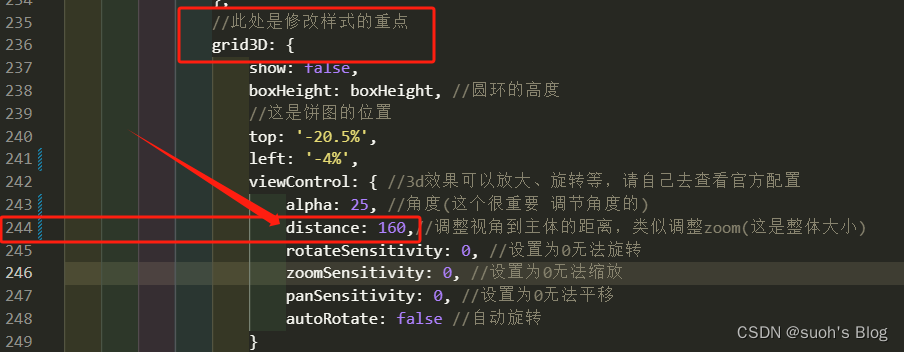
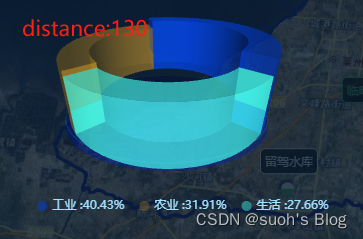
1、修改3d饼图大小,在大概244行的位置,grid3D的对象里面,修改distance属性,即可调整
值越小,图越大

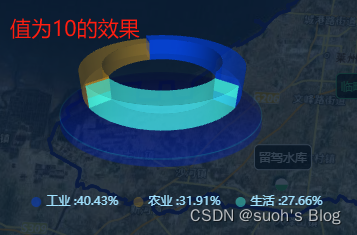
2、修改3d饼图视角高度,在大概161行的位置,修改函数的第二个参数


3、修改3d饼图颜色,直接在data中的optionData里面修改就行了
 4、修改饼图位置,这个常用,也是在grid3D这个属性里面设置,在大概240行的位置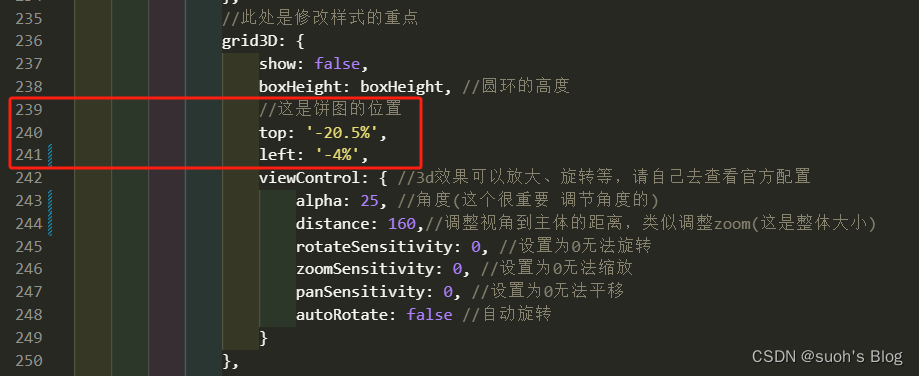
在3d饼图中设置下面这两属性是没用的,所以这里请注意一下,记得去grid3D里面修改他的位置

最后乘上官方文档例子:echarts图表集
-
相关阅读:
frp 反向隧道代理(内网穿透)之协议 “websocket”
电脑重装系统后Win11用户名怎么更改
【C++】STL入门—— 一张图带你了解常用的string类函数
用帝国主义竞争算法(ICA)求解旅行商问题(TSP)(Matlab代码实现)
Qt QtWidgets相关问题汇总
浅谈分布式任务调度系统Celery的设计与实现
构造函数原型prototype
【Jmeter】二次开发
core sound driver详解
澳大利亚博士后招聘|国立大学—太阳能电池方向
- 原文地址:https://blog.csdn.net/qq_41579104/article/details/133949902
