-
【WPF】填坑 - WindowChrome 自定义窗口完美实现
【WPF】填坑 - WindowChrome 自定义窗口完美实现
概述
前面写过一篇关于在 WPF 中通过对 WindowChrome 的操作实现自定义窗口并保留一部分的系统功能。
【WPF】WindowChrome 自定义窗口完美实现
有小伙伴看过之后反应,其中有些功能不够完善,本篇来对前面填坑。Demo 说明
- 基于 .net6 WPF MVVM 模式
- 不在 MainWindow 上进行修改而是新建一个 ShellView 的窗口作为主窗口
- 必要的 NuGet 包
CommunityToolkit.MvvmMicrosoft.Xaml.Behaviors.Wpf
基本样式资源
<Brush x:Key="TitleBar">#F0F8FFBrush> <Brush x:Key="themeColor">#696969Brush> <Brush x:Key="MouseOverBackground">#87CEEBBrush> <Brush x:Key="MouseOverForeground">#F0F8FFBrush> <Geometry x:Key="Minimize">M928.2 548h-832c-17.7 0-32-14.3-32-32s14.3-32 32-32h832c17.7 0 32 14.3 32 32s-14.3 32-32 32zGeometry> <Geometry x:Key="Maximize">M812.3 959.4H213.7c-81.6 0-148-66.4-148-148V212.9c0-81.6 66.4-148 148-148h598.5c81.6 0 148 66.4 148 148v598.5C960.3 893 893.9 959.4 812.3 959.4zM213.7 120.9c-50.7 0-92 41.3-92 92v598.5c0 50.7 41.3 92 92 92h598.5c50.7 0 92-41.3 92-92V212.9c0-50.7-41.3-92-92-92H213.7zGeometry> <Geometry x:Key="Restore">M714.666667 256H138.666667a53.393333 53.393333 0 0 0-53.333334 53.333333v576a53.393333 53.393333 0 0 0 53.333334 53.333334h576a53.393333 53.393333 0 0 0 53.333333-53.333334V309.333333a53.393333 53.393333 0 0 0-53.333333-53.333333z m10.666666 629.333333a10.666667 10.666667 0 0 1-10.666666 10.666667H138.666667a10.666667 10.666667 0 0 1-10.666667-10.666667V309.333333a10.666667 10.666667 0 0 1 10.666667-10.666666h576a10.666667 10.666667 0 0 1 10.666666 10.666666z m213.333334-746.666666v565.333333a21.333333 21.333333 0 0 1-42.666667 0V138.666667a10.666667 10.666667 0 0 0-10.666667-10.666667H320a21.333333 21.333333 0 0 1 0-42.666667h565.333333a53.393333 53.393333 0 0 1 53.333334 53.333334zGeometry> <Geometry x:Key="Close">M952.311261 921.328619 542.892591 510.919389 950.154131 102.671381c8.53028-8.55177 8.53028-22.416546 0-30.967292-8.532327-8.55177-22.360264-8.55177-30.892591 0l-407.262564 408.248008L104.737436 71.704089c-8.53028-8.55177-22.36231-8.55177-30.892591 0-8.529257 8.55177-8.529257 22.416546 0 30.967292l407.262564 408.248008L71.687716 921.328619c-8.529257 8.55177-8.529257 22.416546 0 30.967292 4.26514 4.27435 9.856485 6.41306 15.446807 6.41306 5.590322 0 11.181667-2.13871 15.446807-6.41306l409.41867-410.409231 409.41867 410.409231c4.266164 4.27435 9.855462 6.41306 15.446807 6.41306 5.591345 0 11.17962-2.13871 15.446807-6.41306C960.841541 943.745165 960.841541 929.879366 952.311261 921.328619zGeometry> <ImageSource x:Key="icon">pack://SiteOfOrigin:,,,/icon.icoImageSource>- 1
- 2
- 3
- 4
- 5
- 6
- 7
- 8
- 9
- 10
- 11
- 12
- 13
- 14
图片自己换,不在这里提供
布局

主体分为,TitleBar 和 Content 两部分,也就是非用户区和用户区ShellView Style
(SystemParameters.WindowNonClientFrameThickness).Top获取系统窗口标题栏可触发窗口移动的高度,标题栏上的按钮也通过这里高度
SystemParameters.SmallIconWidthSystemParameters.SmallIconHeight图标的宽和高,一般为16*16 Pixel
WindowChrome 的处理,这一块相对来说其实比较固定,下面这样处理即可 不保留三大键<WindowChrome CaptionHeight="{Binding Path=(SystemParameters.WindowNonClientFrameThickness).Top}" GlassFrameThickness="1" NonClientFrameEdges="None" ResizeBorderThickness="5" UseAeroCaptionButtons="False" />- 1
- 2
- 3
- 4
- 5
- 6
通过自定义 Template 实现前面的布局
<Style x:Key="ShellViewStyle" TargetType="{x:Type Window}">"FontFamily" Value="Microsoft YaHei UI" />"WindowChrome.WindowChrome" >"{Binding Path=(SystemParameters.WindowNonClientFrameThickness).Top}" GlassFrameThickness="1" NonClientFrameEdges="None" ResizeBorderThickness="5" UseAeroCaptionButtons="False" /> "Icon" Value="{DynamicResource icon}" /> "Template"> Style>"{x:Type Window}"> x:Name="WindowBorder" BorderBrush="{TemplateBinding BorderBrush}" BorderThickness="{TemplateBinding BorderThickness}"> x:Name="LayoutRoot"> "Auto" /> "*" /> x:Name="WindowTitlePanel" Grid.Row="0" Height="{Binding Path=(SystemParameters.WindowNonClientFrameThickness).Top}" Background="{DynamicResource TitleBar}"> "*" /> "Auto" /> "Horizontal"> "{x:Static SystemParameters.SmallIconWidth}" Height="{x:Static SystemParameters.SmallIconHeight}" Margin="5,0" Source="{TemplateBinding Icon}" WindowChrome.IsHitTestVisibleInChrome="True"/> "Center" VerticalAlignment="Center" Content="{TemplateBinding Title}" FontSize="{x:Static SystemFonts.CaptionFontSize}" IsTabStop="False" /> x:Name="WindowCommandButtonsPanel" Grid.Column="1" HorizontalAlignment="Right" Orientation="Horizontal" WindowChrome.IsHitTestVisibleInChrome="True"> "1" Background="{TemplateBinding Background}"> "*" /> "28" /> "False"> "Stretch" VerticalAlignment="Stretch" Content="{TemplateBinding Content}" KeyboardNavigation.TabNavigation="Cycle" /> "1" Background="{DynamicResource themeColor}"> x:Name="ResizeGrip" HorizontalAlignment="Right" VerticalAlignment="Bottom" IsTabStop="False" Visibility="Collapsed" /> - 1
- 2
- 3
- 4
- 5
- 6
- 7
- 8
- 9
- 10
- 11
- 12
- 13
- 14
- 15
- 16
- 17
- 18
- 19
- 20
- 21
- 22
- 23
- 24
- 25
- 26
- 27
- 28
- 29
- 30
- 31
- 32
- 33
- 34
- 35
- 36
- 37
- 38
- 39
- 40
- 41
- 42
- 43
- 44
- 45
- 46
- 47
- 48
- 49
- 50
- 51
- 52
- 53
- 54
- 55
- 56
- 57
- 58
- 59
- 60
- 61
- 62
- 63
- 64
- 65
- 66
- 67
- 68
- 69
- 70
- 71
- 72
- 73
- 74
- 75
- 76
- 77
- 78
- 79
- 80
- 81
- 82
- 83
- 84
- 85
- 86
- 87
- 88
- 89
- 90
- 91
- 92
- 93
- 94
- 95
- 96
- 97
- 98
- 99
- 100
- 101
- 102
最小化、最大、还原、关闭 按钮
<Style x:Key="WindowTitleBarButtonStyle" TargetType="{x:Type Button}">"Height" Value="{Binding Path=(SystemParameters.WindowNonClientFrameThickness).Top}" />"Width" Value="40" />"Background" Value="Transparent" /> "Foreground" Value="{DynamicResource themeColor}" /> "Template"> Style> <Style x:Key="MinimizeButtonStyle" BasedOn="{StaticResource WindowTitleBarButtonStyle}" TargetType="{x:Type Button}">"{x:Type Button}"> "{TemplateBinding Background}"> "15" Height="15"> "{TemplateBinding Tag}" Fill="{TemplateBinding Foreground}" /> "IsMouseOver" Value="True"> "Background" Value="{DynamicResource MouseOverBackground}" /> "Foreground" Value="{DynamicResource MouseOverForeground}" /> "Tag" Value="{DynamicResource Minimize}" /> Style> <Style x:Key="MaximizeButtonStyle" BasedOn="{StaticResource WindowTitleBarButtonStyle}" TargetType="{x:Type Button}">"Tag" Value="{DynamicResource Maximize}" /> Style> <Style x:Key="RestoreButtonStyle" BasedOn="{StaticResource WindowTitleBarButtonStyle}" TargetType="{x:Type Button}">"Tag" Value="{DynamicResource Restore}" /> Style> <Style x:Key="CloseButtonStyle" BasedOn="{StaticResource WindowTitleBarButtonStyle}" TargetType="{x:Type Button}">"Tag" Value="{DynamicResource Close}" /> Style>- 1
- 2
- 3
- 4
- 5
- 6
- 7
- 8
- 9
- 10
- 11
- 12
- 13
- 14
- 15
- 16
- 17
- 18
- 19
- 20
- 21
- 22
- 23
- 24
- 25
- 26
- 27
- 28
- 29
- 30
- 31
- 32
- 33
- 34
- 35
- 36
- 37
- 38
- 39
- 40
- 41
- 42
- 43
- 44
- 45
- 46
- 47
- 48
- 49
- 50
- 51
界面元素修正
- 窗口在最大化后会溢出 8 Pixel 的边距因此在最大化是需要处理边距
- 最大化按钮和还原按钮在 Window 的 WindowState 属性改变时需要做显示/隐藏处理
<ControlTemplate.Triggers> <Trigger Property="WindowState" Value="Maximized"> <Setter TargetName="LayoutRoot" Property="Margin" Value="8" /> <Setter TargetName="RestoreButton" Property="Visibility" Value="Visible" /> <Setter TargetName="MaximizeButton" Property="Visibility" Value="Collapsed" /> Trigger> <Trigger Property="WindowState" Value="Normal"> <Setter TargetName="ResizeGrip" Property="Visibility" Value="Visible" /> Trigger> ControlTemplate.Triggers>- 1
- 2
- 3
- 4
- 5
- 6
- 7
- 8
- 9
- 10
Command Binding
点击图标显示 SystemMenu 菜单模态框,通过 Behaviors 将鼠标事件 Binding 到 ViewModel 中的 Command
<i:Interaction.Triggers> <i:EventTrigger EventName="MouseLeftButtonDown"> <i:InvokeCommandAction Command="{Binding MouseLeftSystemMenuCommand}" /> i:EventTrigger> <i:EventTrigger EventName="MouseRightButtonDown"> <i:InvokeCommandAction Command="{Binding MouseRightSystemMenuCommand}" rgsToCommand="True" /> i:EventTrigger> i:Interaction.Triggers>- 1
- 2
- 3
- 4
- 5
- 6
- 7
- 8
- 9
最小化、最大化、还原、关闭按钮 Binding Command
<Button x:Name="MinimizeButton" Command="{Binding MinimizeWindowCommand}"/> <Button x:Name="RestoreButton" Command="{Binding RestoreWindowCommand}"/> <Button x:Name="MaximizeButton" Command="{Binding MaximizeWindowCommand}"/> <Button x:Name="CloseButton" Command="{Binding CloseWindowCommand}"/>- 1
- 2
- 3
- 4
- 5
- 6
- 7
- 8
- 9
- 10
- 11
- 12
Command 实现
Command 尽可能的使用 WPF 提供的系统命令
public partial class ShellViewModel : ObservableObject { private readonly Window _window; public ShellViewModel() { _window = Application.Current.MainWindow; } [RelayCommand] private void CloseWindow() { SystemCommands.CloseWindow(_window); Application.Current.Shutdown(); } [RelayCommand] private void MinimizeWindow() => SystemCommands.MinimizeWindow(_window); [RelayCommand] private void MaximizeWindow() => SystemCommands.MaximizeWindow(_window); [RelayCommand] private void RestoreWindow() => SystemCommands.RestoreWindow(_window); [RelayCommand] private void MouseLeftSystemMenu() { var pointing = _window.PointToScreen(new Point(0, 0)); if (_window.WindowState is WindowState.Maximized) pointing.X += 10; else pointing.X += 2; pointing.Y += SystemParameters.WindowNonClientFrameThickness.Top + 1; SystemCommands.ShowSystemMenu(_window, pointing); } [RelayCommand] private void MouseRightSystemMenu(MouseEventArgs e) { FrameworkElement? element = e.OriginalSource as FrameworkElement; var pointing = _window.PointToScreen(Mouse.GetPosition(element)); pointing.X += 5; pointing.Y += 5; SystemCommands.ShowSystemMenu(_window, pointing); } }- 1
- 2
- 3
- 4
- 5
- 6
- 7
- 8
- 9
- 10
- 11
- 12
- 13
- 14
- 15
- 16
- 17
- 18
- 19
- 20
- 21
- 22
- 23
- 24
- 25
- 26
- 27
- 28
- 29
- 30
- 31
- 32
- 33
- 34
- 35
- 36
- 37
- 38
- 39
- 40
- 41
- 42
- 43
- 44
- 45
- 46
- 47
- 48
- 49
- 50
- 51
- 52
效果
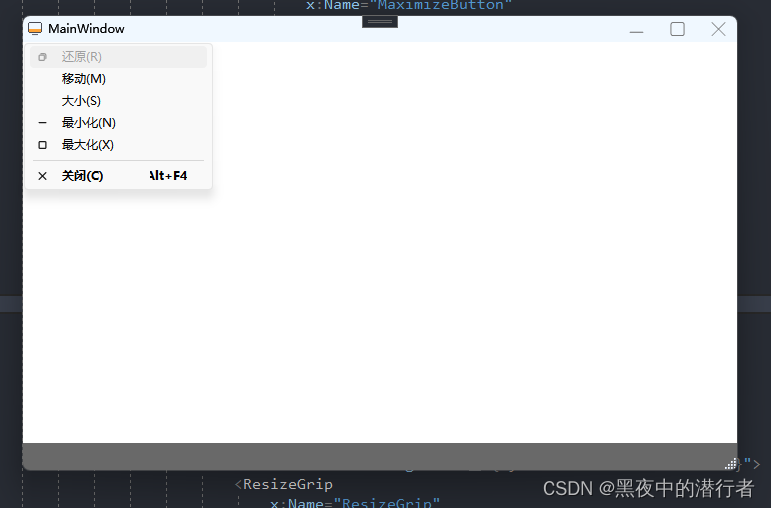


通过 WindowChrome 对窗口进行高度自定义化,可以最大限度地保留系统功能,比如窗口动画,点击任务栏图标的一些操作等,最主要的我想还是窗口的性能是最接近原生性能的。
这篇文章也只是更加完善了前面文章的不足,后面有更完善的部分,同样会以文章的形式更新出来,供大家参考。
-
相关阅读:
一个Entity Framework Core的性能优化案例
线性回归
4位资深专家多年大厂经验分享出Flink技术架构设计与实现原理
尚硅谷html5+css3(1)
ubuntu apt工具软件操作
GPTCache:革新大模型缓存,降低成本,提升效率
光学镜头参数之—分辨率
信奥中的数学:唯一分解定理(算术基本定理)
从培训班出来之后找工作的经历,教会了我五件事.....
Android Studio支持预览Markdown文件
- 原文地址:https://blog.csdn.net/qq_43562262/article/details/133244427