-
RHCSA 文件的上传下载(Linux-Windows)
目录
一、SCP
上传(Windows--->Linux):
在Windows本地端命令窗口中转到需要上传的文件地址
- [D:\]$ cd dat
- [D:\dat]$ scp -r day1 root@192.168.30.128:/root/Desktop
day1 需上传到Linux的目录文件
root@192.168.30.128:/root/Desktop 远程账号下的存储地址

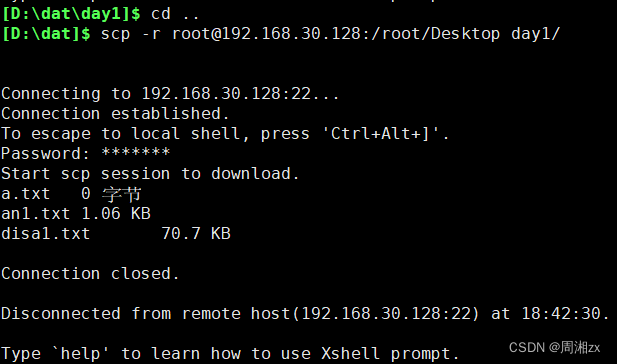
下载(Linux--->Windows):
同样需转到需下载的文件目录地址下
与上传不同的是两个地址的位置转变
- [D:\dat\day1]$ cd ..
- [D:\dat]$ scp -r root@192.168.30.128:/root/Desktop day1/
二、STFP
上传/下载目录的时候需要在get/put后面添加-r选项
- # 远程登陆
- [D:\dat]$ sftp root@192.168.30.128
- # 查看在远程服务器上的工作路
- sftp:/root> pwd
- Remote working directory: /root
- # 查看在本地工作目录(local)
- sftp:/root> lpwd
- Local directory is D:\dat
- # 上传文件
- sftp:/root> put D:\dat\day1\a.txt Desktop
- sftp: D:\dat\Desktop does not exist
- Uploading a.txt to remote:/root/a.txt
- sftp: sent 0 字节 in 0.00 seconds
- # 下载文件
- sftp:/root> get Desktop/a.txt
- Fetching /root/Desktop/a.txt to a.txt
- sftp: received 0 字节 in 0.00 seconds
三、XFTP工具
在xshell中打开xftp


-
相关阅读:
怎么理解Fiber,Fiber解决了什么问题
OceanMind海睿思入选弯弓研究院《2023中国营销技术生态图谱8.0》
每日一练 | 华为认证真题练习Day18
Authorization为啥必须要以Bearer开头
第1篇 Linux Docker安装rabbitmq
Rust 基础(六)
【python】爬取链家二手房数据做数据分析【附源码】
【Bond随你温故Azure Architecture】之HA&DR篇
转载-C#学习笔记-基本概念(CLR、CTS、CLS...)
vue中,页面布局之使用vue-splitpane实现窗格的拆分和调节,类似于flex布局
- 原文地址:https://blog.csdn.net/weixin_68256171/article/details/133215276
