-
【QT开发笔记-基础篇】| 第四章 事件QEvent | 4.2 完成整体布局
本章要实现的整体效果如下:
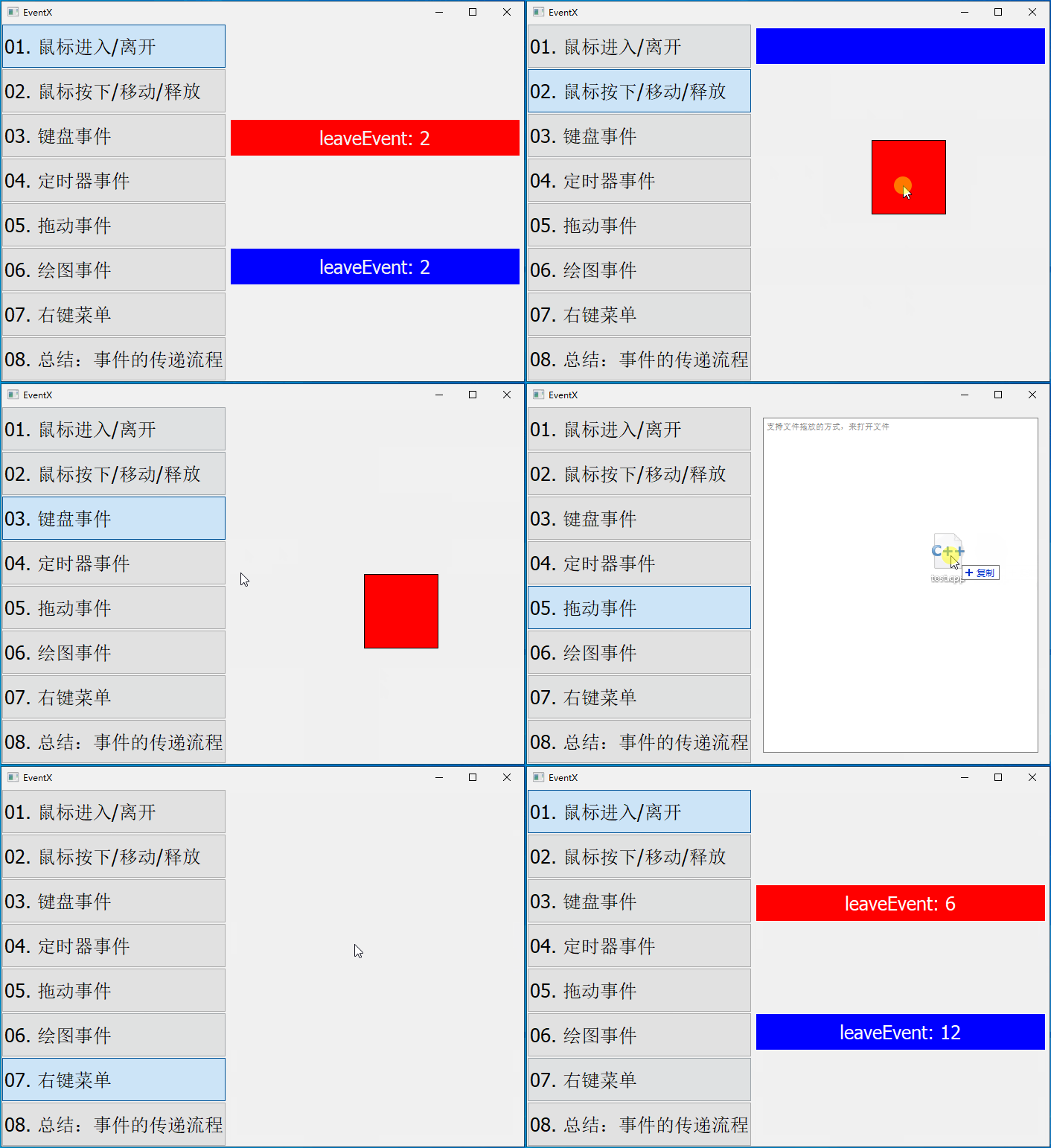
在讲解实际的事件之前,本节先把整体布局搭建好。布局整体包括左侧的导航和右侧的主窗体
1. 新建工程
新建一个窗口类
MainWidget,继承自QWidget,并且取消 “Generate form” 复选框
也就是不使用 UI设计师界面拖拽控件,而是纯代码来实现界面。最终新建工程如下:

此时,直接运行是一个空白窗体,如下:

2. 整体布局规划
首先,来到
mainwidget.h添加两个成员变量navWidget、mainWidget,如下:#includeclass MainWidget : public QWidget { private: QWidget* navWidget; QWidget* mainWidget; QStackedWidget* stackedWidget; }; - 1
- 2
- 3
- 4
- 5
- 6
- 7
- 8
- 9
- 10
然后,来到
MainWidget构造,添加左侧导航、右侧主体的整体框架#include#include MainWidget::MainWidget(QWidget* parent) : QWidget(parent) { // 1. 整体采用水平布局 QHBoxLayout* horizontalLayout = new QHBoxLayout(this); horizontalLayout->setSpacing(0); horizontalLayout->setContentsMargins(0, 0, 0, 0); // 2. 导航窗体 navWidget = new QWidget(this); QVBoxLayout* leftLayout = new QVBoxLayout(navWidget); leftLayout->setSpacing(0); leftLayout->setContentsMargins(0, 0, 0, 0); horizontalLayout->addWidget(navWidget); // 3. 主窗体 mainWidget = new QWidget(this); mainWidget->setMinimumWidth(400); QVBoxLayout* rightLayout = new QVBoxLayout(mainWidget); rightLayout->setSpacing(0); rightLayout->setContentsMargins(5, 5, 5, 5); stackedWidget = new QStackedWidget(mainWidget); rightLayout->addWidget(stackedWidget); horizontalLayout->addWidget(mainWidget); } - 1
- 2
- 3
- 4
- 5
- 6
- 7
- 8
- 9
- 10
- 11
- 12
- 13
- 14
- 15
- 16
- 17
- 18
- 19
- 20
- 21
- 22
- 23
- 24
- 25
- 26
- 27
- 28
- 29
- 30
左侧导航采用垂直布局,添加多个
QPushButton;右侧主体采用QStackedWidget,可以同时填充多个子页面,方便在多个子页面之间切换。最后,运行效果如下:

3. 实现左侧导航
首先,来到
mainwidget.h添加 一个初始化左侧导航的成员函数,如下:// 为了把多个 QPushButton 统一管理并实现互斥,放到一个 QButtonGroup 中 #includeclass Widget : public QWidget { private: void initNav(); private: QButtonGroup* btnGroup; }; - 1
- 2
- 3
- 4
- 5
- 6
- 7
- 8
- 9
- 10
- 11
然后,来到
mainwidget.cpp实现initNav()成员函数,如下:#includevoid MainWidget::initNav() { // 按钮文字集合 QStringList names; names << "鼠标进入/离开" << "鼠标按下/移动/释放" << "键盘事件" << "定时器事件" << "拖动事件" << "绘图事件" << "右键菜单" << "总结:事件的传递流程"; btnGroup = new QButtonGroup(this); //自动生成按钮 for ( int i = 0; i < names.count(); i++ ) { QPushButton* btn = new QPushButton; //设置按钮固定高度 btn->setMinimumHeight(60); //设置按钮的文字 btn->setText(QString("%1. %2").arg(i + 1, 2, 10, QChar('0')).arg(names.at(i))); //设置按钮可选中按下类似复选框的功能 btn->setCheckable(true); // 设置按钮的样式 navWidget->setStyleSheet(R"( QPushButton { font: 25px; text-align : left; } )"); // 将按钮添加到 btnGroup btnGroup->addButton(btn, i); //将按钮加入到布局 navWidget->layout()->addWidget(btn); } } - 1
- 2
- 3
- 4
- 5
- 6
- 7
- 8
- 9
- 10
- 11
- 12
- 13
- 14
- 15
- 16
- 17
- 18
- 19
- 20
- 21
- 22
- 23
- 24
- 25
- 26
- 27
- 28
- 29
- 30
- 31
- 32
- 33
- 34
- 35
- 36
- 37
- 38
- 39
- 40
- 41
- 42
- 43
- 44
- 45
最后,在
mainwidget.cpp构造中调用initNav()即可MainWidget::MainWidget(QWidget* parent) : QWidget(parent) { // ... initNav(); }- 1
- 2
- 3
- 4
- 5
- 6
最终效果,如下:

4. 实现右侧主体
右侧主体采用
QStackedWidget,可以同时填充多个子页面,方便在多个子页面之间切换。因此,要创建 8 个子窗口。首先,添加第一个窗口:鼠标进入/离开窗口,对应的文件为
enter_leave_widget.cpp/.h:在左侧项目文件名上右键,然后选择 “添加新文件”,选择 “C++ Class”,如下:
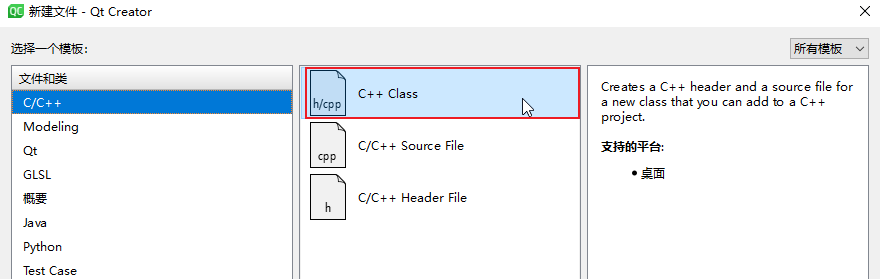
新建类文件信息如下:

此时就可以看到新建的两个文件,如下:

为了便于区分,在该页面添加一个标签,并修改 text 为 “鼠标进入/离开”,如下:
#include#include EnterLeaveWidget::EnterLeaveWidget(QWidget* parent) : QWidget{parent} { QVBoxLayout* verticalLayout = new QVBoxLayout(this); verticalLayout->setSpacing(0); verticalLayout->setContentsMargins(0, 0, 0, 0); QLabel* lbl = new QLabel(this); lbl->setText("鼠标进入/离开"); lbl->setFrameShape(QFrame::Box); lbl->setFixedHeight(50); lbl->setAlignment(Qt::AlignCenter); lbl->setStyleSheet("background-color: blue;color: white;font-size: 25px"); verticalLayout->addWidget(lbl); } - 1
- 2
- 3
- 4
- 5
- 6
- 7
- 8
- 9
- 10
- 11
- 12
- 13
- 14
- 15
- 16
- 17
然后,根据上述方法,创建剩余的 7 个子窗口,最终效果如下:

5. 左右联动
5.1 添加 8 个窗体
实现点击左侧导航栏的按钮,切换右侧的子界面
首先,在
mainwidget.h中,添加一个initMain()的成员函数:class MainWidget : public QWidget { private: void initMain(); };- 1
- 2
- 3
- 4
- 5
在
mainwidget.cpp中,实现initmain()函数:#include "enter_leave_widget.h" #include "press_move_release_widget.h" #include "key_widget.h" #include "timer_widget.h" #include "drag_widget.h" #include "paint_widget.h" #include "context_widget.h" #include "propagate_widget.h" void MainWidget::initMain() { // 逐个添加子窗体 stackedWidget->addWidget(new EnterLeaveWidget()); stackedWidget->addWidget(new PressMoveReleaseWidget()); stackedWidget->addWidget(new KeyWidget()); stackedWidget->addWidget(new TimerWidget()); stackedWidget->addWidget(new DragWidget()); stackedWidget->addWidget(new PaintWidget()); stackedWidget->addWidget(new ContextWidget()); stackedWidget->addWidget(new PropagateWidget()); }- 1
- 2
- 3
- 4
- 5
- 6
- 7
- 8
- 9
- 10
- 11
- 12
- 13
- 14
- 15
- 16
- 17
- 18
- 19
- 20
- 21
别忘了,在
mainwidget.cpp构造中调用一下initMain(),如下:MainWidget::MainWidget(QWidget* parent) : QWidget(parent) { initNav(); initMain(); }- 1
- 2
- 3
- 4
- 5
5.2 关联槽函数
首先,在
mainwidget.h中,声明左侧导航按钮的槽函数:class MainWidget : public QWidget { private slots: void buttonClicked(); //导航按钮单击事件 };- 1
- 2
- 3
- 4
- 5
并在
mainwidget.cpp中 实现该槽函数,如下:void MainWidget::buttonClicked() { // 识别按下了哪个按钮 int index = btnGroup->checkedId(); stackedWidget->setCurrentIndex(index); }- 1
- 2
- 3
- 4
- 5
- 6
然后,需要在
initNav()函数中,关联一下信号槽,如下:void MainWidget::initNav() { for ( int i = 0; i < names.count(); i++ ) { // 关联信号槽 connect(btn, SIGNAL(clicked(bool)), this, SLOT(buttonClicked())); } }- 1
- 2
- 3
- 4
- 5
- 6
- 7
最后,为了默认选中第一项,在
initNav()最后添加如下一行:void MainWidget::initNav() { // ... // 默认选中第一项 btnGroup->button(0)->click(); }- 1
- 2
- 3
- 4
- 5
- 6
- 7
此时,运行,就可以左右联动了,如下:

-
相关阅读:
C# OpenCvSharp Yolov8 Cls 图像分类
零代码与低代码快速开发平台的区别
JavaWeb开发-06-SpringBootWeb-MySQL
前端面试题——CSS 高频
[免费专栏] Android安全之Android Fragment注入
在Vue项目导入路径中@符号是什么意思?
荧光标记氨基酸:荧光标记DL-天门冬氨酸,荧光标记甘氨酸-DL-天冬氨酸,DL aspartic acid labeled
idea搭建SSM项目这一篇就够了
java idea 学习记录: 热部署:JRebel安装
易基因|DNA甲基化揭示应激反应影响婴儿免疫相关基因的表观遗传调控机制 | 表观发育
- 原文地址:https://blog.csdn.net/bili_mingwang/article/details/132962891
