-
VS2019 如何添加自定义代码片段
说明:该篇博客是博主一字一码编写的,实属不易,请尊重原创,谢谢大家!
当我们在
Visual Studio中创建.c文件或者.cpp文件时,每次都要去重复手写一些常见的头文件和main函数,非常麻烦,为了提高我们写代码的效率,我们可以将这些代码设置为代码块,然后直接使用快捷方式就可以生成你定义的这段代码,如下博主在.c文件中输入#1后按下Tab键,就快速生成了自定义的一些头文件和main函数了,效果如下: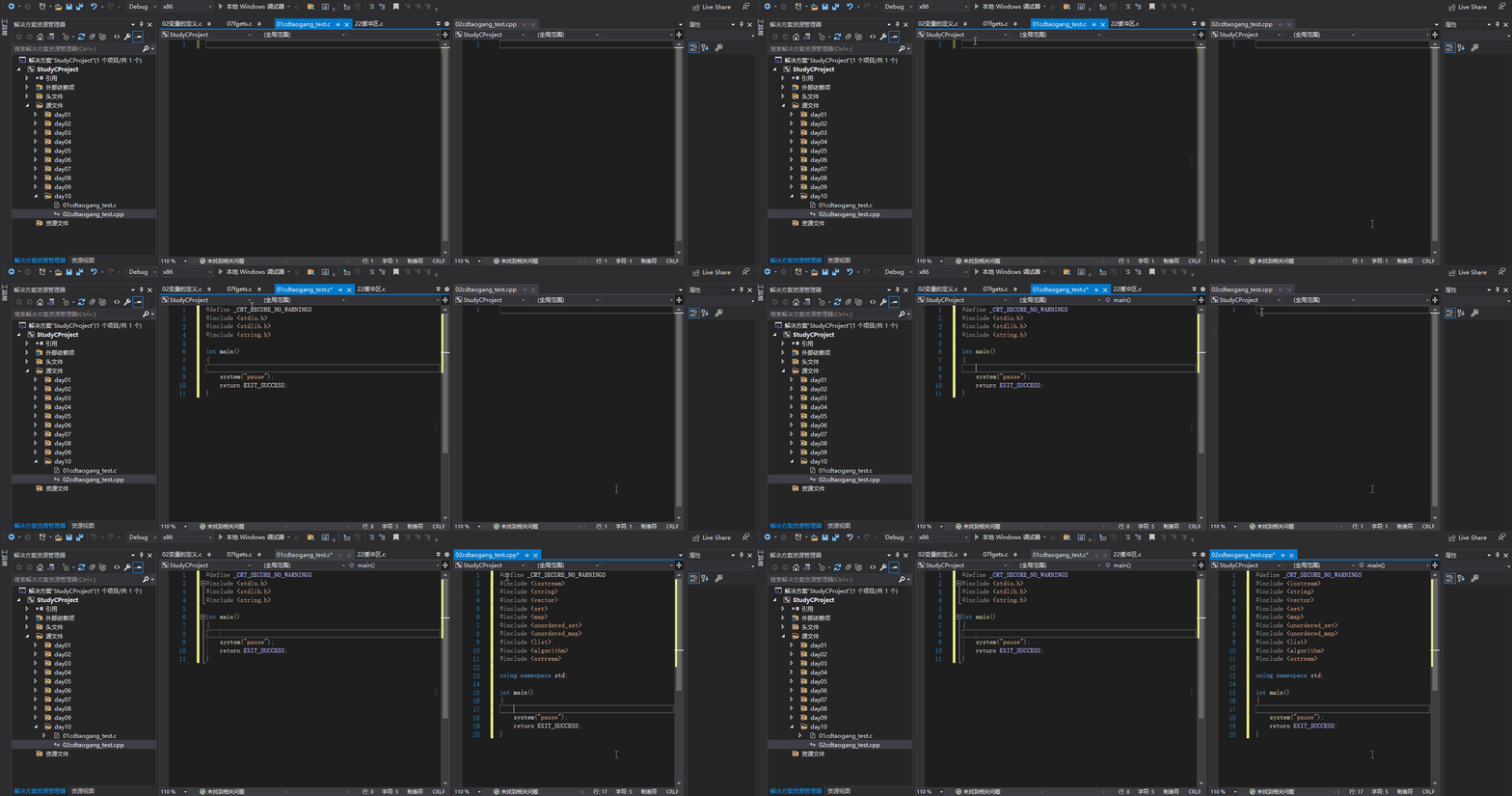
第一步: 你需要新建两个后缀名为
.snippet的文件,名字随便起,比如博主这里是c.snippet和cpp.snippet,顾名思义就是.c文件和.cpp文件使用的代码片段,内容如下:c.snippet文件
<?xml version="1.0" encoding="utf-8"?> <CodeSnippets xmlns="http://schemas.microsoft.com/VisualStudio/2019/CodeSnippet"> <CodeSnippet Format="1.0.0"> <Header> <Title>c</Title> <Shortcut>#1</Shortcut> <Description>c 初始化</Description> <Author>Microsoft Corporation</Author> <SnippetTypes> <SnippetType>Expansion</SnippetType> <SnippetType>SurroundsWith</SnippetType> </SnippetTypes> </Header> <Snippet> <Code Language="cpp"><![CDATA[#define _CRT_SECURE_NO_WARNINGS #include#include #include int main() { $selected$ $end$ system("pause"); return EXIT_SUCCESS; }]]> </Code> </Snippet> </CodeSnippet> </CodeSnippets> - 1
- 2
- 3
- 4
- 5
- 6
- 7
- 8
- 9
- 10
- 11
- 12
- 13
- 14
- 15
- 16
- 17
- 18
- 19
- 20
- 21
- 22
- 23
- 24
- 25
- 26
- 27
- 28
- 29
- 30
cpp.snippet文件
<?xml version="1.0" encoding="utf-8"?> <CodeSnippets xmlns="http://schemas.microsoft.com/VisualStudio/2019/CodeSnippet"> <CodeSnippet Format="1.0.0"> <Header> <Title>cpp</Title> <Shortcut>#2</Shortcut> <Description>c++ 初始化</Description> <Author>Microsoft Corporation</Author> <SnippetTypes> <SnippetType>Expansion</SnippetType> <SnippetType>SurroundsWith</SnippetType> </SnippetTypes> </Header> <Snippet> <Declarations> </Declarations> <Code Language="cpp"><![CDATA[#define _CRT_SECURE_NO_WARNINGS #include#include #include #include #include #include #include #include #include using namespace std; int main() { $selected$ $end$ system("pause"); return EXIT_SUCCESS; }]]> </Code> </Snippet> </CodeSnippet> </CodeSnippets> - 1
- 2
- 3
- 4
- 5
- 6
- 7
- 8
- 9
- 10
- 11
- 12
- 13
- 14
- 15
- 16
- 17
- 18
- 19
- 20
- 21
- 22
- 23
- 24
- 25
- 26
- 27
- 28
- 29
- 30
- 31
- 32
- 33
- 34
- 35
- 36
- 37
- 38
- 39
- 40
- 41
关于
.snippet文件说明:VS端显示。
#1"或“#2”,按下Tab键自动补全)
:补全的代码第二步: 打开/回到
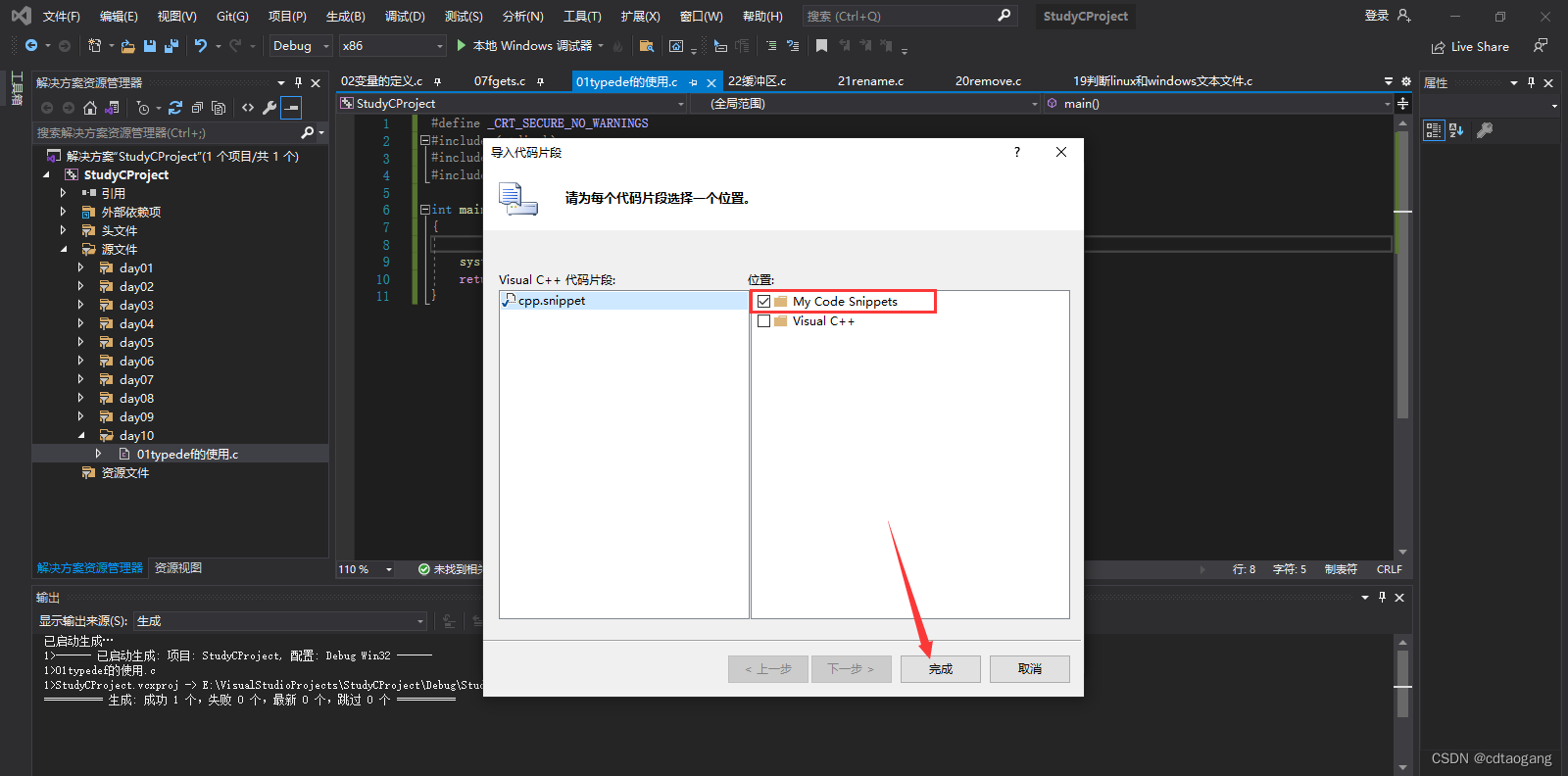
Visual Studio编译器界面,点击>>工具>>代码段管理器,语言记得选择Visual C++,然后选中My Code Snippets,点击下方的导入,添加你创建的两个.snippet文件,最后点击完成+确定即可。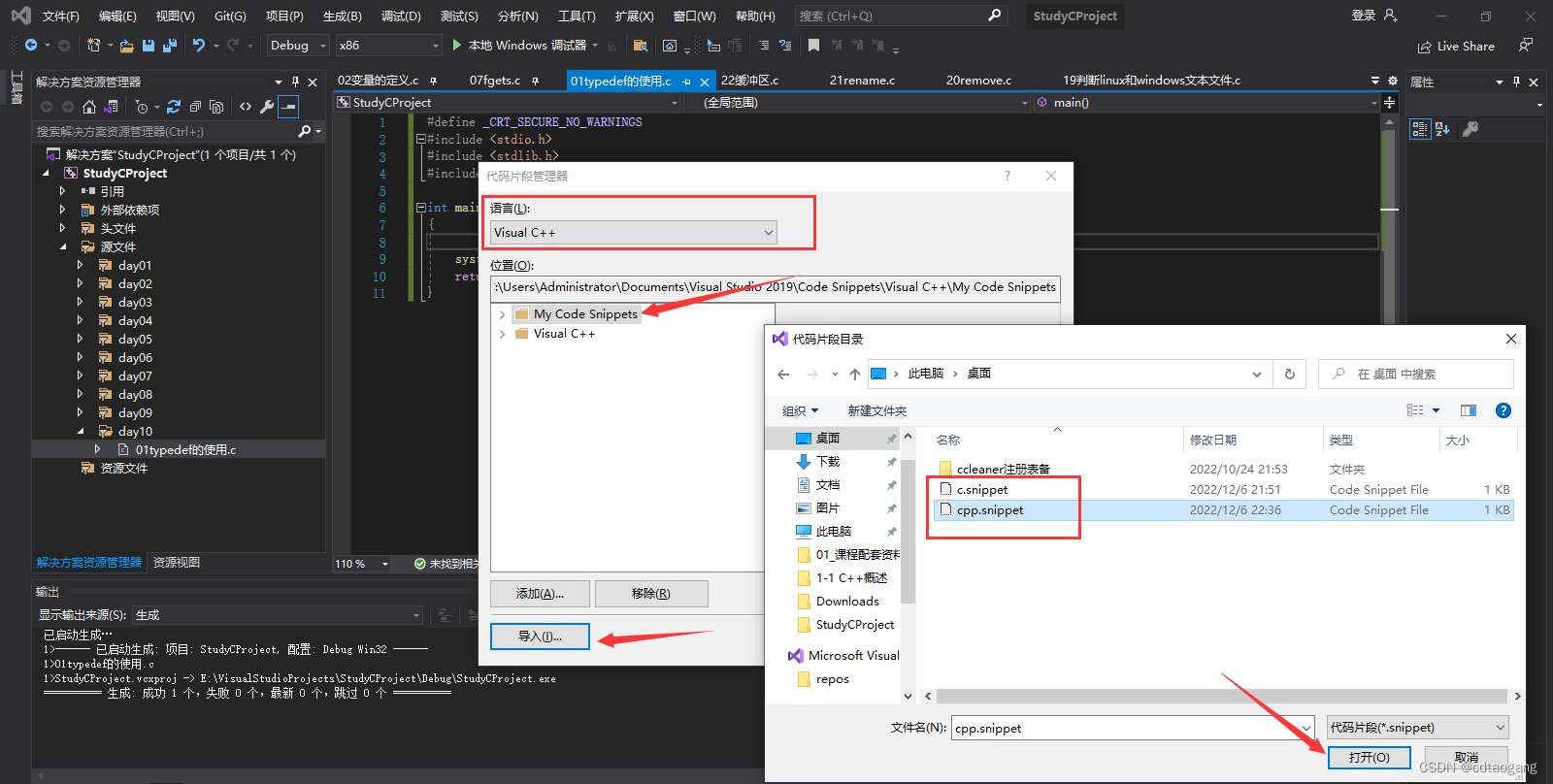
完成以上两步骤后,你就可以在
.c或.cpp文件中,输入#1或#2,再按下Tab键,就可以自动生成对应的代码块了!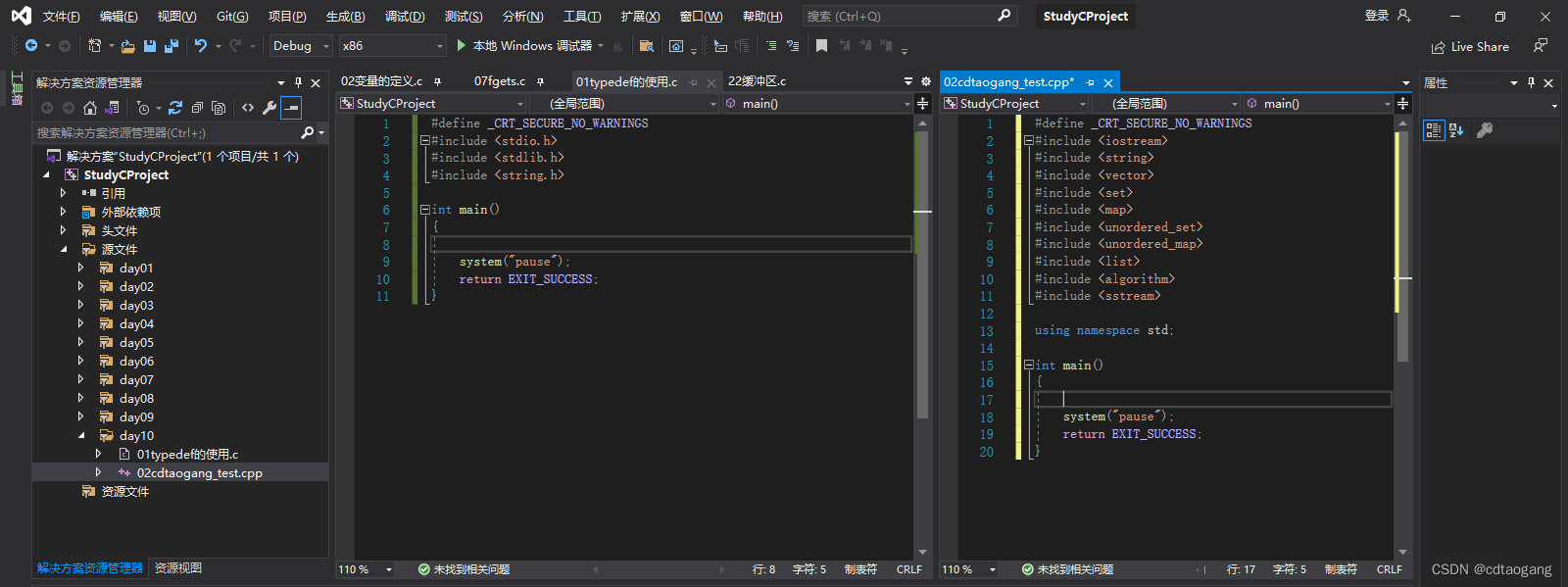
-
相关阅读:
Ubuntu离线或在线安装CMake
linux安装、及JDK配置环境变量
手写一个民用Tomcat (04)
申请前必知!关于「美国绿卡」的28个常见问题汇总!
NURBS曲线-节点插入(原理+代码)
Shell编程从看懂到看开②(字符串、数组、注释、流程控制、read读取控制台输入)
uni-ui和vue.js有什么区别
【Linux】(小白向)详解VirtualBox网络配置-配置Linux网络
计算机毕设(附源码)JAVA-SSM考勤管理系统
[NLP复习笔记] Word2Vec: 基于负采样的 Skip-gram 及其 SGD 训练
- 原文地址:https://blog.csdn.net/qq_41782425/article/details/128211452