一.前言.预览
申明:WPF自定义控件与样式是一个系列文章,前后是有些关联的,但大多是按照由简到繁的顺序逐步发布的等,若有不明白的地方可以参考本系列前面的文章,文末附有部分文章链接。
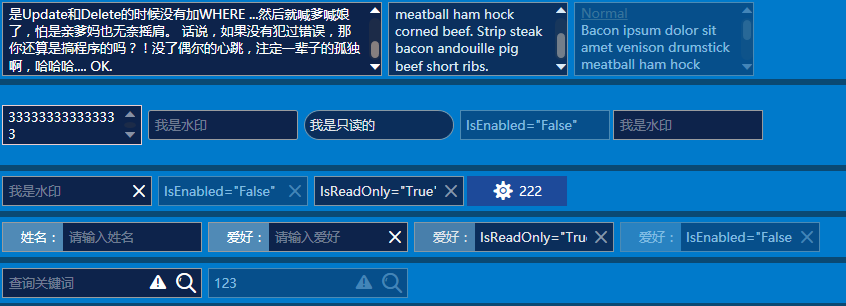
本文主要是对文本输入控件进行样式开发,及相关扩展功能开发,主要内容包括:
- 基本文本框TextBox控件样式及扩展功能,实现了样式、水印、Label标签、功能扩展;
- 富文本框RichTextBox控件样式;
- 密码输入框PasswordBox控件样式及扩展功能;
效果图:
二.基本文本框TextBox控件样式及扩展功能
2.1 TextBox基本样式
样式代码如下:
- <!--TextBox默认样式-->
- <Style TargetType="{x:Type TextBox}" x:Key="DefaultTextBox"> <Setter Property="ContextMenu" Value="{DynamicResource TextBoxContextMenu}" /> <Setter Property="SelectionBrush" Value="{StaticResource TextSelectionBrush}" /> <Setter Property="FontFamily" Value="{StaticResource FontFamily}" /> <Setter Property="FontSize" Value="{StaticResource FontSize}" /> <Setter Property="BorderThickness" Value="1" /> <Setter Property="MinHeight" Value="26" /> <Setter Property="Width" Value="100" /> <Setter Property="Background" Value="{StaticResource TextBackground}" /> <Setter Property="Foreground" Value="{StaticResource TextForeground}" /> <Setter Property="Padding" Value="0" /> <Setter Property="BorderBrush" Value="{StaticResource ControlBorderBrush}" /> <Setter Property="local:ControlAttachProperty.FocusBorderBrush" Value="{StaticResource FocusBorderBrush}" /> <Setter Property="local:ControlAttachProperty.MouseOverBorderBrush" Value="{StaticResource MouseOverBorderBrush}" /> <Setter Property="VerticalContentAlignment" Value="Center" /> <!-- change SnapsToDevicePixels to True to view a better border and validation error --> <Setter Property="SnapsToDevicePixels" Value="True" /> <!--英 ['kærət] 美 ['kærət] 插入符号--> <Setter Property="CaretBrush" Value="{StaticResource TextForeground}" /> <Setter Property="Template"> <Setter.Value> <ControlTemplate TargetType="{x:Type TextBox}"> <Grid x:Name="PART_Root"> <Border x:Name="Bg" SnapsToDevicePixels="{TemplateBinding SnapsToDevicePixels}" CornerRadius="{TemplateBinding local:ControlAttachProperty.CornerRadius}" BorderBrush="{TemplateBinding BorderBrush}" BorderThickness="{TemplateBinding BorderThickness}" Background="{TemplateBinding Background}" /> <Grid x:Name="PART_InnerGrid"> <Grid.ColumnDefinitions> <ColumnDefinition Width="Auto" /> <ColumnDefinition Width="*" /> <ColumnDefinition Width="Auto" /> </Grid.ColumnDefinitions> <!--Label区域--> <ContentControl x:Name="Label" Margin="1" Template="{TemplateBinding local:ControlAttachProperty.LabelTemplate}" Content="{TemplateBinding local:ControlAttachProperty.Label}"/> <!--内容区域--> <ScrollViewer x:Name="PART_ContentHost"