-
window下Vscode配置 git 为终端
找到配置文件
首选项——>设置( Ctl +
直接到设置) ——>搜索配置shell.windows`
打开配置文件,进行修改
修改配置
官网:https://code.visualstudio.com/docs/terminal/basics#_configuration
在vscode官方他说的是默认自己平台下的终端,window一般就两种
PowerShell和cmd我们可以自己配置来增加下面的内容"terminal.integrated.profiles.windows": { "PowerShell": { "source": "PowerShell", "icon": "terminal-powershell" }, "Command Prompt": { "path": [ "${env:windir}\\Sysnative\\cmd.exe", "${env:windir}\\System32\\cmd.exe" ], "args": [], "icon": "terminal-cmd" }, "Git-Bash": { "path": "你的git目录\\bin\\bash.exe" } }, "terminal.integrated.automationShell.windows": "你的git目录\\bin\\bash.exe", "git.path": "你的git目录\bin\\git.exe", // 默认终端 "terminal.integrated.defaultProfile.windows": "Git-Bash",- 1
- 2
- 3
- 4
- 5
- 6
- 7
- 8
- 9
- 10
- 11
- 12
- 13
- 14
- 15
- 16
- 17
- 18
- 19
- 20
- 21
这就是我修改完成后的事例
{ //............ "explorer.compactFolders": false, "workbench.tree.indent": 16, "terminal.integrated.automationProfile.windows": { }, // 这里就是我们添加的配置,注意修改一下自己的Git文件地址 "terminal.integrated.profiles.windows": { "PowerShell": { "source": "PowerShell", "icon": "terminal-powershell" }, "Command Prompt": { "path": [ "${env:windir}\\Sysnative\\cmd.exe", "${env:windir}\\System32\\cmd.exe" ], "args": [], "icon": "terminal-cmd" }, "Git-Bash": { "path": "D:\\_Porgram_IT\\Git\\bin\\bash.exe" } }, "terminal.integrated.automationShell.windows": "D:\\_Porgram_IT\\Git\\bin\\bash.exe", "git.path": "D:\\_Porgram_IT\\Git\bin\\git.exe", // 默认终端 "terminal.integrated.defaultProfile.windows": "Git-Bash", }- 1
- 2
- 3
- 4
- 5
- 6
- 7
- 8
- 9
- 10
- 11
- 12
- 13
- 14
- 15
- 16
- 17
- 18
- 19
- 20
- 21
- 22
- 23
- 24
- 25
- 26
- 27
- 28
- 29
- 30
完成后,我们可以检查一下,添加配置完成后,都会出现一个
defaultProfile.windows在这里我们就可以查看我们的对应的终端


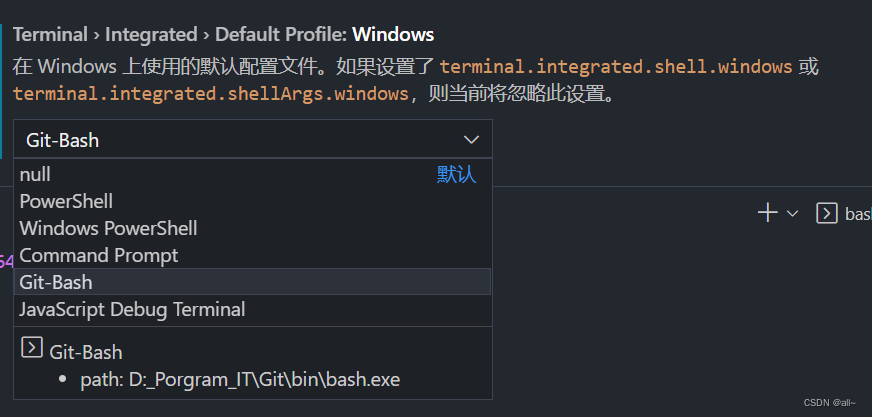
这里配置正确的话出来就直接是
Git-Bash了
总结
只需要仔细一点,完全不会有问题,如果修改完成之后还是原来的
PowerShell或CMD我们只需要自己在修改一下下就行了或者重启都行在以后的项目中都会默认为我们修改之后的默认配置,也就是我们的git了

-
相关阅读:
一个普通人怎样做自媒体赚钱呢?
vulfocus——showdoc文件上传(cnvd-2020-26585)
网络原理之IP协议
Python使用requests+excel进行接口自动化测试
linux gdb调试
计算机竞赛 题目: 基于深度学习的疲劳驾驶检测 深度学习
uniapp地图导航
Vue----生命周期函数
低代码:时代的选择
文件用手机拍照片打印时,打印出来总是有黑阴影,如何去掉黑色阴影打印清晰的图片
- 原文地址:https://blog.csdn.net/Bkhole/article/details/127661194