-
配置OpenGL
一、下载三个文件
(一)下载GLEW

(二)下载GLFW

(三)下载CMake

二、安装程序或解压资源
(一)找到我们下载的三个资源

(二)首先安装CMake
双击 cmake.msi,默认安装即可
(三)解压GLEW和GLFW

三、利用CMake提取文件
(一)打开命令行

找到glfw所解压的路径
此处为:
D:\source\glfw-3.3.8
先在命令行输入:
cd D:\source\glfw-3.3.8
再输入:
D:
即可切换到glfw的路径。
再输入:cmake .

完成后GLFW目录如图所示

用 VS2019 打开 GLFW.sln

点击重新生成解决方案,等待执行结束(30秒左右)。

四、找到所需的资源文件
(一)新建三个文件夹

(二)找到所需的资源放入三个文件夹
1、
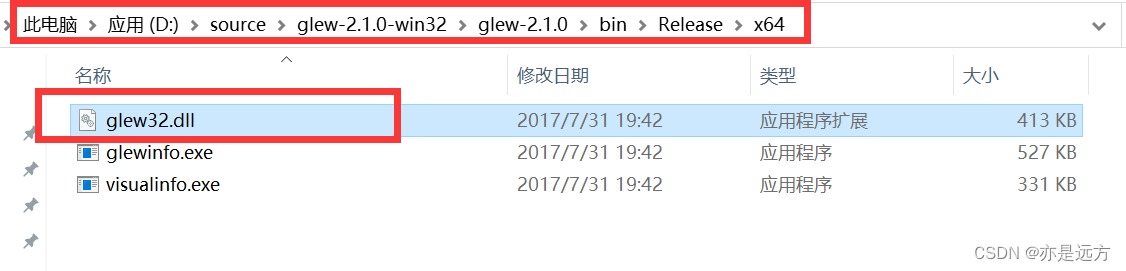
找到 glew32.dll 复制到 DLL 文件夹
2、


放入 Include 文件夹
3、


放入 Lib 文件夹
(三)最后形成一下三个文件夹
1、

2、

3、
五、以上过程的文件资源
六、创建第一个项目配置
(一)使用VS2019创建一个空的C++项目

(二)添加资源
将上面生成的三个文件夹 Include DLL Lib 放入与.sln同级的目录下。

(三)配置
右击项目名,选择属性

进行以下配置:
1、

2、

3、

4、

七、第一个项目
#include#include #include const int WIDTH = 1600; const int HEIGHT = 1200; int main() { glfwInit(); glfwWindowHint(GLFW_CONTEXT_VERSION_MAJOR, 3); glfwWindowHint(GLFW_CONTEXT_VERSION_MINOR, 3); glfwWindowHint(GLFW_OPENGL_PROFILE, GLFW_OPENGL_COMPAT_PROFILE); GLFWwindow* window = glfwCreateWindow(WIDTH, HEIGHT, "OpenGL", NULL, NULL); if (window == NULL) { std::cout << "Failed to create GLFW window!" << std::endl; glfwTerminate(); return - 1; } return 0; } - 1
- 2
- 3
- 4
- 5
- 6
- 7
- 8
- 9
- 10
- 11
- 12
- 13
- 14
- 15
- 16
- 17
- 18
- 19
- 20
- 21
- 22
-
相关阅读:
实际上手体验maven面对冲突Jar包的加载规则
CSS 属性计算过程
多个线程启动 ,等待全部执行完毕再搜集数据
速来围观,17个运维实用技巧
第十七章《MySQL数据库及SQL语言简介》第3节:数据库管理
Node.js 入门教程 19 package-lock.json 文件
k8s客户端配置
215. 数组中的第K个最大元素 java解决
计算机图形学(二) -- 变换
文化融合与社交网络:Facebook的角色
- 原文地址:https://blog.csdn.net/qq_35500719/article/details/126785519
