-
uniapp微信小程序开发踩坑日记:Vue3 + uniapp项目引入Echarts图表库
一、下载插件包
下载地址如下:
lime-echart: 百度图表 echarts,uniapp、taro 使用 echarts 图表,全面兼容各平台小程序、H5、APP、Nvue
将以下两个文件夹放到项目的components里


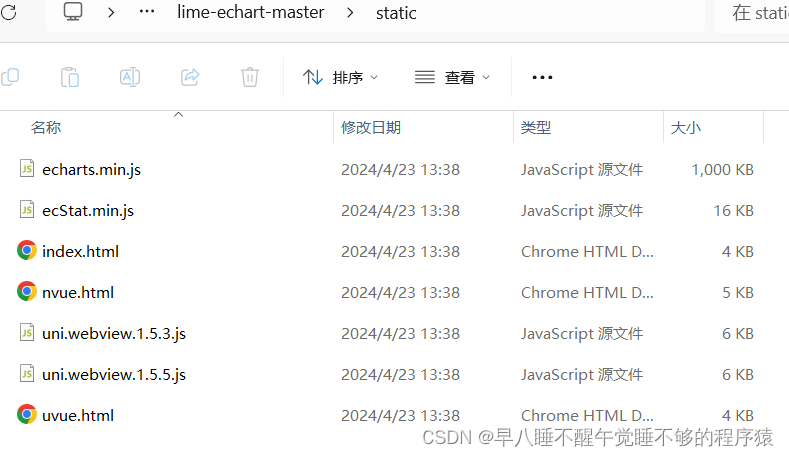
同样地,将静态资源文件夹下内容放到自己项目的static文件夹下

二、安装Echarts包
- pnpm add echarts
- 或者
- npm install echarts
三、在页面中导入依赖并运行
下面是一个图表的代码示例,在微信开发者工具中运行代码就可以看到效果啦
- <template>
- <view>
- <view class="title">我的主页view>
- <view>
- <LEchart class="echart" ref="chart" @finished="init">LEchart>
- view>
- view>
- template>
- <script setup>
- import LEchart from '@/components/l-echart/l-echart.vue'
- // lime-echart是一个demo的组件,用于测试组件
- // import LEchart from '@/components/lime-echart/lime-echart.vue'
- import { onMounted, reactive, ref } from "vue"
- // nvue 不需要引入
- // #ifdef VUE3
- // #ifdef MP
- // 由于vue3 使用vite 不支持umd格式的包,小程序依然可以使用,但需要使用require
- const echarts = require('../../static/echarts.min');
- // #endif
- // #ifndef MP
- // 由于 vue3 使用vite 不支持umd格式的包,故引入npm的包
- import * as echarts from 'echarts';
- // #endif
- // #endif
- let chart = ref(); // 获取dom
- const state = reactive({
- option: {},
- })
- state.option = {
- legend: {
- show: true,
- data: []
- },
- tooltip: {
- trigger: 'axis',
- axisPointer: {
- type: 'cross'
- }
- },
- grid: {
- left: '3%',
- right: '8%',
- top: '15%',
- bottom: '5%',
- containLabel: true
- },
- xAxis: {
- type: 'category',
- data: [1, 2, 3, 4, 5, 6, 7, 8, 9, 10, 11, 12, 13, 1, 4, 15, 16, 17, 18, 19, 20, 21, 22, 23, 24],
- axisLabel: {
- // inside: true,
- // color: '#fff'
- },
- axisTick: {
- show: false
- },
- axisLine: {
- show: true,
- lineStyle: {
- color: '#83bff6'
- }
- },
- z: 10
- },
- yAxis: {
- type: 'value',
- axisLine: {
- show: true,
- lineStyle: {
- color: '#83bff6'
- }
- },
- axisTick: {
- show: false
- },
- // axisLabel: {
- // color: '#999'
- // },
- splitLine: {
- show: true,
- lineStyle: {
- type: 'dashed',
- color: '#83bff6'
- }
- }
- },
- series: [
- {
- data: [100, 110, 113, 126, 143, 158, 165, 167, 152, 102, ,],
- type: "bar",
- itemStyle: {
- color: new echarts.graphic.LinearGradient(0, 0, 0, 1, [
- { offset: 0, color: '#83bff6' },
- { offset: 0.5, color: '#188df0' },
- { offset: 1, color: '#188df0' }
- ])
- },
- emphasis: {
- itemStyle: {
- color: new echarts.graphic.LinearGradient(0, 0, 0, 1, [
- { offset: 0, color: '#2378f7' },
- { offset: 0.7, color: '#2378f7' },
- { offset: 1, color: '#83bff6' }
- ])
- }
- },
- areaStyle: {
- show: true,
- color: new echarts.graphic.LinearGradient(0, 0, 0, 1, [
- {
- offset: 0,
- color: '#188df0'
- },
- {
- offset: 1,
- color: '#fff'
- }
- ])
- },
- }
- ],
- color: ['#83bff6']
- }
- // 组件能被调用必须是组件的节点已经被渲染到页面上
- onMounted(() => {
- chart.value.init(echarts, chart => {
- chart.setOption(state.option);
- });
- })
- // 渲染完成
- const init = () => {
- console.log("渲染完成");
- }
- script>
- <style scopedlang='scss' scoped>
- .echart {
- width: 100%;
- height: 300px;
- }
- .title {
- text-align: center;
- }
- style>
四、使用Echarts的其他图表
打开Echarts官网:Examples - Apache ECharts

选择自己想要使用的图表,这里以折线图为例

把左侧的option中的代码复制下来,替换掉上面给出的代码示例中option中的代码即可
-
相关阅读:
yocto meta-st-stm32mp conf文件夹分析
K8S:kubeadm搭建K8S+Harbor 私有仓库
9.2 Windows钩子
Cisco Firepower 9300 Series FTD Software 7.2.0 & ASA Software 9.18.1
IO和进程day07(IPC、管道、信号)
hive进行base64 加密解密函数
淘宝sku API接口实例代码
浅析搭建校园在线教学视频汇聚平台的必要性及解决方案
DDD—分层架构、洋葱架构、六边形架构
sql10(Leetcode1661每台机器的进程平均运行时间)
- 原文地址:https://blog.csdn.net/lbcbjtlhmjq/article/details/138223997
