-
编程入门(五)【Visual Studio Code安装与C/C++语言运行】
读者大大们好呀!!!☀️☀️☀️
前言
经过了前面对计算机与计算机网络的了解,我们可以开始编程之路的进一步学习了,现在我们来了解一下C语言以及C语言的开发工具VScode安装与运行。
VScode安装与环境配置
1、官网下载安装包- 1

选择你的操作系统类型进行对应的安装包下载:

下载后点击运行即可:

2、安装VSCode插件(C/C++)- 1
在搜索框里输入C/C++并安装

搜索Code Runner并安装

3、下载安装g++- 1
下载官网MinGW Distro-nuwen.net

下载完成后进行安装,自己选择安装路径,并复制路径(路径不可含有中文)以备后面配置环境用。

进入"环境变量"进行环境配置

进入系统变量的Path

加入复制的地址加入path中:

确认是否配置安装成功打开CMD命令:
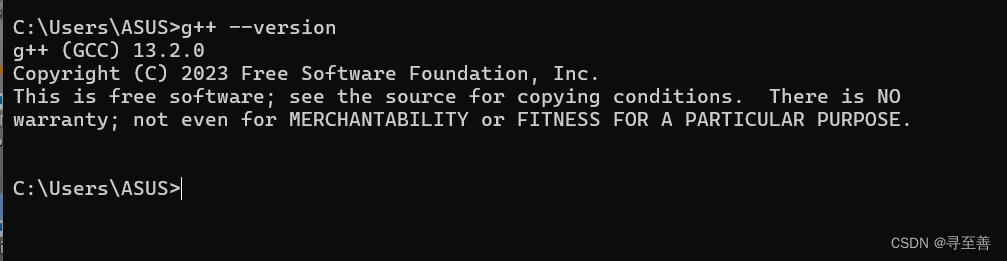
4、创建存放代码的文件夹- 1

进入VSCode,点击Open Folder或者点击左上角File -> Open Folder,然后打开刚刚建的文件夹,选择信任父级文件夹

点击下图图标,新建一个文件夹,命名为.vscode

如下图所示:

点击下图标添加四个json文件:

在上面四个文件中依次添加一下代码,并把代码里的文件地址改成你自己本地的文件地址
🔥c_cpp_properties.json{ "configurations": [ { "name": "Win64", "includePath": ["${workspaceFolder}/**"], "defines": ["_DEBUG", "UNICODE", "_UNICODE"], "windowsSdkVersion": "10.0.18362.0", "compilerPath": "D:/MinGW/bin/g++.exe", "cStandard": "c17", "cppStandard": "c++17", "intelliSenseMode": "gcc-x64" } ], "version": 4 }- 1
- 2
- 3
- 4
- 5
- 6
- 7
- 8
- 9
- 10
- 11
- 12
- 13
- 14
- 15
🔥lanuch.json
{ "version": "0.2.0", "configurations": [ { "name": "(gdb) Launch", "type": "cppdbg", "request": "launch", "program": "${fileDirname}\\${fileBasenameNoExtension}.exe", "args": [], "stopAtEntry": false, "cwd": "${workspaceRoot}", "environment": [], "externalConsole": true, "MIMode": "gdb", "miDebuggerPath": "D:\\MinGW\\bin\\gdb.exe", "preLaunchTask": "g++", "setupCommands": [ { "description": "Enable pretty-printing for gdb", "text": "-enable-pretty-printing", "ignoreFailures": true } ] } ] }- 1
- 2
- 3
- 4
- 5
- 6
- 7
- 8
- 9
- 10
- 11
- 12
- 13
- 14
- 15
- 16
- 17
- 18
- 19
- 20
- 21
- 22
- 23
- 24
- 25
- 26
🔥settings.json
{ "files.associations": { "*.py": "python", "iostream": "cpp", "*.tcc": "cpp", "string": "cpp", "unordered_map": "cpp", "vector": "cpp", "ostream": "cpp", "new": "cpp", "typeinfo": "cpp", "deque": "cpp", "initializer_list": "cpp", "iosfwd": "cpp", "fstream": "cpp", "sstream": "cpp", "map": "c", "stdio.h": "c", "algorithm": "cpp", "atomic": "cpp", "bit": "cpp", "cctype": "cpp", "clocale": "cpp", "cmath": "cpp", "compare": "cpp", "concepts": "cpp", "cstddef": "cpp", "cstdint": "cpp", "cstdio": "cpp", "cstdlib": "cpp", "cstring": "cpp", "ctime": "cpp", "cwchar": "cpp", "exception": "cpp", "ios": "cpp", "istream": "cpp", "iterator": "cpp", "limits": "cpp", "memory": "cpp", "random": "cpp", "set": "cpp", "stack": "cpp", "stdexcept": "cpp", "streambuf": "cpp", "system_error": "cpp", "tuple": "cpp", "type_traits": "cpp", "utility": "cpp", "xfacet": "cpp", "xiosbase": "cpp", "xlocale": "cpp", "xlocinfo": "cpp", "xlocnum": "cpp", "xmemory": "cpp", "xstddef": "cpp", "xstring": "cpp", "xtr1common": "cpp", "xtree": "cpp", "xutility": "cpp", "stdlib.h": "c", "string.h": "c" }, "editor.suggest.snippetsPreventQuickSuggestions": false, "aiXcoder.showTrayIcon": true }- 1
- 2
- 3
- 4
- 5
- 6
- 7
- 8
- 9
- 10
- 11
- 12
- 13
- 14
- 15
- 16
- 17
- 18
- 19
- 20
- 21
- 22
- 23
- 24
- 25
- 26
- 27
- 28
- 29
- 30
- 31
- 32
- 33
- 34
- 35
- 36
- 37
- 38
- 39
- 40
- 41
- 42
- 43
- 44
- 45
- 46
- 47
- 48
- 49
- 50
- 51
- 52
- 53
- 54
- 55
- 56
- 57
- 58
- 59
- 60
- 61
- 62
- 63
- 64
- 65
🔥tasks.json
{ "version": "2.0.0", "tasks": [ { "label": "g++", "command": "g++", "args": [ "-g", "${file}", "-o", "${fileDirname}/${fileBasenameNoExtension}.exe" ], "problemMatcher": { "owner": "cpp", "fileLocation": ["relative", "${workspaceRoot}"], "pattern": { "regexp": "^(.*):(\\d+):(\\d+):\\s+(warning|error):\\s+(.*)$", "file": 1, "line": 2, "column": 3, "severity": 4, "message": 5 } }, "group": { "kind": "build", "isDefault": true } } ] }- 1
- 2
- 3
- 4
- 5
- 6
- 7
- 8
- 9
- 10
- 11
- 12
- 13
- 14
- 15
- 16
- 17
- 18
- 19
- 20
- 21
- 22
- 23
- 24
- 25
- 26
- 27
- 28
- 29
- 30
- 31
如果上述流程你都完成了,那么现在你已经可以新建一个.c或者.cpp文件写代码测试一下你刚刚配置好的VSCode啦!注意文件名用中文!
编写第一个C语言程序
#includevoid main() { printf("Hellow word"); } - 1
- 2
- 3
- 4
- 5
- 6
- 7
- 8

总结
本文介绍了VCcode的安装与创建了第一个C语言程序。
✈️✈️✈️如果喜欢这篇文章的话
🙏大大们可以动动发财的小手:👉👉👉 点赞:👍收藏:⭐️评论:✍️👈👈👈 -
相关阅读:
科技创新引领高质发展 良性竞争激发行业活力
Linux C语言 vim编辑器 使用 sqlite3数据库 makefile 的网络编程 qq 聊天室项目
5.事务管理
一篇文章入门 Redis(万字长文干货)
Python学习小组课程P2-Python基础(2)文件操作
Mysql中EXPLAIN解读
FLUME 安装配置及使用示例
短视频特效背景视频去哪找?三大平台助你轻松搞定!
React——简便获取经纬度信息
GoLong的学习之路(十)语法之函数
- 原文地址:https://blog.csdn.net/qq_48490554/article/details/137956341
