-
小程序之实例会议OA的首页 (3)

⭐⭐ 小程序专栏:小程序开发专栏
目录
一.前言
今天终于进入正轨了,正式使用小程序制作一款App,本专栏以会议OA为示例进行讲解。本文章首先来实现OA的首页
二.flex弹性布局
学习地址:
Flex 布局语法教程 | 菜鸟教程网页布局(layout)是CSS的一个重点应用。 布局的传统解决方案,基于盒状模型,依赖 display属性 + position属性 + float属性。它对于那些特殊布局非常不方便,比如,垂直居中就不容易实现。 2009年,W3C提出了一种新的方案—-Flex布局,可以简便、完整、响应式地实现各种页面布局。目前,它已经得到了所有浏览器的支持,这意味着,现在就能很安全地使用这项功能。 Flex布局将成为未来布.. http://www.runoob.com/w3cnote/flex-grammar.html Flex是Flexible Box的缩写,意为”弹性布局”,用来为盒状模型提供最大的灵活性。
flex属性
-
flex-direction 主轴的方向 默认为row
-
flex-wrap 如果一条轴线排不下,如何换行
-
flex-flow 是flex-direction属性和flex-wrap属性的简写形式
-
justify-content 定义了项目在主轴上的对齐方式
-
align-items 定义项目在交叉轴上如何对齐
-
align-content 属性定义了多根轴线的对齐方式
注意,设为Flex布局以后,子元素的float、clear和vertical-align属性将失效。
2.1 display: flex 弹性布局属性
前端代码:
- <view class="box">
- <view>1</view>
- <view>2</view>
- <view>3</view>
- <view>4</view>
- <view>5</view>
- <view>6</view>
- <view>7</view>
- <view>8</view>
- <view>9</view>
- <view>10</view>
- <view>11</view>
- <view>12</view>
- </view>
样式添加:
给每一个view设置了宽高为100rpx,众所周知小程序的手机端的宽度是750rpx
- .box{
- height: 750rpx;
- width: 750rpx;
- background-color: pink;
- display: flex;
- }
- view{
- height: 100rpx;
- width: 100rpx;
- border: 1px solid greenyellow;
- }
添加display: flex之前与之后的对比:

2.2 flex-direction属性
flex-direction属性决定主轴的方向(即项目的排列方向)。
flex-direction: row | row-reverse | column | column-reverse;


2.3 flex-wrap属性
默认情况下,项目都排在一条线(又称”轴线”)上。flex-wrap属性定义,如果一条轴线排不下,如何换行。
flex-wrap: nowrap (不换行) | wrap | wrap-reverse;


2.4 flex-flow属性
flex-flow属性是flex-direction属性和flex-wrap属性的简写形式,就是将两者结合起来了,默认值为row nowrap。
2.5 justify-content属性
justify-content: flex-start(居右对齐) | flex-end(居左对齐) | center(居中对齐) | space-between(两端对齐,项目之间的间隔都相等) | space-around(每个项目两侧的间隔相等。所以,项目之间的间隔比项目与边框的间隔大一倍。)
三.首页轮播图
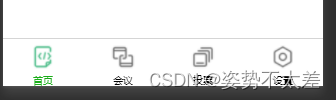
3.1 我们先把一级菜单底座打好
在app.json里面:
- "pages":[
- "pages/index/index",
- "pages/meeting/list/list",
- "pages/vote/list/list",
- "pages/ucenter/index/index",
- "pages/logs/logs"
- ],
- "tabBar": {
- "list": [{
- "pagePath": "pages/index/index",
- "text": "首页",
- "iconPath": "/static/tabBar/coding.png",
- "selectedIconPath": "/static/tabBar/coding-active.png"
- },
- {
- "pagePath": "pages/meeting/list/list",
- "iconPath": "/static/tabBar/sdk.png",
- "selectedIconPath": "/static/tabBar/sdk-active.png",
- "text": "会议"
- },
- {
- "pagePath": "pages/vote/list/list",
- "iconPath": "/static/tabBar/template.png",
- "selectedIconPath": "/static/tabBar/template-active.png",
- "text": "投票"
- },
- {
- "pagePath": "pages/ucenter/index/index",
- "iconPath": "/static/tabBar/component.png",
- "selectedIconPath": "/static/tabBar/component-active.png",
- "text": "设置"
- }]
- },
3.2 mockJS模拟数据
定义接口:
右击新建立一个文件夹:

在app.js里面定义接口 :
- // 以下是业务服务器API地址
- // 本机开发API地址
- var WxApiRoot = 'http://localhost:8080/demo/wx/';
- // 测试环境部署api地址
- // var WxApiRoot = 'http://192.168.0.101:8070/demo/wx/';
- // 线上平台api地址
- //var WxApiRoot = 'https://www.oa-mini.com/demo/wx/';
- module.exports = {
- IndexUrl: WxApiRoot + 'home/index', //首页数据接口
- SwiperImgs: WxApiRoot+'swiperImgs', //轮播图
- MettingInfos: WxApiRoot+'meeting/list', //会议信息
- };
前端轮播图代码:index.wxml
这段代码是从官网拿的,里面的属性官网中可以看到:视图容器 / swiper (qq.com)
https://developers.weixin.qq.com/miniprogram/dev/component/swiper.html- <!--index.wxml-->
- <view>
- <swiper autoplay="true" indicator-dots="true" indicator-color="#fff" indicator-active-color="#00f">
- <block wx:for="{{imgSrcs}}" wx:key="text">
- <swiper-item>
- <view>
- <image src="{{item.img}}" class="swiper-item" />
- </view>
- </swiper-item>
- </block>
- </swiper>
- </view>
样式:index.wxss
- .swiper-item {
- height: 300rpx;
- width: 100%;
- border-radius: 10rpx;
- }
在index.js里面添加轮播图方法:
- // 轮播图数据
- loadSwiperImgs(){
- let that=this;
- wx.request({
- url: api.SwiperImgs,
- dataType: 'json',
- success(res) {
- console.log(res)
- that.setData({
- imgSrcs:res.data.images
- })
- }
- })
- },
在index.js的onload方法中调用:
- onLoad() {
- if (wx.getUserProfile) {
- this.setData({
- canIUseGetUserProfile: true
- })
- }
- this.loadSwiperImgs();
- },
在index.js里面 接口mockjs
- // 轮播图 mockjs
- const api = require("../config/app.js");
注意:在这里我们用的是http的网址,不是https所以会报错,我们需要修改

接着点开调式器的mock,在里面新增接口:


json数据:
- {
- "data": {
- "images":[
- {
- "img": "https://cdn-we-retail.ym.tencent.com/tsr/home/v2/banner1.png",
- "text": "1"
- },
- {
- "img": "https://cdn-we-retail.ym.tencent.com/tsr/home/v2/banner2.png",
- "text": "2"
- },
- {
- "img": "https://cdn-we-retail.ym.tencent.com/tsr/home/v2/banner3.png",
- "text": "3"
- },
- {
- "img": "https://cdn-we-retail.ym.tencent.com/tsr/home/v2/banner4.png",
- "text": "4"
- },
- {
- "img": "https://cdn-we-retail.ym.tencent.com/tsr/home/v2/banner5.png",
- "text": "5"
- },
- {
- "img": "https://cdn-we-retail.ym.tencent.com/tsr/home/v2/banner6.png",
- "text": "6"
- }
- ]
- },
- "statusCode": "200",
- "header": {
- "content-type":"applicaiton/json;charset=utf-8"
- }
- }
这样就可以啦,看看效果

四.OA首页的布局
mock数据:
- lists: [
- {
- "id": "1",
- "image": "/static/persons/1.jpg",
- "title": "对话产品总监 | 深圳·北京PM大会 【深度对话小米/京东/等产品总监】",
- "num":"304",
- "state":"进行中",
- "starttime": "2022-03-13 00:00:00",
- "location": "深圳市·南山区"
- },
- {
- "id": "1",
- "image": "/static/persons/2.jpg",
- "title": "AI WORLD 2016世界人工智能大会",
- "num":"380",
- "state":"已结束",
- "starttime": "2022-03-15 00:00:00",
- "location": "北京市·朝阳区"
- },
- {
- "id": "1",
- "image": "/static/persons/3.jpg",
- "title": "H100太空商业大会",
- "num":"500",
- "state":"进行中",
- "starttime": "2022-03-13 00:00:00",
- "location": "大连市"
- },
- {
- "id": "1",
- "image": "/static/persons/4.jpg",
- "title": "报名年度盛事,大咖云集!2016凤凰国际论坛邀您“与世界对话”",
- "num":"150",
- "state":"已结束",
- "starttime": "2022-03-13 00:00:00",
- "location": "北京市·朝阳区"
- },
- {
- "id": "1",
- "image": "/static/persons/5.jpg",
- "title": "新质生活 · 品质时代 2016消费升级创新大会",
- "num":"217",
- "state":"进行中",
- "starttime": "2022-03-13 00:00:00",
- "location": "北京市·朝阳区"
- }
- ]
- },
前端index.wxml:
- <view class="mobi-title">
- <text class="mobi-icon"></text>
- <text>会议信息</text>
- </view>
- <block wx:for-items="{{lists}}" wx:for-item="item" wx:key="item.id">
- <view class="list" data-id="{{item.id}}">
- <view class="list-img">
- <image class="video-img" mode="scaleToFill" src="{{item.image}}"></image>
- </view>
- <view class="list-detail">
- <view class="list-title"><text>{{item.title}}</text></view>
- <view class="list-tag">
- <view class="state">{{item.state}}</view>
- <view class="join"><text class="list-num">{{item.num}}</text>人报名</view>
- </view>
- <view class="list-info"><text>{{item.location}}</text>|<text>{{item.starttime}}</text></view>
- </view>
- </view>
- </block>
- <view class="section bottom-line">
- <text>到底啦</text>
- </view>
样式:index.wxss
- .mobi-title {
- font-size: 12pt;
- color: #777;
- line-height: 110%;
- font-weight: bold;
- width: 100%;
- padding: 15rpx;
- background-color: #f3f3f3;
- }
- .mobi-icon {
- padding: 0rpx 3rpx;
- border-radius: 3rpx;
- background-color: #ff7777;
- position: relative;
- margin-right: 10rpx;
- }
- /*list*/
- .list {
- display: flex;
- flex-direction: row;
- width: 100%;
- padding: 0 20rpx 0 0;
- border-top: 1px solid #eeeeee;
- background-color: #fff;
- margin-bottom: 5rpx;
- /* border-radius: 20rpx;
- box-shadow: 0px 0px 10px 6px rgba(0,0,0,0.1); */
- }
- .list-img {
- display: flex;
- margin: 10rpx 10rpx;
- width: 150rpx;
- height: 220rpx;
- justify-content: center;
- align-items: center;
- }
- .list-img .video-img {
- width: 120rpx;
- height: 120rpx;
- }
- .list-detail {
- margin: 10rpx 10rpx;
- display: flex;
- flex-direction: column;
- width: 600rpx;
- height: 220rpx;
- }
- .list-title text {
- font-size: 11pt;
- color: #333;
- font-weight: bold;
- }
- .list-detail .list-tag {
- display: flex;
- height: 70rpx;
- }
- .list-tag .state {
- font-size: 9pt;
- color: #81aaf7;
- width: 120rpx;
- border: 1px solid #93b9ff;
- border-radius: 2px;
- margin: 10rpx 0rpx;
- display: flex;
- justify-content: center;
- align-items: center;
- }
- .list-tag .join {
- font-size: 11pt;
- color: #bbb;
- margin-left: 20rpx;
- display: flex;
- justify-content: center;
- align-items: center;
- }
- .list-tag .list-num {
- font-size: 11pt;
- color: #ff6666;
- }
- .list-info {
- font-size: 9pt;
- color: #bbb;
- margin-top: 20rpx;
- }
- .bottom-line{
- display: flex;
- height: 60rpx;
- justify-content: center;
- align-items: center;
- background-color: #f3f3f3;
- }
- .bottom-line text{
- font-size: 9pt;
- color: #666;
- }
效果:

好啦今天的分享就到这啦!!
-
-
相关阅读:
点云处理开发测试题目
历届图灵奖得主盘点
django ModelSerializer自定义显示字段
JavaScript - 将 Allegro 坐标文件转为嘉立创坐标文件(CSV 格式)的工具
体系结构29_多处理机的互联网络
GO微服务实战第三十一节 案例:如何在微服务中集成 Zipkin 组件?
【Fastadmin/ThinkPHP5】使用Queue队列方法详细步骤
深眸科技迭代深度学习算法,以AI机器视觉技术扩围工业应用场景
Java.lang.Class类 toString()方法有什么功能呢?
画布入门—由浅至深
- 原文地址:https://blog.csdn.net/YZZdear/article/details/133882254
