-
小程序-uni-app:将页面(html+css)生成图片/海报/名片,进行下载 保存到手机
一、需要描述
本文实现,uniapp微信小程序,把页面内容保存为图片,并且下载到手机上。
说实话网上找了很多资料,但是效果不理想,直到看了一个开源项目,我知道可以实现了。
本文以开源项目uniapp-wxml-to-canvas 为蓝本 记录集成的步骤,以供参考。
详细内容可以下载并启动 uniapp-wxml-to-canvas项目,详细学习。GitHub - ThaneYang/uniapp-wxml-to-canvas
二、代码实现
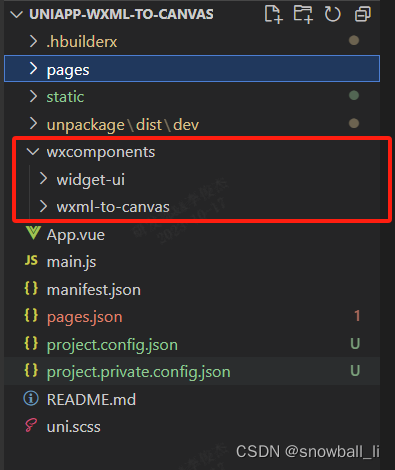
2.1、wxcomponents目录
将”开源项目“的这两个目录及包含的文件复制到自己项目的同名目录下。
2.2、pages.json
在pages.json文件,globalStyle 配置 usingComponents
- globalStyle: {
- "usingComponents": {
- "wxml-to-canvas": "/wxcomponents/wxml-to-canvas/index"
- }
- }

2.3、utils/DomData.js
wxml 定义html
style 定义样式
- /**
- *
- *
- * @param {*} number 第几位
- * @param {*} src 名片头像
- * @param {*} name 名片名字
- * @param {*} qrCodeUrl 小程序codeURL图片
- */
- /**
- 下边的内容可以自己定义,这样就可以定制属于自己的海报了
- */
- const wxml = (name, pic, c1, c2) =>`
- <view class="container">
- <image src="`+pic+`" class="pic"/>
- <text class="name">`+ name +`</text>
- <text class="content">`+ c1 +`</text>
- <text class="content">`+ c2 +`</text>
- <view class="bottom">
- <image src="`+pic+`" class="qr"/>
- <text class="msg">扫码一起加入学习吧</text>
- </view>
- </view>
- `
- /**
- *
- *
- * @param {*} screenWidth 屏幕宽度
- * @param {*} canvasWidth 画布宽度
- * @param {*} canvasHeight 画布高度
- * @param {*} numberWidth 数字宽度,动态设置
- * @return {*}
- */
- const style = (screenWidth, canvasWidth, canvasHeight) => {
- return {
- "container": {
- width: canvasWidth,
- height: canvasHeight,
- position: 'relative',
- overflow: 'hidden',
- backgroundColor: '#ffffff',
- },
- "name":{
- fontSize: 20,
- color: '#333',
- marginLeft: canvasWidth * 0.08,
- width: canvasWidth * 0.84,
- height: screenWidth * 0.18,
- textAlign: 'center',
- },
- "content": {
- fontSize: 14,
- color: '#333',
- width: canvasWidth * 0.84,
- height: screenWidth * 0.15,
- marginLeft: canvasWidth * 0.08,
- },
- "pic": {
- width: canvasWidth * 0.3,
- height: screenWidth * 0.28,
- marginTop: canvasWidth * 0.1,
- marginLeft: canvasWidth * 0.35,
- marginBottom: canvasWidth * 0.05,
- borderRadius: screenWidth * 0.14,
- overflow: 'hidden',
- },
- "bottom":{
- width: canvasWidth,
- height: screenWidth * 0.2,
- flexDirection: 'row',
- justifyContent: 'self-start',
- alignItems: 'center',
- backgroundColor: '#fafafa',
- position: 'absolute',
- bottom: 0,
- left: 0,
- },
- "qr": {
- width: canvasWidth * 0.14,
- height: screenWidth * 0.14,
- marginLeft: canvasWidth * 0.04,
- marginRight: canvasWidth * 0.04,
- },
- "msg": {
- fontSize: 14,
- color: '#a1a1a1',
- width: canvasWidth * 0.74,
- height: 14,
- textAlign: 'left'
- },
- }
- }
- module.exports = {
- wxml,
- style
- }
2.4、业务页面
- <template>
- <view class="share-page">
- <view class="share-page-box" id="box" v-if="show" :style="{width: canvasWidth + 'px', height: canvasHeight + 'px' }">
- <wxml-to-canvas class="widget" :width="canvasWidth" :height="canvasHeight"></wxml-to-canvas>
- </view>
- <view class="share-page-box msg-box" v-else :style="{width: canvasWidth + 'px', height: canvasHeight + 'px' }">
- {{msg}}
- </view>
- <view class="share-page-btn" @tap="extraImage">
- <button class="btn-big" :style="getBtnStyle">保存图片</button>
- </view>
- </view>
- </template>
- <script>
- const { wxml, style } = require('@/utils/DomData.js')
- export default {
- name: '',
- data () {
- return {
- show: false, // 是否显示canvas
- canvasWidth: 320, // 默认canvas宽高
- canvasHeight: 480,
- screenWidth: null, // 设备宽度
- name: '',
- pic: '',
- chapter1: '',
- chapter2: '',
- widget: null,
- msg: '加载中,请稍等...', // 提示语
- }
- },
- onLoad (options) {
- console.log('options', options);
- this.name = 'Willam Yang'
- this.pic = 'https://pic1.zhimg.com/80/v2-58fe538a59f870407b1435bfd45893ed_720w.jpeg'
- this.chapter1 = '第一段'
- this.chapter2 = '第二段'
- // 获取设备信息
- wx.getSystemInfo({
- success: (res) =>{
- this.screenWidth = res.screenWidth
- this.canvasWidth = this.screenWidth * 0.9
- this.canvasHeight = this.screenWidth * 1.1
- console.log('screenWidth', this.screenWidth)
- this.show = true
- // 数字容器宽度 动态设置
- setTimeout(() => {
- wx.showLoading({title: '海报生成中...'})
- this.widget = this.selectComponent('.widget')
- this.renderToCanvas()
- }, 1000)
- }
- });
- },
- methods: {
- // wxml 转 canvas
- renderToCanvas () {
- console.log('this.widget', this.widget)
- const _wxml = wxml(this.name, this.pic, this.chapter1, this.chapter2)
- const _style = style(this.screenWidth, this.canvasWidth, this.canvasHeight)
- const p1 = this.widget.renderToCanvas({ wxml: _wxml, style: _style })
- p1.then((res) => {
- console.log('海报生成成功');
- wx.hideLoading()
- // this.container = res
- }).catch((err) => {
- console.log('生成失败')
- })
- },
- // 保存到朋友圈
- extraImage() {
- if (!this.show) {
- wx.showToast({title: '海报生成失败,无法分享到朋友圈', icon: 'none'})
- return
- }
- const p2 = this.widget.canvasToTempFilePath()
- let that = this
- p2.then(result => {
- let path = result.tempFilePath
- wx.getSetting({
- success: res => {
- // 非初始化且未授权的情况,需要再次弹窗提示授权
- if (res.authSetting['scope.writePhotosAlbum'] != undefined && res.authSetting['scope.writePhotosAlbum'] != true) {
- wx.showModal({
- title: '是否授权相册权限',
- content: '需要获取相册权限,请确认授权,否则无法使用相关功能',
- success: res => {
- if (res.confirm) {
- wx.openSetting({
- success: dataAu => {
- if (dataAu.authSetting["scope.writePhotosAlbum"] == true) {
- wx.showToast({
- title: '授权成功',
- icon: 'none',
- duration: 1000
- });
- that.saveIMg(path);
- } else {
- wx.showToast({
- title: '授权失败',
- icon: 'success',
- duration: 1000
- });
- }
- }
- });
- }
- }
- });
- } else {
- // 初始化且未授权,系统默认会弹窗提示授权
- // 非初始化且已授权,也会进入这里
- that.saveIMg(path);
- }
- }
- });
- })
- },
- // 保存到相册
- async saveIMg (tempFilePath) {
- wx.saveImageToPhotosAlbum({
- filePath: tempFilePath,
- success: async (res) => {
- wx.showModal({
- content: '图片已保存,分享给好友吧!',
- showCancel: false,
- confirmText: '好的',
- confirmColor: '#333',
- success: function (res) {
- wx.navigateBack({
- //返回
- delta: 1
- });
- },
- fail: function (res) {
- console.log('res', res);
- }
- });
- },
- fail: function (res) {
- wx.showToast({
- title: '您取消了授权',
- icon: 'none',
- duration: 2000
- })
- }
- });
- }
- }
- }
- </script>
- <style lang="scss" scoped>
- .share-page {
- background: #fff;
- position: relative;
- overflow: hidden;
- min-height: 100vh;
- .msg-box {
- display: flex;
- align-items: center;
- text-align: center;
- justify-content: center;
- }
- .share-page-box {
- margin: 40rpx auto;
- position: relative;
- overflow: hidden;
- box-shadow: 0rpx 6rpx 20rpx 6rpx rgba(0, 0, 0, 0.2);
- }
- .share-page-btn {
- margin: 0 40rpx 50rpx;
- img {
- width: 100%;
- height: 100%;
- }
- }
- }
- </style>
到此功能实现,集成步骤也比较简单,
三、过程记录
3.1、小程序 wxcomponents 目录干啥的
小程序的 wxcomponents 目录一般用来放置自定义组件或第三方组件。这些组件可以在小程序中多次使用,提高代码的复用性和开发效率。在这个目录下的组件包括两种类型:
1. 小程序官方提供的基础组件库,比如 button、 swiper 等;
2. 开发者自定义的组件,比如自定义图标、模板、模态框等。这些组件可以通过 require 方法引入并使用,也可以在页面的 json 配置文件中进行全局注册,被所有页面调用。通过创建自定义组件,可以让开发者更加方便地完成复杂的交互效果和组件封装,从而提高小程序的可维护性和开发效率。
3.2、微信小程序selectComponent返回null的问题排查与分析
微信小程序selectComponent返回null的问题排查与分析-CSDN博客
四、欢迎交流指正
五、参考连接
微信小程序插件--wxml-to-canvas(生成图片)_微信小程序生成海报插件-CSDN博客
【微信小程序】解决canvas组件层级最高问题_微信小程序canvas层级_大大。的博客-CSDN博客
浅谈html2canvas实现浏览器截图的原理_invalid element provided as first argument-CSDN博客
GitHub - ThaneYang/uniapp-wxml-to-canvas
uniapp 微信小程序 实现 将base64图片保存相册和转发分享微信好友功能记录 直接cv就能用!!!!_uniapp分享图片到微信_柑橘乌云_的博客-CSDN博客
uni-app小程序生成海报wxml-to-canvas_西瓜霜的技术博客_51CTO博客
uniapp 、微信小程序使用canvas生成海报 - 知乎
uni.canvasToTempFilePath(object, component) | uni-app官网
uni-app 微信小程序如何把图片保存到本地相册? · 杂记 · 看云
Painter: 小程序生成海报组件,非常好用,json配置,一下生成
微信小程序实现生成分享海报案例_微信小程序生成海报-CSDN博客
uniapp中使用html2canvas做H5端的海报生成功能 - 简书
uni-app 中使用 html2canvas 生成图片(支持多端)_uniapp html2canvas_不想搬砖。的博客-CSDN博客
uni-app APP、html引入html2canvas截图以及截长图_html2canvas npm-CSDN博客
uni-app 中使用 html2canvas 生成图片(支持多端)_uniapp html2canvas_不想搬砖。的博客-CSDN博客
-
相关阅读:
What is an HTTP Flood DDoS attack?
shiro-会话管理(session管理)
想知道视频二维码制作方法吗?方法很简单
信息学奥赛一本通:2036:【例5.3】开关门
布局与打包
ApiFox添加全局参数
大数据ClickHouse(八):MergeTree系列表引擎之MergeTree(重点掌握)
网络协议模型
系统性能测试工具
10-Element UI
- 原文地址:https://blog.csdn.net/snowball_li/article/details/133801504