-
qml入门
qml是什么
概念
Qt的前端语言,可以专注于UI实现,C++实现程序逻辑,实现解耦,便于代码维护。- 1
qml编码规范
id 属性声明 信号声明 JavaScript函数 对象属性 子对象- 1
- 2
- 3
- 4
- 5
- 6
布局管理
事件管理
MouseArea组件
MouseArea继承自ItemacceptedButtons属性
import QtQuick 2.15 import QtQuick.Window 2.15 import QtQuick.Controls 2.5 Window { width: 640 height: 480 visible: true title: qsTr("my qml") MouseArea { id: mouseArea width: 100 height: 100 acceptedButtons: Qt.LeftButton | Qt.RightButton //支持左键和右键 Rectangle { anchors.fill: parent color: "green" } onClicked: { console.log("onClicked") } onReleased: { console.log("onReleased") } onPressed: { var ret = pressedButtons & Qt.LeftButton var ret2 = pressedButtons & Qt.RightButton console.log(ret ? "left" : ret2 ? "right" : "other") console.log("onPressed") } } }- 1
- 2
- 3
- 4
- 5
- 6
- 7
- 8
- 9
- 10
- 11
- 12
- 13
- 14
- 15
- 16
- 17
- 18
- 19
- 20
- 21
- 22
- 23
- 24
- 25
- 26
- 27
- 28
- 29
- 30
- 31
- 32
- 33
containsMouse属性、ContainsPress属性
import QtQuick 2.15 import QtQuick.Window 2.15 import QtQuick.Controls 2.5 Window { width: 640 height: 480 visible: true title: qsTr("my qml") MouseArea { id: mouseArea width: 100 height: 100 acceptedButtons: Qt.LeftButton | Qt.RightButton //支持左键和右键 hoverEnabled: true cursorShape: Qt.CrossCursor //十字光标 Rectangle { anchors.fill: parent color: "green" } onClicked: { console.log("onClicked") } onHoveredChanged: { console.log("onHoveredChanged") } onContainsMouseChanged: { console.log("onContainsMouseChanged", containsMouse) } onContainsPressChanged: { console.log("onContainsPressed", containsPress) } } }- 1
- 2
- 3
- 4
- 5
- 6
- 7
- 8
- 9
- 10
- 11
- 12
- 13
- 14
- 15
- 16
- 17
- 18
- 19
- 20
- 21
- 22
- 23
- 24
- 25
- 26
- 27
- 28
- 29
- 30
- 31
- 32
- 33
- 34
- 35
- 36
- 37
- 38
drag属性
拖动控件移动
import QtQuick 2.15 import QtQuick.Window 2.15 import QtQuick.Controls 2.5 Window { width: 640 height: 480 visible: true title: qsTr("my qml") Rectangle { id: container width: 600; height: 200 Rectangle { id: rect width: 50; height: 50 color: "red" opacity: (600.0 - rect.x) / 600 MouseArea { anchors.fill: parent drag.target: rect drag.axis: Drag.XAxis drag.minimumX: 0 drag.maximumX: container.width - rect.width } } } }- 1
- 2
- 3
- 4
- 5
- 6
- 7
- 8
- 9
- 10
- 11
- 12
- 13
- 14
- 15
- 16
- 17
- 18
- 19
- 20
- 21
- 22
- 23
- 24
- 25
- 26
- 27
- 28
- 29
- 30
连同子控件一起移动,由
drag.filterChildren所控制import QtQuick 2.15 import QtQuick.Window 2.15 import QtQuick.Controls 2.5 Window { width: 640 height: 480 visible: true title: qsTr("my qml") Rectangle { width: 480 height: 320 Rectangle { x: 30; y: 30 width: 300; height: 240 color: "lightsteelblue" MouseArea { anchors.fill: parent drag.target: parent; drag.axis: "XAxis" drag.minimumX: 30 drag.maximumX: 150 drag.filterChildren: true Rectangle { color: "yellow" x: 50; y : 50 width: 100; height: 100 MouseArea { anchors.fill: parent onClicked: console.log("Clicked") } } } } } }- 1
- 2
- 3
- 4
- 5
- 6
- 7
- 8
- 9
- 10
- 11
- 12
- 13
- 14
- 15
- 16
- 17
- 18
- 19
- 20
- 21
- 22
- 23
- 24
- 25
- 26
- 27
- 28
- 29
- 30
- 31
- 32
- 33
- 34
- 35
- 36
- 37
- 38
- 39
- 40
键盘事件和焦点作用域
定时器
import QtQuick 2.15 import QtQuick.Window 2.15 Window { width: 640 height: 480 visible: true title: qsTr("Hello World") Item { Timer { interval: 1000 running: true repeat: true onTriggered: time.text = Date().toString() } Text { id: time } } }- 1
- 2
- 3
- 4
- 5
- 6
- 7
- 8
- 9
- 10
- 11
- 12
- 13
- 14
- 15
- 16
- 17
- 18
- 19
- 20
- 21
- 22
Qt Quick控件
window
import QtQuick 2.15 import QtQuick.Window 2.15 import QtQuick.Controls 2.5 Window { //root控件,父窗口是主界面 width: 640 height: 480 visible: true //相对于父控件的偏移量 x: 100 y:100 minimumWidth: 400 //最小宽度 minimumHeight: 300 //最小高度 maximumWidth: 600 //最大宽度 maximumHeight: 450 //最大高度 opacity: 0.9 //0-1,窗口透明度 onWidthChanged: { console.log("width: ", width) } Button { id: btn1 width: 80 height: 80 focus: true objectName: "btn1" background: Rectangle { border.color: btn1.focus ? "blue" : "red" } onClicked: { console.log("btn1 clicked") } Keys.onRightPressed: { btn2.focus = true } } Button { id: btn2 x: 120 width: 80 height: 80 objectName: "btn2" background: Rectangle { border.color: btn2.focus ? "blue" : "red" } onClicked: { console.log("btn2 clicked") } Keys.onLeftPressed: { btn1.focus = true } } //保存了整个窗口中当前获取焦点的控件 onActiveFocusItemChanged: { console.log("active focus item changed", activeFocusItem, activeFocusItem.objectName) } title: qsTr("my qml") }- 1
- 2
- 3
- 4
- 5
- 6
- 7
- 8
- 9
- 10
- 11
- 12
- 13
- 14
- 15
- 16
- 17
- 18
- 19
- 20
- 21
- 22
- 23
- 24
- 25
- 26
- 27
- 28
- 29
- 30
- 31
- 32
- 33
- 34
- 35
- 36
- 37
- 38
- 39
- 40
- 41
- 42
- 43
- 44
- 45
- 46
- 47
- 48
- 49
- 50
- 51
- 52
- 53
- 54
- 55
- 56
- 57
- 58
- 59
- 60
- 61
- 62
- 63
- 64
- 65
- 66

Item与Rectangle
Rectangle控件:自身属性不多,但它继承自Item,因此Item的诸多属性可以使用focus属性
import QtQuick 2.15 import QtQuick.Window 2.15 import QtQuick.Controls 2.5 Window { width: 640 height: 480 visible: true title: qsTr("my qml") Rectangle { x: 100 y: 100 z: 1 width : 100 height: 50 color: "red" focus: false //当前控件可获取焦点 MouseArea { anchors.fill: parent onClicked: { console.log("on clicked") } } Keys.onReturnPressed: { console.log("on return pressed") } } Rectangle { x: 120 y: 120 width : 100 height: 50 color: "green" } }- 1
- 2
- 3
- 4
- 5
- 6
- 7
- 8
- 9
- 10
- 11
- 12
- 13
- 14
- 15
- 16
- 17
- 18
- 19
- 20
- 21
- 22
- 23
- 24
- 25
- 26
- 27
- 28
- 29
- 30
- 31
- 32
- 33
- 34
- 35
- 36
- 37
- 38
- 39
- 40
anchor属性
anchors.fill→ \to →填充父控件
import QtQuick 2.15 import QtQuick.Window 2.15 import QtQuick.Controls 2.5 Window { width: 640 height: 480 visible: true title: qsTr("my qml") Rectangle { id: rect1 anchors.fill: parent color: "red" } Rectangle { id: rect2 width : 100 height: 50 color: "green" } }- 1
- 2
- 3
- 4
- 5
- 6
- 7
- 8
- 9
- 10
- 11
- 12
- 13
- 14
- 15
- 16
- 17
- 18
- 19
- 20
- 21
- 22
- 23

anchors.left、anchors.leftMargin、anchors.top、anchors.topMargin
import QtQuick 2.15 import QtQuick.Window 2.15 import QtQuick.Controls 2.5 Window { width: 640 height: 480 visible: true title: qsTr("my qml") Rectangle { id: rect1 width : 100 height: 50 color: "red" } Rectangle { id: rect2 width : 100 height: 50 anchors.left: rect1.right anchors.leftMargin: 20 color: "green" } Rectangle { id: rect3 width : 100 height: 50 anchors.top: rect1.bottom anchors.topMargin: 20 color: "blue" } }- 1
- 2
- 3
- 4
- 5
- 6
- 7
- 8
- 9
- 10
- 11
- 12
- 13
- 14
- 15
- 16
- 17
- 18
- 19
- 20
- 21
- 22
- 23
- 24
- 25
- 26
- 27
- 28
- 29
- 30
- 31
- 32
- 33
- 34
- 35

3.anchors.centerIn、anchors.horizontalCenter、anchors.verticalCenterimport QtQuick 2.15 import QtQuick.Window 2.15 import QtQuick.Controls 2.5 Window { width: 640 height: 480 visible: true title: qsTr("my qml") Rectangle { id: rect1 width : 100 height: 50 color: "red" //anchors.centerIn: parent anchors.horizontalCenter: parent.horizontalCenter anchors.verticalCenter: parent.verticalCenter } }- 1
- 2
- 3
- 4
- 5
- 6
- 7
- 8
- 9
- 10
- 11
- 12
- 13
- 14
- 15
- 16
- 17
- 18
- 19
- 20

4.borderimport QtQuick 2.15 import QtQuick.Window 2.15 import QtQuick.Controls 2.5 Window { width: 640 height: 480 visible: true title: qsTr("my qml") Rectangle { id: rect1 x: 320 y: 240 width : 100 height: 100 color: "red" border.color: "blue" border.width: 3 radius: 5 } }- 1
- 2
- 3
- 4
- 5
- 6
- 7
- 8
- 9
- 10
- 11
- 12
- 13
- 14
- 15
- 16
- 17
- 18
- 19
- 20
- 21
- 22
- 23
- 24

5.gradientimport QtQuick 2.15 import QtQuick.Window 2.15 import QtQuick.Controls 2.5 Window { width: 640 height: 480 visible: true title: qsTr("my qml") Rectangle { id: rect1 x: 320 y: 240 width : 100 height: 100 color: "red" gradient: Gradient { GradientStop { position: 0.0; color: "lightsteelblue" } GradientStop { position: 1.0; color: "blue" } } } }- 1
- 2
- 3
- 4
- 5
- 6
- 7
- 8
- 9
- 10
- 11
- 12
- 13
- 14
- 15
- 16
- 17
- 18
- 19
- 20
- 21
- 22
- 23
- 24

Rectangle自定义边框
main.qmlimport QtQuick 2.15 import QtQuick.Window 2.15 import QtQuick.Controls 2.5 Window { width: 640 height: 480 visible: true title: qsTr("my qml") MyRectangle { x: 200 y: 200 myTop: 10 myBottom: 10 } }- 1
- 2
- 3
- 4
- 5
- 6
- 7
- 8
- 9
- 10
- 11
- 12
- 13
- 14
- 15
- 16
- 17
- 18
MyRectangle.qmlimport QtQuick 2.15 Rectangle { id: borderRect property int myTop: 0 property int myBottom: 0 width: 200 height: 100 color: "red" Rectangle { id: innerRect color: "blue" anchors.fill: parent anchors.topMargin: myTop anchors.bottomMargin: myBottom anchors.leftMargin: 5 anchors.rightMargin: 5 } }- 1
- 2
- 3
- 4
- 5
- 6
- 7
- 8
- 9
- 10
- 11
- 12
- 13
- 14
- 15
- 16
- 17
- 18
- 19

states与transitions
Item的两个重要属性:states与transitions状态机
statesimport QtQuick 2.15 import QtQuick.Window 2.15 import QtQuick.Controls 2.5 Window { width: 640 height: 480 visible: true title: qsTr("my qml") Rectangle { id: root width: 100; height: 100 color: "blue" state: "normal" states: [ State { name: "red_color" PropertyChanges { target: root; color: "red"; width: 200 } }, State { name: "blue_color" PropertyChanges { target: root; color: "blue"; height: 200 } }, State { name: "normal" PropertyChanges { target: root; color: "black"; height: 200; width: 200 } } ] MouseArea { anchors.fill: parent onPressed: { root.state = "red_color" } onReleased: { root.state = "blue_color" } } } }- 1
- 2
- 3
- 4
- 5
- 6
- 7
- 8
- 9
- 10
- 11
- 12
- 13
- 14
- 15
- 16
- 17
- 18
- 19
- 20
- 21
- 22
- 23
- 24
- 25
- 26
- 27
- 28
- 29
- 30
- 31
- 32
- 33
- 34
- 35
- 36
- 37
- 38
- 39
- 40
- 41
- 42
- 43
transitions- 第一种方法:直接属性动画
点击控件产生渐变效果
import QtQuick 2.15 import QtQuick.Window 2.15 import QtQuick.Controls 2.5 Window { width: 640 height: 480 visible: true title: qsTr("my qml") Rectangle { id: flashingblob width: 75; height: 75 color: "blue" opacity: 1.0 MouseArea { anchors.fill: parent onClicked: { animateColor.start() animateOpacity.start() } } PropertyAnimation { id: animateColor target: flashingblob properties: "color" to: "green" duration: 1000 //持续时间(ms) } NumberAnimation { id: animateOpacity target: flashingblob properties: "opacity" from: 0.5 to: 1.0 duration: 1000 //持续时间(ms) } } }- 1
- 2
- 3
- 4
- 5
- 6
- 7
- 8
- 9
- 10
- 11
- 12
- 13
- 14
- 15
- 16
- 17
- 18
- 19
- 20
- 21
- 22
- 23
- 24
- 25
- 26
- 27
- 28
- 29
- 30
- 31
- 32
- 33
- 34
- 35
- 36
- 37
- 38
- 39
- 40
- 41
- 42
点击控件产生伸长效果
import QtQuick 2.15 import QtQuick.Window 2.15 import QtQuick.Controls 2.5 Window { width: 640 height: 480 visible: true title: qsTr("my qml") Rectangle { id: flashingblob width: 75; height: 75 color: "blue" opacity: 1.0 MouseArea { anchors.fill: parent onClicked: { animateOpacity.start() } } NumberAnimation { id: animateOpacity target: flashingblob properties: "width" from: 75 to: 150 duration: 3000 //持续时间(ms) } } }- 1
- 2
- 3
- 4
- 5
- 6
- 7
- 8
- 9
- 10
- 11
- 12
- 13
- 14
- 15
- 16
- 17
- 18
- 19
- 20
- 21
- 22
- 23
- 24
- 25
- 26
- 27
- 28
- 29
- 30
- 31
- 32
- 33
- 第二种方法:使用预定义的目标与属性
import QtQuick 2.15 import QtQuick.Window 2.15 import QtQuick.Controls 2.5 Window { width: 640 height: 480 visible: true title: qsTr("my qml") Rectangle { id: rect width: 100; height: 100 color: "red" PropertyAnimation on x { //修改当前控件的位置 to: 100 duration: 1000 } PropertyAnimation on y { to: 100 duration: 1000 } } }- 1
- 2
- 3
- 4
- 5
- 6
- 7
- 8
- 9
- 10
- 11
- 12
- 13
- 14
- 15
- 16
- 17
- 18
- 19
- 20
- 21
- 22
- 23
- 24
- 25
- 26
还可以定义动画的执行顺序
import QtQuick 2.15 import QtQuick.Window 2.15 import QtQuick.Controls 2.5 Window { width: 640 height: 480 visible: true title: qsTr("my qml") Rectangle { width: 100; height: 100 color: "red" SequentialAnimation on color { ColorAnimation { to: "yellow"; duration: 1000 } ColorAnimation { to: "blue"; duration: 1000 } } } }- 1
- 2
- 3
- 4
- 5
- 6
- 7
- 8
- 9
- 10
- 11
- 12
- 13
- 14
- 15
- 16
- 17
- 18
- 19
- 20
- 第三种:在状态改变的时候做动画
import QtQuick 2.15 import QtQuick.Window 2.15 import QtQuick.Controls 2.5 Window { width: 640 height: 480 visible: true title: qsTr("my qml") Rectangle { width: 75; height: 75 id: button state: "RELEASED" MouseArea { anchors.fill: parent onPressed: button.state = "PRESSED" onReleased: button.state = "RELEASED" } states: [ State { name: "PRESSED" PropertyChanges { target: button; color: "lightblue"} }, State { name: "RELEASED" PropertyChanges { target: button; color: "lightsteelblue"} } ] transitions: [ Transition { from: "PRESSED" to: "RELEASED" ColorAnimation { target: button; duration: 1000 } }, Transition { from: "RELEASED" to: "PRESSED" ColorAnimation { target: button; duration: 1000 } } ] } }- 1
- 2
- 3
- 4
- 5
- 6
- 7
- 8
- 9
- 10
- 11
- 12
- 13
- 14
- 15
- 16
- 17
- 18
- 19
- 20
- 21
- 22
- 23
- 24
- 25
- 26
- 27
- 28
- 29
- 30
- 31
- 32
- 33
- 34
- 35
- 36
- 37
- 38
- 39
- 40
- 41
- 42
- 43
- 44
- 45
- 46
- 第四种:预定好行为
import QtQuick 2.15 import QtQuick.Window 2.15 import QtQuick.Controls 2.5 Window { width: 640 height: 480 visible: true title: qsTr("my qml") Rectangle { width: 75; height: 75; radius: width id: ball color: "salmon" MouseArea { anchors.fill: parent onClicked: { ball.x += 50 ball.y += 50 } } Behavior on x { NumberAnimation { id: bouncebehavior easing { type: Easing.OutElastic amplitude: 1.0 period: 0.5 } } } Behavior on y { animation: bouncebehavior } Behavior { ColorAnimation { target: ball; duration: 100 } } } }- 1
- 2
- 3
- 4
- 5
- 6
- 7
- 8
- 9
- 10
- 11
- 12
- 13
- 14
- 15
- 16
- 17
- 18
- 19
- 20
- 21
- 22
- 23
- 24
- 25
- 26
- 27
- 28
- 29
- 30
- 31
- 32
- 33
- 34
- 35
- 36
- 37
- 38
- 39
- 40
- 41
- 42
- 43
Component和Loader
qml中window组件也是一个Componentimport QtQuick 2.15 import QtQuick.Window 2.15 import QtQuick.Controls 2.5 Window { width: 640 height: 480 visible: true title: qsTr("my qml") Component.onCompleted: { console.log("onCompleted", width, height, color) } Component.onDestruction: { console.log("onDestruction") } }- 1
- 2
- 3
- 4
- 5
- 6
- 7
- 8
- 9
- 10
- 11
- 12
- 13
- 14
- 15
- 16
- 17
- 18
Component与Loader配合使用加载控件,在加载控件完成后想对控件进行修改,可使用loader.item属性对控件进行修改import QtQuick 2.15 import QtQuick.Window 2.15 import QtQuick.Controls 2.5 Window { width: 640 height: 480 visible: true title: qsTr("my qml") Button { id: btn x: 200; y:0 width: 50; height: 50 onClicked: { //loader.sourceComponent = null loader.item.width = 50 loader.item.height = 50 loader.item.color = "blue" console.log("onClicked") } } Component { id: com Rectangle { width: 100; height: 100 color: "red" } } Loader { id: loader asynchronous: true //异步加载 sourceComponent: com source: "./MyRectangle.qml" onStatusChanged: { console.log("status: ", loader.status) } } }- 1
- 2
- 3
- 4
- 5
- 6
- 7
- 8
- 9
- 10
- 11
- 12
- 13
- 14
- 15
- 16
- 17
- 18
- 19
- 20
- 21
- 22
- 23
- 24
- 25
- 26
- 27
- 28
- 29
- 30
- 31
- 32
- 33
- 34
- 35
- 36
- 37
- 38
- 39
- 40
- 41
加载图片
import QtQuick 2.15 import QtQuick.Window 2.15 import QtQuick.Controls 2.5 Window { width: 640 height: 480 visible: true title: qsTr("my qml") Component { id: com Image { id: img source: "./asset/image.png" } } Loader { id: loader asynchronous: true sourceComponent: com source: "./MyRectangle.qml" onStatusChanged: { console.log("status: ", loader.status) } } }- 1
- 2
- 3
- 4
- 5
- 6
- 7
- 8
- 9
- 10
- 11
- 12
- 13
- 14
- 15
- 16
- 17
- 18
- 19
- 20
- 21
- 22
- 23
- 24
- 25
- 26
- 27
- 28

加载动图import QtQuick 2.15 import QtQuick.Window 2.15 import QtQuick.Controls 2.5 Window { width: 640 height: 480 visible: true title: qsTr("my qml") Component { id: com AnimatedImage { id: img source: "/asset/test.gif" width: 100 height: 100 } } Loader { id: loader asynchronous: true sourceComponent: com source: "./MyRectangle.qml" onStatusChanged: { console.log("status: ", loader.status) } } }- 1
- 2
- 3
- 4
- 5
- 6
- 7
- 8
- 9
- 10
- 11
- 12
- 13
- 14
- 15
- 16
- 17
- 18
- 19
- 20
- 21
- 22
- 23
- 24
- 25
- 26
- 27
- 28
- 29
- 30
Button组件
Button控件继承自AbstractButton,AbstractButton继承自Control,Control继承自ItemautoExclusive属性
import QtQuick 2.15 import QtQuick.Window 2.15 import QtQuick.Controls 2.5 Window { width: 640 height: 480 visible: true title: qsTr("my qml") Button { id: btn1 width: 50 height: 50 checkable: true autoExclusive: true } Button { id: btn2 x: 60 width: 50 height: 50 checkable: true autoExclusive: true } Button { id: btn3 x: 120 width: 50 height: 50 checkable: true autoExclusive: true } }- 1
- 2
- 3
- 4
- 5
- 6
- 7
- 8
- 9
- 10
- 11
- 12
- 13
- 14
- 15
- 16
- 17
- 18
- 19
- 20
- 21
- 22
- 23
- 24
- 25
- 26
- 27
- 28
- 29
- 30
- 31
- 32
- 33
- 34
- 35
- 36
同一时间只有一个按钮处于
checked状态
autoRepeat、autoRepeatDelay、autoRepeatInterval
import QtQuick 2.15 import QtQuick.Window 2.15 import QtQuick.Controls 2.5 Window { width: 640 height: 480 visible: true title: qsTr("my qml") Button { id: btn1 width: 50 height: 50 autoRepeat: true autoRepeatDelay: 3000 //控制第一次重复触发的时间 autoRepeatInterval: 1000 //重复触发的时间间隔 onClicked: { console.log("onClicked") } onReleased: { console.log("onReleased") } onPressed: { console.log("onPressed") } } }- 1
- 2
- 3
- 4
- 5
- 6
- 7
- 8
- 9
- 10
- 11
- 12
- 13
- 14
- 15
- 16
- 17
- 18
- 19
- 20
- 21
- 22
- 23
- 24
- 25
- 26
- 27
- 28
- 29
- 30
icon属性
import QtQuick 2.15 import QtQuick.Window 2.15 import QtQuick.Controls 2.5 Window { width: 640 height: 480 visible: true title: qsTr("my qml") Button { id: btn1 width: 50 height: 50 icon.source: "/asset/8666542_save_icon.png" icon.color: "black" } }- 1
- 2
- 3
- 4
- 5
- 6
- 7
- 8
- 9
- 10
- 11
- 12
- 13
- 14
- 15
- 16
- 17
- 18
- 19
text属性
import QtQuick 2.15 import QtQuick.Window 2.15 import QtQuick.Controls 2.5 Window { width: 640 height: 480 visible: true title: qsTr("my qml") Button { id: btn1 width: 50 height: 20 text: "btn" } }- 1
- 2
- 3
- 4
- 5
- 6
- 7
- 8
- 9
- 10
- 11
- 12
- 13
- 14
- 15
- 16
- 17
- 18

background属性
import QtQuick 2.15 import QtQuick.Window 2.15 import QtQuick.Controls 2.5 Window { width: 640 height: 480 visible: true title: qsTr("my qml") Button { id: btn1 width: 50 height: 20 background: Rectangle { anchors.fill: btn color: "blue" } } }- 1
- 2
- 3
- 4
- 5
- 6
- 7
- 8
- 9
- 10
- 11
- 12
- 13
- 14
- 15
- 16
- 17
- 18
- 19
- 20
- 21
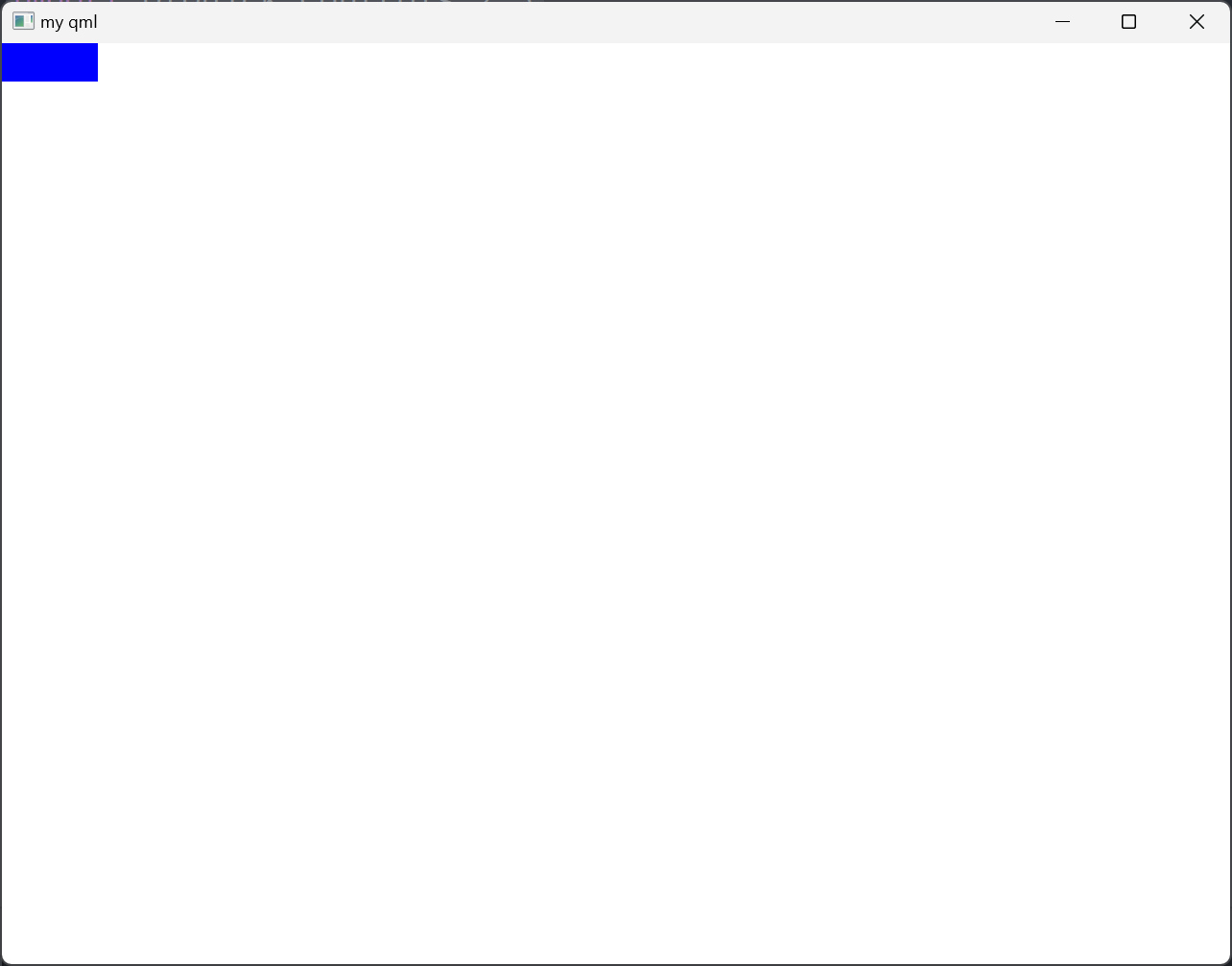
Property的使用
MyRectangle.qmlimport QtQuick 2.15 Rectangle { id: borderRect width: 200 height: 200 color: "red" property int myTop: 0 property int myBottom: 0 property real myReal: 0.0 property string myString: "black" property color myColor: "red" property url myUrl: "/asset/test.jpg" required property Component myCom //外界一定设置才行 property Rectangle myRect property var myVar: "0.0" property list<Rectangle> myList readonly property int rectWidth: width //外界不可修改 property alias newInnerRect: innerRect //给子控件取别名 Rectangle { id: innerRect Loader { id: loader sourceComponent: myCom } color: "blue" anchors.fill: parent anchors.topMargin: myTop anchors.bottomMargin: myBottom anchors.leftMargin: 5 anchors.rightMargin: 5 } }- 1
- 2
- 3
- 4
- 5
- 6
- 7
- 8
- 9
- 10
- 11
- 12
- 13
- 14
- 15
- 16
- 17
- 18
- 19
- 20
- 21
- 22
- 23
- 24
- 25
- 26
- 27
- 28
- 29
- 30
- 31
- 32
- 33
- 34
- 35
- 36
- 37
- 38
main.qmlimport QtQuick 2.15 import QtQuick.Window 2.15 import QtQuick.Controls 2.5 Window { width: 640 height: 480 visible: true title: qsTr("my qml") Component { id: com Button { width: 50 height: 50 } } MyRectangle { id: rect myCom: com Component.onCompleted: { newInnerRect.color = "green" console.log(rectWidth) } } }- 1
- 2
- 3
- 4
- 5
- 6
- 7
- 8
- 9
- 10
- 11
- 12
- 13
- 14
- 15
- 16
- 17
- 18
- 19
- 20
- 21
- 22
- 23
- 24
- 25
- 26
- 27

CheckBox控件
CheckBox继承自AbstractButtontristate属性
import QtQuick 2.15 import QtQuick.Window 2.15 import QtQuick.Controls 2.5 Window { width: 640 height: 480 visible: true title: qsTr("my qml") Column { CheckBox { checked: true tristate: true text: qsTr("First") onCheckStateChanged: { console.log("checkState: ", checkState) } } CheckBox { text: qsTr("Second") } CheckBox { checked: true text: qsTr("Third") } } }- 1
- 2
- 3
- 4
- 5
- 6
- 7
- 8
- 9
- 10
- 11
- 12
- 13
- 14
- 15
- 16
- 17
- 18
- 19
- 20
- 21
- 22
- 23
- 24
- 25
- 26
- 27
- 28
- 29
- 30
checkBox控件无法用autoExclusive属性实现单选框,但可用ButtonGroup来实现
import QtQuick 2.15 import QtQuick.Window 2.15 import QtQuick.Controls 2.5 Window { width: 640 height: 480 visible: true title: qsTr("my qml") ButtonGroup { id: childGroup exclusive: true buttons: column.children } Column { id: column CheckBox { checked: true text: qsTr("First") } CheckBox { text: qsTr("Second") } CheckBox { checked: true text: qsTr("Third") } } }- 1
- 2
- 3
- 4
- 5
- 6
- 7
- 8
- 9
- 10
- 11
- 12
- 13
- 14
- 15
- 16
- 17
- 18
- 19
- 20
- 21
- 22
- 23
- 24
- 25
- 26
- 27
- 28
- 29
- 30
- 31
- 32
- 33

以下示例说明了如何将子项的组合检查状态绑定到父复选框的检查状态
import QtQuick 2.15 import QtQuick.Window 2.15 import QtQuick.Controls 2.5 Window { width: 640 height: 480 visible: true title: qsTr("my qml") Column { ButtonGroup { id: childGroup exclusive: false checkState: parentBox.checkState } CheckBox { id: parentBox text: qsTr("Parent") checkState: childGroup.checkState } CheckBox { checked: true text: qsTr("Child 1") leftPadding: indicator.width ButtonGroup.group: childGroup } CheckBox { text: qsTr("Child 2") leftPadding: indicator.width ButtonGroup.group: childGroup } } }- 1
- 2
- 3
- 4
- 5
- 6
- 7
- 8
- 9
- 10
- 11
- 12
- 13
- 14
- 15
- 16
- 17
- 18
- 19
- 20
- 21
- 22
- 23
- 24
- 25
- 26
- 27
- 28
- 29
- 30
- 31
- 32
- 33
- 34
- 35
- 36
- 37

nextCheckState
import QtQuick 2.15 import QtQuick.Window 2.15 import QtQuick.Controls 2.5 Window { width: 640 height: 480 visible: true title: qsTr("my qml") CheckBox { tristate: true nextCheckState: function() { if (checkState === Qt.Checked) return Qt.Unchecked else return Qt.Checked } } }- 1
- 2
- 3
- 4
- 5
- 6
- 7
- 8
- 9
- 10
- 11
- 12
- 13
- 14
- 15
- 16
- 17
- 18
- 19
- 20
- 21
- 22
DelayButton控件
import QtQuick 2.15 import QtQuick.Window 2.15 import QtQuick.Controls 2.5 Window { width: 640 height: 480 visible: true title: qsTr("my qml") DelayButton { width: 150 height: 50 delay: 3000 onPressedChanged: { console.log(progress) } } }- 1
- 2
- 3
- 4
- 5
- 6
- 7
- 8
- 9
- 10
- 11
- 12
- 13
- 14
- 15
- 16
- 17
- 18
- 19
- 20

RadioButton控件
import QtQuick 2.15 import QtQuick.Window 2.15 import QtQuick.Controls 2.5 Window { width: 640 height: 480 visible: true title: qsTr("my qml") Column { RadioButton { checked: true text: qsTr("First") } RadioButton { text: qsTr("Second") } RadioButton { text: qsTr("Third") } } }- 1
- 2
- 3
- 4
- 5
- 6
- 7
- 8
- 9
- 10
- 11
- 12
- 13
- 14
- 15
- 16
- 17
- 18
- 19
- 20
- 21
- 22
- 23
RadioButton控件具有自动排他性

Switch控件
import QtQuick 2.15 import QtQuick.Window 2.15 import QtQuick.Controls 2.5 Window { width: 640 height: 480 visible: true title: qsTr("my qml") ButtonGroup { id: btngrp exclusive: true buttons: column.children } Column { id: column Switch { text: qsTr("Wi-Fi") onPositionChanged: { console.log("pos: ",position) } onVisualPositionChanged: { console.log("vis pos: ", visualPosition) } } Switch { text: qsTr("Bluetooth") } } }- 1
- 2
- 3
- 4
- 5
- 6
- 7
- 8
- 9
- 10
- 11
- 12
- 13
- 14
- 15
- 16
- 17
- 18
- 19
- 20
- 21
- 22
- 23
- 24
- 25
- 26
- 27
- 28
- 29
- 30
- 31
- 32

TabButton控件
一般用作切换界面的按钮
import QtQuick 2.15 import QtQuick.Window 2.15 import QtQuick.Controls 2.5 Window { width: 640 height: 480 visible: true title: qsTr("my qml") TabBar { TabButton { text: qsTr("Home") } TabButton { text: qsTr("Discover") //width: 80 } TabButton { text: qsTr("Activity") } } }- 1
- 2
- 3
- 4
- 5
- 6
- 7
- 8
- 9
- 10
- 11
- 12
- 13
- 14
- 15
- 16
- 17
- 18
- 19
- 20
- 21
- 22
- 23

Button扩展
import QtQuick 2.15 import QtQuick.Window 2.15 import QtQuick.Controls 2.5 Window { width: 640 height: 480 visible: true title: qsTr("my qml") Button { id: control text: qsTr("Button") contentItem: Rectangle { color: "transparent" //默认颜色是白色 Text { text: control.text font.pixelSize: 18 font.bold: true font.italic: true x: 28; y: 5 } Image { id: img source: "/asset/rocket.png" width: 25 height: 25 } } } }- 1
- 2
- 3
- 4
- 5
- 6
- 7
- 8
- 9
- 10
- 11
- 12
- 13
- 14
- 15
- 16
- 17
- 18
- 19
- 20
- 21
- 22
- 23
- 24
- 25
- 26
- 27
- 28
- 29
- 30
- 31

Text控件
elide属性
import QtQuick 2.15 import QtQuick.Window 2.15 import QtQuick.Controls 2.5 Window { width: 640 height: 480 visible: true title: qsTr("my qml") Rectangle { width: 80 height: 30 anchors.centerIn: parent border.color: "red" Text { id: txt elide: Text.ElideMiddle anchors.fill: parent text: qsTr("https://example.com/sjdflk/shdlsj/sdflksjf") } } }- 1
- 2
- 3
- 4
- 5
- 6
- 7
- 8
- 9
- 10
- 11
- 12
- 13
- 14
- 15
- 16
- 17
- 18
- 19
- 20
- 21
- 22
- 23

font属性
import QtQuick 2.15 import QtQuick.Window 2.15 import QtQuick.Controls 2.5 Window { width: 640 height: 480 visible: true title: qsTr("my qml") Text { id: txt text: qsTr("https://example.com\nhttps://\nsss.com") font.bold: true //粗体 font.family: "Courier New" //字体 font.italic: true //斜体 font.letterSpacing: 3 //字体间距离 //font.pixelSize: 36 //字体 像素为单位 font.pointSize: 20 //字体 磅 font.underline: true lineHeight: 2 //行间距 Component.onCompleted: { console.log("lineCount: ", lineCount) } } }- 1
- 2
- 3
- 4
- 5
- 6
- 7
- 8
- 9
- 10
- 11
- 12
- 13
- 14
- 15
- 16
- 17
- 18
- 19
- 20
- 21
- 22
- 23
- 24
- 25
- 26
- 27
- 28

textFormat属性
import QtQuick 2.15 import QtQuick.Window 2.15 import QtQuick.Controls 2.5 Window { width: 640 height: 480 visible: true title: qsTr("my qml") Column { Text { font.pointSize: 24 text: "Hello World!" } Text { font.pointSize: 24 textFormat: Text.RichText text: "Hello World!" } Text { font.pointSize: 24 textFormat: Text.PlainText text: "Hello World!" } Text { font.pointSize: 24 textFormat: Text.MarkdownText text: "**Hello** *World!*" } } }- 1
- 2
- 3
- 4
- 5
- 6
- 7
- 8
- 9
- 10
- 11
- 12
- 13
- 14
- 15
- 16
- 17
- 18
- 19
- 20
- 21
- 22
- 23
- 24
- 25
- 26
- 27
- 28
- 29
- 30
- 31
- 32
- 33

linkActivated信号
import QtQuick 2.15 import QtQuick.Window 2.15 import QtQuick.Controls 2.5 Window { width: 640 height: 480 visible: true title: qsTr("my qml") Text { textFormat: Text.RichText text: "See the Qt Project website." MouseArea { anchors.fill: parent cursorShape: Qt.PointingHandCursor hoverEnabled: true onClicked: { } } //将被MouseArea拦截失效 onLinkActivated: { console.log(link + " link activated") } onLinkHovered: { console.log("hover", link) } onHoveredLinkChanged: { console.log("hover link changed: ", hoveredLink) } } }- 1
- 2
- 3
- 4
- 5
- 6
- 7
- 8
- 9
- 10
- 11
- 12
- 13
- 14
- 15
- 16
- 17
- 18
- 19
- 20
- 21
- 22
- 23
- 24
- 25
- 26
- 27
- 28
- 29
- 30
- 31
- 32
- 33
- 34
- 35
- 36
- 37
- 38
- 39

Label控件
Label继承自Text,专门用于单行展示文字。
Popup和Overlay
当Popup为子控件时,且设置visible为true时,仍然可以显示
import QtQuick 2.15 import QtQuick.Window 2.15 import QtQuick.Controls 2.5 Window { width: 640 height: 480 visible: true title: qsTr("my qml") Rectangle { width: 100; height: 100 color: "red" visible: false Popup { width: 50; height: 50 visible: true } } }- 1
- 2
- 3
- 4
- 5
- 6
- 7
- 8
- 9
- 10
- 11
- 12
- 13
- 14
- 15
- 16
- 17
- 18
- 19
- 20
- 21
- 22
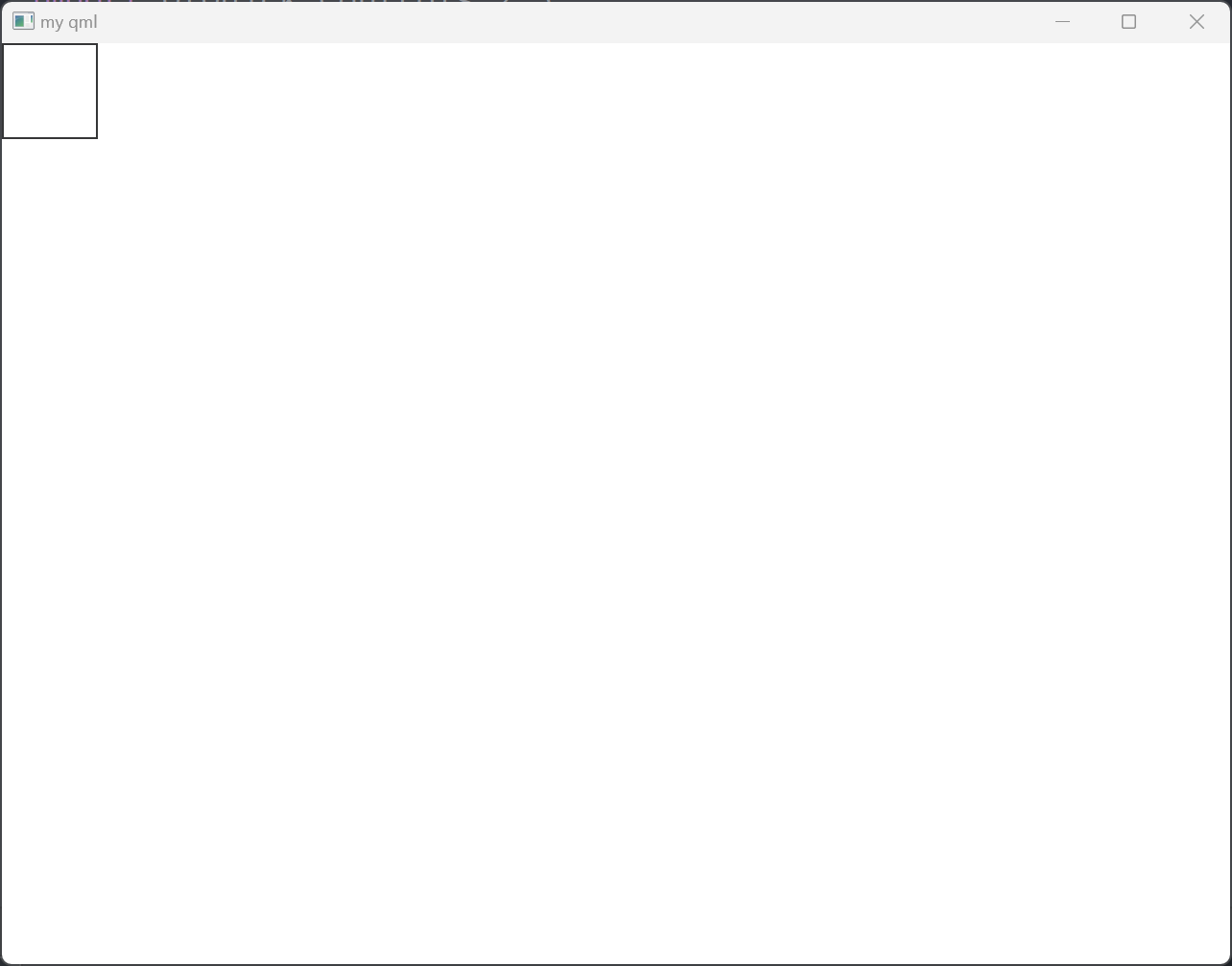
Popup的z顺序是个例外
import QtQuick 2.15 import QtQuick.Window 2.15 import QtQuick.Controls 2.5 Window { width: 640 height: 480 visible: true title: qsTr("my qml") Rectangle { width: 100; height: 100 color: "red" visible: true } //Popup的z顺序为例外 Popup { width: 50; height: 50 x: 20; y: 20 //color: "blue" visible: true z: -1 } }- 1
- 2
- 3
- 4
- 5
- 6
- 7
- 8
- 9
- 10
- 11
- 12
- 13
- 14
- 15
- 16
- 17
- 18
- 19
- 20
- 21
- 22
- 23
- 24
- 25
- 26
closePolicy属性:窗口关闭逻辑
MyPopup.qmlimport QtQuick 2.15 import QtQuick.Controls 2.5 Popup { id: popup x: 100 y: 100 width: 200 height: 300 visible: true modal: true closePolicy: Popup.NoAutoClose }- 1
- 2
- 3
- 4
- 5
- 6
- 7
- 8
- 9
- 10
- 11
- 12
- 13
- 14
main.qmlimport QtQuick 2.15 import QtQuick.Window 2.15 import QtQuick.Controls 2.5 Window { width: 640 height: 480 visible: true title: qsTr("my qml") Popup { width: 50; height: 50 x: 20; y: 20 //color: "blue" visible: true z: -1 } MyPopup { } }- 1
- 2
- 3
- 4
- 5
- 6
- 7
- 8
- 9
- 10
- 11
- 12
- 13
- 14
- 15
- 16
- 17
- 18
- 19
- 20
- 21
- 22
如此,按下Esc或者在Popup控件周围按下不会让控件消失

modal模态对话框属性dim:配合modal使用enter、exit属性
import QtQuick 2.15 import QtQuick.Controls 2.5 Popup { id: popup x: 100 y: 100 width: 200 height: 300 visible: true modal: true dim: true //closePolicy: Popup.NoAutoClose enter: Transition { //打开的时候 NumberAnimation { property: "opacity"; from: 0.0; to: 1.0 } } exit: Transition { //推出的时候 NumberAnimation { property: "opacity"; from: 1.0; to: 0.0 } } }- 1
- 2
- 3
- 4
- 5
- 6
- 7
- 8
- 9
- 10
- 11
- 12
- 13
- 14
- 15
- 16
- 17
- 18
- 19
- 20
- 21
- 22
contentItem属性
import QtQuick 2.15 import QtQuick.Controls 2.5 Popup { id: popup x: 100; y: 100 width: 400; height: 300 visible: true modal: true dim: true //closePolicy: Popup.NoAutoClose enter: Transition { //打开的时候 NumberAnimation { property: "opacity"; from: 0.0; to: 1.0 } } exit: Transition { //推出的时候 NumberAnimation { property: "opacity"; from: 1.0; to: 0.0 } } contentItem: Rectangle { anchors.fill: parent Text { id: txt text: qsTr("Message Box popup") } } Button { anchors.bottom: parent.bottom anchors.bottomMargin: 30 anchors.right: parent.right anchors.rightMargin: 30 text: "cancel" } Button { anchors.bottom: parent.bottom anchors.bottomMargin: 30 anchors.right: parent.right anchors.rightMargin: 150 text: "ok" } }- 1
- 2
- 3
- 4
- 5
- 6
- 7
- 8
- 9
- 10
- 11
- 12
- 13
- 14
- 15
- 16
- 17
- 18
- 19
- 20
- 21
- 22
- 23
- 24
- 25
- 26
- 27
- 28
- 29
- 30
- 31
- 32
- 33
- 34
- 35
- 36
- 37
- 38
- 39
- 40
- 41
- 42
- 43
- 44

overlay属性
import QtQuick 2.15 import QtQuick.Controls 2.5 Popup { id: popup x: 100; y: 100 width: 400; height: 300 visible: true modal: true dim: true //closePolicy: Popup.NoAutoClose enter: Transition { //打开的时候 NumberAnimation { property: "opacity"; from: 0.0; to: 1.0 } } exit: Transition { //推出的时候 NumberAnimation { property: "opacity"; from: 1.0; to: 0.0 } } contentItem: Rectangle { anchors.fill: parent Text { id: txt text: qsTr("Message Box popup") } } Button { anchors.bottom: parent.bottom anchors.bottomMargin: 30 anchors.right: parent.right anchors.rightMargin: 30 text: "cancel" } Button { anchors.bottom: parent.bottom anchors.bottomMargin: 30 anchors.right: parent.right anchors.rightMargin: 150 text: "ok" } Overlay.modal: Rectangle { color: "#33000000" } Overlay.modeless: Rectangle { color: "blue" } }- 1
- 2
- 3
- 4
- 5
- 6
- 7
- 8
- 9
- 10
- 11
- 12
- 13
- 14
- 15
- 16
- 17
- 18
- 19
- 20
- 21
- 22
- 23
- 24
- 25
- 26
- 27
- 28
- 29
- 30
- 31
- 32
- 33
- 34
- 35
- 36
- 37
- 38
- 39
- 40
- 41
- 42
- 43
- 44
- 45
- 46
- 47
- 48
- 49
- 50
- 51
- 52
Reapter
model属性import QtQuick 2.15 import QtQuick.Window 2.15 import QtQuick.Controls 2.5 Window { width: 640 height: 480 visible: true title: qsTr("my qml") Row { Repeater { model: 3 //模型, 数字表示有几个控件 Rectangle { width: 100; height: 40 border.width: 1 color: "yellow" } } } }- 1
- 2
- 3
- 4
- 5
- 6
- 7
- 8
- 9
- 10
- 11
- 12
- 13
- 14
- 15
- 16
- 17
- 18
- 19
- 20
- 21

import QtQuick 2.15 import QtQuick.Window 2.15 import QtQuick.Controls 2.5 Window { width: 640 height: 480 visible: true title: qsTr("my qml") Repeater { model: ["Button", "Rectangle", "MouseArea"] Button { y: index * 50 width: 100; height: 40 text: modelData } } }- 1
- 2
- 3
- 4
- 5
- 6
- 7
- 8
- 9
- 10
- 11
- 12
- 13
- 14
- 15
- 16
- 17
- 18
- 19
- 20

Combox控件
Combox控件继承自
Control,Control继承自ItemMyComboBox.qmlimport QtQuick 2.5 import QtQuick.Controls 2.5 ComboBox { editable: true model: ListModel { id: model ListElement { text: "Banana" } ListElement { text: "Apple" } ListElement { text: "Coconut" } } onAccepted: { if (find(editText) === -1) model.append({text: editText}) } }- 1
- 2
- 3
- 4
- 5
- 6
- 7
- 8
- 9
- 10
- 11
- 12
- 13
- 14
- 15
- 16

currentText、currentValue
import QtQuick 2.5 import QtQuick.Controls 2.15 ComboBox { textRole: "text" valueRole: "name" displayText: currentText + " " + currentValue model: [ { value: 100, text: qsTr("No modifier"), name: "lindong" }, { value: 200, text: qsTr("Shift") , name: "xiaoyan" }, { value: 300, text: qsTr("Control"), name: "muchen" } ] onCurrentTextChanged: { console.log("text: ", currentText) } onCurrentValueChanged: { console.log("value: ", currentValue) } }- 1
- 2
- 3
- 4
- 5
- 6
- 7
- 8
- 9
- 10
- 11
- 12
- 13
- 14
- 15
- 16
- 17
- 18
- 19
- 20
- 21
- 22

validator
此属性保存可编辑组合框的输入文本验证器。设置验证器后,文本字段将仅接受使文本属性处于中间状态的输入。仅当按下 Return 或 Enter 键时文本处于可接受状态时,才会发出接受的信号。
import QtQuick 2.5 import QtQuick.Controls 2.15 ComboBox { model: 10 editable: true // validator: IntValidator { // top: 9 // bottom: 0 // } validator: RegExpValidator { regExp: /[0-9A-F]+/ } onAcceptableInputChanged: { //当前有没有匹配validator验证器 console.log(acceptableInput) } }- 1
- 2
- 3
- 4
- 5
- 6
- 7
- 8
- 9
- 10
- 11
- 12
- 13
- 14
- 15
- 16
- 17
- 18
- 19
自定义ComboBox
indicator
此属性保存放置指示器项。
import QtQuick 2.12 import QtQuick.Controls 2.12 ComboBox { id: control model: ["First", "Second", "Third"] delegate: ItemDelegate { //针对model中 每一项的具体绘制 width: control.width contentItem: Text { text: modelData color: "red" font: control.font elide: Text.ElideRight verticalAlignment: Text.AlignVCenter } highlighted: control.highlightedIndex === index } indicator: Canvas { id: canvas x: control.width - width - control.rightPadding y: control.topPadding + (control.availableHeight - height) / 2 width: 12 height: 8 contextType: "2d" Connections { target: control function onPressedChanged() { canvas.requestPaint(); } } onPaint: { context.reset(); context.moveTo(0, 0); context.lineTo(width, 0); context.lineTo(width / 2, height); context.closePath(); context.fillStyle = control.pressed ? "#17a81a" : "#21be2b"; context.fill(); } } contentItem: Text { //控件显示内容 leftPadding: 0 rightPadding: control.indicator.width + control.spacing text: control.displayText font: control.font color: control.pressed ? "red" : "blue" verticalAlignment: Text.AlignVCenter elide: Text.ElideRight } background: Rectangle { //控件背景 implicitWidth: 120 implicitHeight: 40 border.color: control.pressed ? "#17a81a" : "#21be2b" border.width: control.visualFocus ? 2 : 1 radius: 3 } popup: Popup { //绘制整个下拉控件 y: control.height - 1 width: control.width implicitHeight: contentItem.implicitHeight padding: 1 contentItem: ListView { clip: true implicitHeight: contentHeight model: control.popup.visible ? control.delegateModel : null currentIndex: control.highlightedIndex ScrollIndicator.vertical: ScrollIndicator { } } background: Rectangle { border.color: "gray" radius: 2 } } }- 1
- 2
- 3
- 4
- 5
- 6
- 7
- 8
- 9
- 10
- 11
- 12
- 13
- 14
- 15
- 16
- 17
- 18
- 19
- 20
- 21
- 22
- 23
- 24
- 25
- 26
- 27
- 28
- 29
- 30
- 31
- 32
- 33
- 34
- 35
- 36
- 37
- 38
- 39
- 40
- 41
- 42
- 43
- 44
- 45
- 46
- 47
- 48
- 49
- 50
- 51
- 52
- 53
- 54
- 55
- 56
- 57
- 58
- 59
- 60
- 61
- 62
- 63
- 64
- 65
- 66
- 67
- 68
- 69
- 70
- 71
- 72
- 73
- 74
- 75
- 76
- 77
- 78
- 79
- 80
- 81
- 82
- 83
Shape控件
与ShapePath结合使用可以绘制曲线
模型和视图
ListView
MyListView.qmlimport QtQuick 2.15 import QtQuick.Controls 2.5 ListView { width: 180; height: 200 model: ['Button', 'Rectangle', "List", "CheckBox"] //数字, 控制所有数据 spacing: 10 delegate: Button { //控制每一项数据如何绘制 text: modelData } }- 1
- 2
- 3
- 4
- 5
- 6
- 7
- 8
- 9
- 10
- 11
- 12
- 13

还可以用ListModel这么搞import QtQuick 2.15 import QtQuick.Controls 2.5 ListView { width: 180; height: 200 model: ListModel { ListElement { name: "Bill Smith" number: "555 3264" } ListElement { name: "John Brown" number: "555 8426" } ListElement { name: "Sam Wise" number: "555 0473" } }//控制所有数据 spacing: 10 delegate: Button { //控制每一项数据如何绘制 text: name + ": " + number } }- 1
- 2
- 3
- 4
- 5
- 6
- 7
- 8
- 9
- 10
- 11
- 12
- 13
- 14
- 15
- 16
- 17
- 18
- 19
- 20
- 21
- 22
- 23
- 24
- 25
- 26

highlight属性
import QtQuick 2.5 import QtQuick.Controls 2.5 ListView { id: list width: 180; height: 200 model: ListModel { ListElement { name: "Bill Smith" number: "555 3264" } ListElement { name: "John Brown" number: "555 8426" } ListElement { name: "Sam Wise" number: "555 0473" } }//控制所有数据 spacing: 15 highlight: Rectangle { color: "lightsteelblue" //radius: 5 } delegate: Rectangle { //控制每一项数据如何绘制 width: 80 height: 15 color: "transparent" Text { id: txt text: name } MouseArea { anchors.fill: parent onClicked: { currentIndex = index console.log(index) } } } }- 1
- 2
- 3
- 4
- 5
- 6
- 7
- 8
- 9
- 10
- 11
- 12
- 13
- 14
- 15
- 16
- 17
- 18
- 19
- 20
- 21
- 22
- 23
- 24
- 25
- 26
- 27
- 28
- 29
- 30
- 31
- 32
- 33
- 34
- 35
- 36
- 37
- 38
- 39
- 40
- 41
- 42
- 43
- 44
- 45
- 46
- 47

head和foot
import QtQuick 2.5 import QtQuick.Controls 2.5 Rectangle { width: 400 height: 200 border.color: "black" anchors.centerIn: parent ListView { id: list width: 180; height: 200 model: ListModel { ListElement { name: "Bill Smith" number: "555 3264" } ListElement { name: "John Brown" number: "555 8426" } ListElement { name: "Sam Wise" number: "555 0473" } }//控制所有数据 header: Rectangle { width: 180 height: 20 color: "red" } footer: Rectangle { width: 180 height: 20 color: "blue" } spacing: 15 highlight: Rectangle { color: "lightsteelblue" //radius: 5 } delegate: Rectangle { //控制每一项数据如何绘制 width: 80 height: 15 color: "transparent" Text { id: txt text: name } MouseArea { anchors.fill: parent onClicked: { list.currentIndex = index console.log(index) } } } } }- 1
- 2
- 3
- 4
- 5
- 6
- 7
- 8
- 9
- 10
- 11
- 12
- 13
- 14
- 15
- 16
- 17
- 18
- 19
- 20
- 21
- 22
- 23
- 24
- 25
- 26
- 27
- 28
- 29
- 30
- 31
- 32
- 33
- 34
- 35
- 36
- 37
- 38
- 39
- 40
- 41
- 42
- 43
- 44
- 45
- 46
- 47
- 48
- 49
- 50
- 51
- 52
- 53
- 54
- 55
- 56
- 57
- 58
- 59
- 60
- 61
- 62
- 63
- 64
- 65
- 66
- 67
- 68
- 69
- 70

section
import QtQuick 2.5 import QtQuick.Controls 2.5 Rectangle { width: 400 height: 200 border.color: "black" anchors.centerIn: parent ListView { id: list width: 180; height: 200 Component { id: sectionHeading Rectangle { width: 400 height: childrenRect.height color: "blue" required property string section Text { text: parent.section font.bold: true font.pixelSize: 20 } } } model: ListModel { ListElement { name: "Bill Smith" number: "555 3264" size: "s" } ListElement { name: "John Brown" number: "555 8426" size: "l" } ListElement { name: "Sam Wise" number: "555 0473" size: "xl" } }//控制所有数据 // header: Rectangle { // width: 180 // height: 20 // color: "red" // } // footer: Rectangle { // width: 180 // height: 20 // color: "blue" // } spacing: 15 highlight: Rectangle { color: "lightsteelblue" //radius: 5 } delegate: Rectangle { //控制每一项数据如何绘制 width: 80 height: 15 color: "transparent" Text { id: txt text: name } MouseArea { anchors.fill: parent onClicked: { list.currentIndex = index console.log(index) } } } section.property: "size" section.criteria: ViewSection.FullString section.delegate: sectionHeading //每一个property如何绘制 } }- 1
- 2
- 3
- 4
- 5
- 6
- 7
- 8
- 9
- 10
- 11
- 12
- 13
- 14
- 15
- 16
- 17
- 18
- 19
- 20
- 21
- 22
- 23
- 24
- 25
- 26
- 27
- 28
- 29
- 30
- 31
- 32
- 33
- 34
- 35
- 36
- 37
- 38
- 39
- 40
- 41
- 42
- 43
- 44
- 45
- 46
- 47
- 48
- 49
- 50
- 51
- 52
- 53
- 54
- 55
- 56
- 57
- 58
- 59
- 60
- 61
- 62
- 63
- 64
- 65
- 66
- 67
- 68
- 69
- 70
- 71
- 72
- 73
- 74
- 75
- 76
- 77
- 78
- 79
- 80
- 81
- 82
- 83
- 84
- 85
- 86
- 87
- 88
- 89
- 90
- 91
- 92
- 93
- 94

StackView
可用于管理具有多个页面的应用程序
import QtQuick 2.15 import QtQuick.Window 2.15 import QtQuick.Controls 2.15 ApplicationWindow { title: qsTr("Hello World") width: 640 height: 480 visible: true StackView { id: stack initialItem: mainView anchors.fill: parent } Component { id: mainView Row { spacing: 10 Button { text: "Push" onClicked: stack.push(mainView) } Button { text: "Pop" enabled: stack.depth > 1 onClicked: stack.pop() } Text { text: stack.depth } } } }- 1
- 2
- 3
- 4
- 5
- 6
- 7
- 8
- 9
- 10
- 11
- 12
- 13
- 14
- 15
- 16
- 17
- 18
- 19
- 20
- 21
- 22
- 23
- 24
- 25
- 26
- 27
- 28
- 29
- 30
- 31
- 32
- 33
- 34
- 35
- 36
- 37
- 38

自定义Model
ListView显示数据必须构造相应的模型类,继承自QAbstractListModelmylistmodel.h#ifndef MYLISTMODEL_H #define MYLISTMODEL_H #include#include #include #include #include class MyListModel : public QAbstractListModel { Q_OBJECT public: enum MyRoleName { Name = Qt::DisplayRole + 1, }; explicit MyListModel(QObject *parent = nullptr); static MyListModel* instance(); // Basic functionality: int rowCount(const QModelIndex &parent = QModelIndex()) const override; QVariant data(const QModelIndex &index, int role = Qt::DisplayRole) const override; QHash<int, QByteArray> roleNames() const override; private: QList<QString> m_data; }; #endif // MYLISTMODEL_H - 1
- 2
- 3
- 4
- 5
- 6
- 7
- 8
- 9
- 10
- 11
- 12
- 13
- 14
- 15
- 16
- 17
- 18
- 19
- 20
- 21
- 22
- 23
- 24
- 25
- 26
- 27
- 28
- 29
- 30
- 31
- 32
- 33
mylistmodel.cpp#include "mylistmodel.h" MyListModel::MyListModel(QObject *parent) : QAbstractListModel(parent) { m_data.append("韩立 200"); m_data.append("银月 666"); m_data.append("紫灵 111"); } MyListModel *MyListModel::instance() { static MyListModel* obj = new MyListModel; return obj; } int MyListModel::rowCount(const QModelIndex &parent) const { // For list models only the root node (an invalid parent) should return the list's size. For all // other (valid) parents, rowCount() should return 0 so that it does not become a tree model. if (parent.isValid()) return 0; return m_data.count(); // FIXME: Implement me! } QVariant MyListModel::data(const QModelIndex &index, int role) const { if (!index.isValid()) return QVariant(); if (role == MyRoleName::Name) { return m_data[index.row()]; } // FIXME: Implement me! return QVariant(); } QHash<int, QByteArray> MyListModel::roleNames() const { QHash<int, QByteArray> roles; roles.insert(MyRoleName::Name, "name"); return roles; }- 1
- 2
- 3
- 4
- 5
- 6
- 7
- 8
- 9
- 10
- 11
- 12
- 13
- 14
- 15
- 16
- 17
- 18
- 19
- 20
- 21
- 22
- 23
- 24
- 25
- 26
- 27
- 28
- 29
- 30
- 31
- 32
- 33
- 34
- 35
- 36
- 37
- 38
- 39
- 40
- 41
- 42
- 43
- 44
- 45
- 46
main.cpp中注册模型类
#include#include #include #include "mylistmodel.h" int main(int argc, char *argv[]) { #if QT_VERSION < QT_VERSION_CHECK(6, 0, 0) QCoreApplication::setAttribute(Qt::AA_EnableHighDpiScaling); #endif QGuiApplication app(argc, argv); QQmlApplicationEngine engine; engine.rootContext()->setContextProperty("MyListModel", MyListModel::instance()); const QUrl url(QStringLiteral("qrc:/main.qml")); QObject::connect(&engine, &QQmlApplicationEngine::objectCreated, &app, [url](QObject *obj, const QUrl &objUrl) { if (!obj && url == objUrl) QCoreApplication::exit(-1); }, Qt::QueuedConnection); engine.load(url); return app.exec(); } - 1
- 2
- 3
- 4
- 5
- 6
- 7
- 8
- 9
- 10
- 11
- 12
- 13
- 14
- 15
- 16
- 17
- 18
- 19
- 20
- 21
- 22
- 23
- 24
qml当中用ListView显示
import QtQuick 2.15 import QtQuick.Window 2.15 Window { width: 640 height: 480 visible: true title: qsTr("Hello World") ListView { width: 200 height: 300 model: MyListModel delegate: Text { id: txt; text: name } } }- 1
- 2
- 3
- 4
- 5
- 6
- 7
- 8
- 9
- 10
- 11
- 12
- 13
- 14
- 15
- 16
- 17
- 18
- 19
- 20
- 21
布局
锚点布局
定位器
Row
Column
布局管理器
RowLayout
ColumnLayout
C++类的自定义属性使用
非单例类
在C++类中利用
Q_PROPERTY关键字自定义属性,并绑定到qml端的通用流程:- 在继承自
QObject类的MyObject类中声明:
Q_PROPERTY(QString path READ path WRITE setPath NOTIFY pathChanged)- 1
因为只有继承自
QObject才能使用属性系统- 对于非单例类,将其注册到元对象系统中
qmlRegisterType<MyObject>("sy", 1, 0, "MyObject");- 1
- 对于非单例类,在qml端的调用C++属性方法,需要实例化
// main.qml import QtQuick 2.15 import QtQuick.Controls 2.15 import sy 1.0 ApplicationWindow { visible: true width: 400 height: 200 title: "Using C++ Property in QML" MyObject { id: myCppObject } Column { anchors.centerIn: parent spacing: 10 Text { text: "Name from C++: " + myObject.path } TextField { placeholderText: "Enter new name" onTextChanged: myObject.path = text } } }- 1
- 2
- 3
- 4
- 5
- 6
- 7
- 8
- 9
- 10
- 11
- 12
- 13
- 14
- 15
- 16
- 17
- 18
- 19
- 20
- 21
- 22
- 23
- 24
- 25
- 26
- 27
- 28
- 29

单例类
- 单例类注册到元对象系统的方式为
qmlRegisterSingletonInstance("sy", 1, 0, "MyObject", MyObject::instance());- 1
- 对于单例类,在qml端的调用C++属性方法,不需要实例化
import QtQuick 2.15 import QtQuick.Window 2.15 import QtQuick.Controls 2.15 import sy 1.0 Window { width: 640 height: 480 visible: true title: qsTr("Hello World") Column { anchors.centerIn: parent spacing: 10 Text { text: "Name from C++: " + MyObject.path } TextField { placeholderText: "Enter new name" onTextChanged: MyObject.path = text } } }- 1
- 2
- 3
- 4
- 5
- 6
- 7
- 8
- 9
- 10
- 11
- 12
- 13
- 14
- 15
- 16
- 17
- 18
- 19
- 20
- 21
- 22
- 23
- 24
- 25
在qml侧调用C++的函数
无论是C++中的属性还是方法,都需要将C++的类注册到元对象系统中,主要是三种方法。
C++类实例作为上下文对象嵌入到qml代码中
Q_INVOKABLE宏将C++函数申明为元对象系统可调用的函数
Q_INVOKABLE int getValue();- 1
- 注册对象至元对象系统中
MyObject obj; engine.rootContext()->setContextProperty("myQml", &obj);- 1
- 2
- qml调用:无需实例化,也无需import
import QtQuick 2.15 import QtQuick.Controls 2.15 ApplicationWindow { visible: true width: 400 height: 200 title: "Using C++ function in QML" Button{ id:btn height: 48 width: 120 text: "1" anchors.centerIn: parent Component.onCompleted: { text = myQml.getValue() console.log(text) } } }- 1
- 2
- 3
- 4
- 5
- 6
- 7
- 8
- 9
- 10
- 11
- 12
- 13
- 14
- 15
- 16
- 17
- 18
- 19
- 20
- 21
- 22

非单例类使用qmlRegisterType注册为一个可实例化的qml类型
- 注册
qmlRegisterType<MyObject>("sy", 1, 0, "myQml");- 1
- 在qml侧:需要import并且实例化对象后调用
// main.qml import QtQuick 2.15 import QtQuick.Controls 2.15 import sy 1.0 ApplicationWindow { visible: true width: 400 height: 200 title: "Using C++ function in QML" MyObject { id: myQml } Button{ id:btn height: 48 width: 120 text: "1" anchors.centerIn: parent Component.onCompleted: { text = myQml.getValue() console.log(text) } } }- 1
- 2
- 3
- 4
- 5
- 6
- 7
- 8
- 9
- 10
- 11
- 12
- 13
- 14
- 15
- 16
- 17
- 18
- 19
- 20
- 21
- 22
- 23
- 24
- 25
- 26
- 27
- 28
单例类使用qmlRegisterSingletonInstance注册为单例类型
- 注册
qmlRegisterSingletonInstance("sy", 1, 0, "myQml", MyObject::instance());- 1
- 需要import,但不需要实例化
// main.qml import QtQuick 2.15 import QtQuick.Controls 2.15 import sy 1.0 ApplicationWindow { visible: true width: 400 height: 200 title: "Using C++ function in QML" MyObject { id: myQml } Button{ id:btn height: 48 width: 120 text: "1" anchors.centerIn: parent Component.onCompleted: { text = myQml.getValue() console.log(text) } } }- 1
- 2
- 3
- 4
- 5
- 6
- 7
- 8
- 9
- 10
- 11
- 12
- 13
- 14
- 15
- 16
- 17
- 18
- 19
- 20
- 21
- 22
- 23
- 24
- 25
- 26
- 27
- 28
信号与槽
C++声明信号与槽
- 信号声明
写在signals下 返回值是void,只需声明,无需实现 可以有参数 可以重载(一般不用重载)- 1
- 2
- 3
- 4
- 槽函数声明
写在public slots下 返回值是void,需声明,需实现 可以有参数 可以重载(一般不用重载)- 1
- 2
- 3
- 4
- C++对象的信号槽绑定
connect(信号的发送者,发送的信号(函数地址),信号的接受者,处理的槽函数(函数地址));- 1
qml的信号与信号处理器
- 信号声明
siganl mouseReleased() signal actionCanceled(string action)- 1
- 2
手动发射信号:
对象id.mouseReleased()- 1
除了可以自己定义信号,QML类型提供了一种内建的属性值改变信号。当属性值改变时,QML会自动发出该信号。
- 信号处理器
当在QML对象中添加一个信号时,会自动添加一个对应的信号处理器- 1
范例:
import QtQuick 2.15 import QtQuick.Window 2.15 import QtQuick.Controls 2.15 import sy 1.0 Window { id: root width: 640 height: 480 visible: true title: qsTr("Hello World") signal modify() Column { anchors.centerIn: parent spacing: 10 Text { text: "Name from C++: " + MyObject.path } TextField { placeholderText: "Enter new name" onTextChanged: { MyObject.path = text root.modify() } } } onModify: { console.log("text is modified.") } }- 1
- 2
- 3
- 4
- 5
- 6
- 7
- 8
- 9
- 10
- 11
- 12
- 13
- 14
- 15
- 16
- 17
- 18
- 19
- 20
- 21
- 22
- 23
- 24
- 25
- 26
- 27
- 28
- 29
- 30
- 31
- 32
- 33
- 34
- 35
- 使用connect将信号连接到一个方法或另一个信号
import QtQuick 2.15 import QtQuick.Window 2.15 import QtQuick.Controls 2.15 import sy 1.0 Window { id: root width: 640 height: 480 visible: true title: qsTr("Hello World") signal sigModify() function onModify() { console.log("modify") } Column { anchors.centerIn: parent spacing: 10 Text { text: "Name from C++: " + MyObject.path } TextField { id: textField placeholderText: "Enter new name" onTextChanged: { MyObject.path = text root.sigModify() } } } Component.onCompleted: { root.sigModify.connect(onModify) } }- 1
- 2
- 3
- 4
- 5
- 6
- 7
- 8
- 9
- 10
- 11
- 12
- 13
- 14
- 15
- 16
- 17
- 18
- 19
- 20
- 21
- 22
- 23
- 24
- 25
- 26
- 27
- 28
- 29
- 30
- 31
- 32
- 33
- 34
- 35
- 36
- 37
- 38
- 39
- 40
- 41
- 42
- 用
Connections在发射信号的对象外部进行信号处理
范例
import QtQuick 2.15 import QtQuick.Window 2.15 import QtQuick.Controls 2.15 import sy 1.0 Window { id: root width: 640 height: 480 visible: true title: qsTr("Hello World") Column { anchors.centerIn: parent spacing: 10 Text { text: "Name from C++: " + MyObject.path } TextField { id: textField placeholderText: "Enter new name" } } Connections { target: textField function onTextChanged() { console.log("modify") MyObject.path = text } } }- 1
- 2
- 3
- 4
- 5
- 6
- 7
- 8
- 9
- 10
- 11
- 12
- 13
- 14
- 15
- 16
- 17
- 18
- 19
- 20
- 21
- 22
- 23
- 24
- 25
- 26
- 27
- 28
- 29
- 30
- 31
- 32
- 33
- 34
C++信号绑定到qml
一般来讲,C++中自定义的属性会绑定到qml侧,当属性改变信号发出时,C++和qml端都能响应。
其次,C++自定义的信号可以通过connect绑定到qml端的JavaScript函数进行处理。
qml信号绑定到C++
一般点击qml控件上发出的信号,在qml侧使用信号处理器处理,然后在信号处理器中调用C++函数就可以了。
-
相关阅读:
闭包和类的分析
scipy最优化
Linux驱动开发(三)---设备树
mysql数据库表关系,多表查询
【LeetCode算法系列题解】第66~70题
支持向量机(SVM)算法基本原理&skearn实现
git详细教程
独孤思维:副业再苦再累,请学会善待自己
Cyclopropene-PEG-MAL Maleimide|环丙烯-聚乙二醇-马来酰亚胺
删除数据表
- 原文地址:https://blog.csdn.net/Star_ID/article/details/132169011
