-
微信小程序ibeacon搜索功能制作
以下是一个完整的微信小程序代码示例,演示如何实现iBeacon搜索功能:
- // 在小程序页面中的js文件中编写代码
- Page({
- data: {
- beacons: [] // 存储搜索到的iBeacon设备信息
- },
- onReady() {
- // 初始化iBeacon
- wx.startBeaconDiscovery({
- uuids: ['你的UUID'], // 替换为你的UUID
- success: res => {
- console.log("开始搜索iBeacon设备");
- },
- fail: err => {
- console.error("启动iBeacon搜索失败:", err);
- }
- });
- // 监听iBeacon设备变化
- wx.onBeaconUpdate(res => {
- console.log("发现新的iBeacon设备:", res.beacons);
- // 更新beacons数据
- this.setData({
- beacons: res.beacons
- });
- });
- },
- // 停止搜索
- onStopSearch() {
- wx.stopBeaconDiscovery({
- success: res => {
- console.log("停止搜索iBeacon设备");
- // 清空beacons数据
- this.setData({
- beacons: []
- });
- },
- fail: err => {
- console.error("停止iBeacon搜索失败:", err);
- }
- });
- }
- });
在上述代码中,我们使用了
data属性来存储搜索到的iBeacon设备信息。在onBeaconUpdate回调函数中,我们更新了beacons数据,以便在页面中展示搜索到的设备信息。以下是相应的WXML布局代码示例:
- <view class="container">
- <button bindtap="onStopSearch">停止搜索button>
- <view wx:for="{{beacons}}" wx:key="index">
- <text>UUID: {{item.uuid}}text>
- <text>Major: {{item.major}}text>
- <text>Minor: {{item.minor}}text>
- <text>信号强度: {{item.rssi}}text>
- view>
- view>
在上面的示例中,我们使用了
wx:for指令来遍历beacons数组,以展示每个iBeacon设备的UUID、Major、Minor和信号强度等信息。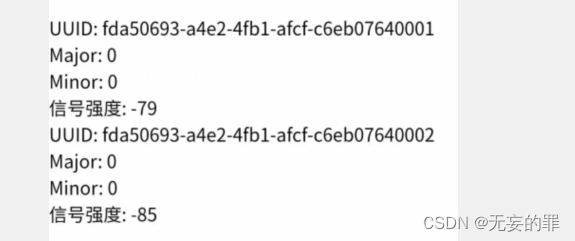
请注意,以上代码仅为示例,实际的布局和样式可能会因你的实际需求而有所不同。你可以根据官方文档和自己的实际情况进行相应的修改和扩展。
希望能对你有所帮助!
-
相关阅读:
PAM从入门到精通(二十四)
Linux|超好用!绘制流程图神器——PlantUML
C语言高级教程-C语言数组(一)
python自动化之BeautifulReport显示异常的解决方案
kafka latest 模式消费偏移丢数据
wireshark 流量抓包例题
人机环境系统中的“人”、“机”、“环境”
微信小程序之项目基本结构、页面的基础及宿主环境
it行业突起的弄潮儿 当选不当选?
C#函数基础
- 原文地址:https://blog.csdn.net/m0_73481765/article/details/132794215
