-
ubuntu 22.04 配置 Prometheus 和 Grafana 服务器监控
由于内存白菜价, 家里的虚拟机越来越多了。
1个是难以管理hostname 和 ip, 只靠/etc/hosts 去记住其实并不方便
试过宝塔linux面板, 可惜是单机的,不适用于管理集群linux服务器, 而且里面一股金钱气息。
至于他们另1个产品堡塔云, 估计是集群管理, 但是安装失败, 而且看了价格感觉像智商税。公司用过Appdynamic, 功能强大可惜更不是我能想的。

只能还是去寻找开源方案。好在外能的google提供了一套成熟的开源方案
Prometheus - 用于管理机 - 集群服务器数据收集
node_exporter - 用于被管理节点 - 提供节点本身的服务器数据给Prometheus
Grafana - 数据展示工具下面就会写出详细的安装步骤
1. 服务器准备
No hostname ip cpu 数 memory os comment 1 amdeuc-vm0 10.0.1.155 1 2 ubuntu 22.04 LTS server 监控机 2 amdeuc-vm1 10.0.1.156 2 8 ubuntu 22.04 LTS server 被监控机 3 amdeuc-vm2 10.0.1.157 1 4 ubuntu 22.04 LTS server 被监控机 4 amdeuc-vm3 10.0.1.158 1 4 ubuntu 22.04 LTS server 被监控机 2. 在宿主机安装Prometheus
2.1 安装
个人觉得不用下载安装包这么复杂, 直接从ubuntu源安装
sudo apt-get install prometheus- 1
检查prometheus 有没有启动
gateman@amdeuc-vm0:~$ systemctl status prometheus ● prometheus.service - Monitoring system and time series database Loaded: loaded (/lib/systemd/system/prometheus.service; enabled; vendor preset: enabled) Active: active (running) since Thu 2022-11-24 15:58:52 UTC; 4h 3min ago Docs: https://prometheus.io/docs/introduction/overview/ man:prometheus(1) Main PID: 23080 (prometheus) Tasks: 7 (limit: 23310) Memory: 44.6M CPU: 30.744s CGroup: /system.slice/prometheus.service └─23080 /usr/bin/prometheus- 1
- 2
- 3
- 4
- 5
- 6
- 7
- 8
- 9
- 10
- 11
- 12
2.2 检查配置文件
gateman@amdeuc-vm0:/etc/prometheus$ cat prometheus.yml # Sample config for Prometheus. global: scrape_interval: 15s # Set the scrape interval to every 15 seconds. Default is every 1 minute. evaluation_interval: 15s # Evaluate rules every 15 seconds. The default is every 1 minute. # scrape_timeout is set to the global default (10s). # Attach these labels to any time series or alerts when communicating with # external systems (federation, remote storage, Alertmanager). external_labels: monitor: 'example' # Alertmanager configuration alerting: alertmanagers: - static_configs: - targets: ['localhost:9093'] # Load rules once and periodically evaluate them according to the global 'evaluation_interval'. rule_files: # - "first_rules.yml" # - "second_rules.yml" # A scrape configuration containing exactly one endpoint to scrape: # Here it's Prometheus itself. scrape_configs: # The job name is added as a label `job=` to any timeseries scraped from this config. - job_name: 'prometheus' # Override the global default and scrape targets from this job every 5 seconds. scrape_interval: 5s scrape_timeout: 5s # metrics_path defaults to '/metrics' # scheme defaults to 'http'. static_configs: - targets: ['localhost:9090'] - job_name: node # If prometheus-node-exporter is installed, grab stats about the local # machine by default. static_configs: - targets: ['localhost:9100']- 1
- 2
- 3
- 4
- 5
- 6
- 7
- 8
- 9
- 10
- 11
- 12
- 13
- 14
- 15
- 16
- 17
- 18
- 19
- 20
- 21
- 22
- 23
- 24
- 25
- 26
- 27
- 28
- 29
- 30
- 31
- 32
- 33
- 34
- 35
- 36
- 37
- 38
- 39
- 40
- 41
- 42
- 43
- 44
- 45
可以见prometheus 的 控制端口是9090
在浏览器访问服务器ip和9090 端口, 如果 prometheus 页面能打开就没什么问题

3. 在被监控节点安装node exporter
也是直接从ubuntu源里安装
sudo apt-get install prometheus-node-exporter- 1
检查node exporter 服务有没有启动
gateman@amdeuc-vm3:~$ systemctl status prometheus-node-exporter ● prometheus-node-exporter.service - Prometheus exporter for machine metrics Loaded: loaded (/lib/systemd/system/prometheus-node-exporter.service; enabled; vendor preset: enabled) Active: active (running) since Fri 2022-11-25 11:49:24 UTC; 5min ago Docs: https://github.com/prometheus/node_exporter Main PID: 1567 (prometheus-node) Tasks: 4 (limit: 4460) Memory: 2.2M CPU: 7ms CGroup: /system.slice/prometheus-node-exporter.service └─1567 /usr/bin/prometheus-node-exporter Nov 25 11:49:24 amdeuc-vm3 prometheus-node-exporter[1567]: ts=2022-11-25T11:49:24.830Z caller=node_exporter.go:115 level=info collector=thermal_zone Nov 25 11:49:24 amdeuc-vm3 prometheus-node-exporter[1567]: ts=2022-11-25T11:49:24.830Z caller=node_exporter.go:115 level=info collector=time Nov 25 11:49:24 amdeuc-vm3 prometheus-node-exporter[1567]: ts=2022-11-25T11:49:24.830Z caller=node_exporter.go:115 level=info collector=timex Nov 25 11:49:24 amdeuc-vm3 prometheus-node-exporter[1567]: ts=2022-11-25T11:49:24.830Z caller=node_exporter.go:115 level=info collector=udp_queues Nov 25 11:49:24 amdeuc-vm3 prometheus-node-exporter[1567]: ts=2022-11-25T11:49:24.830Z caller=node_exporter.go:115 level=info collector=uname Nov 25 11:49:24 amdeuc-vm3 prometheus-node-exporter[1567]: ts=2022-11-25T11:49:24.830Z caller=node_exporter.go:115 level=info collector=vmstat Nov 25 11:49:24 amdeuc-vm3 prometheus-node-exporter[1567]: ts=2022-11-25T11:49:24.830Z caller=node_exporter.go:115 level=info collector=xfs Nov 25 11:49:24 amdeuc-vm3 prometheus-node-exporter[1567]: ts=2022-11-25T11:49:24.830Z caller=node_exporter.go:115 level=info collector=zfs Nov 25 11:49:24 amdeuc-vm3 prometheus-node-exporter[1567]: ts=2022-11-25T11:49:24.830Z caller=node_exporter.go:199 level=info msg="Listening on" address=:9100 Nov 25 11:49:24 amdeuc-vm3 prometheus-node-exporter[1567]: ts=2022-11-25T11:49:24.830Z caller=tls_config.go:195 level=info msg="TLS is disabled." http2=false- 1
- 2
- 3
- 4
- 5
- 6
- 7
- 8
- 9
- 10
- 11
- 12
- 13
- 14
- 15
- 16
- 17
- 18
- 19
- 20
- 21
- 22
可以简单监控端口是9100
4. 配置监控机的 prometheus.xml 加入被监控的节点
- job_name: node # If prometheus-node-exporter is installed, grab stats about the local # machine by default. static_configs: - targets: ['localhost:9100', '10.0.1.156:9100', '10.0.1.157:9100', '10.0.1.158:9100']- 1
- 2
- 3
- 4
- 5
然后重启服务
sudo systemctl restart prometheus- 1
再打开 prometheus 的监控列表, 发现 已经有4个节点被监控了, 包括监控机本身

5.安装Grafana
没想到grafana居然不在ubuntu的默认仓库…
sudo wget -q -O - https://packages.grafana.com/gpg.key | sudo apt-key add - echo "deb https://packages.grafana.com/oss/deb stable main" | sudo tee -a /etc/apt/sources.list.d/grafana.list sudo apt-get update sudo apt install grafana- 1
- 2
- 3
- 4
安装完后检查服务有没有启动
systemctl status grafana-server- 1
没有就手动起来
gateman@amdeuc-vm0:/etc/prometheus$ sudo systemctl start grafana-server gateman@amdeuc-vm0:/etc/prometheus$ sudo systemctl enable grafana-server- 1
- 2
grafana 的默认端口是3000
再浏览器打开ip:3000, 如果见到grafana页面就代表安装好了

6.配置grafana
默认账号和密码都是admin 先登录再说
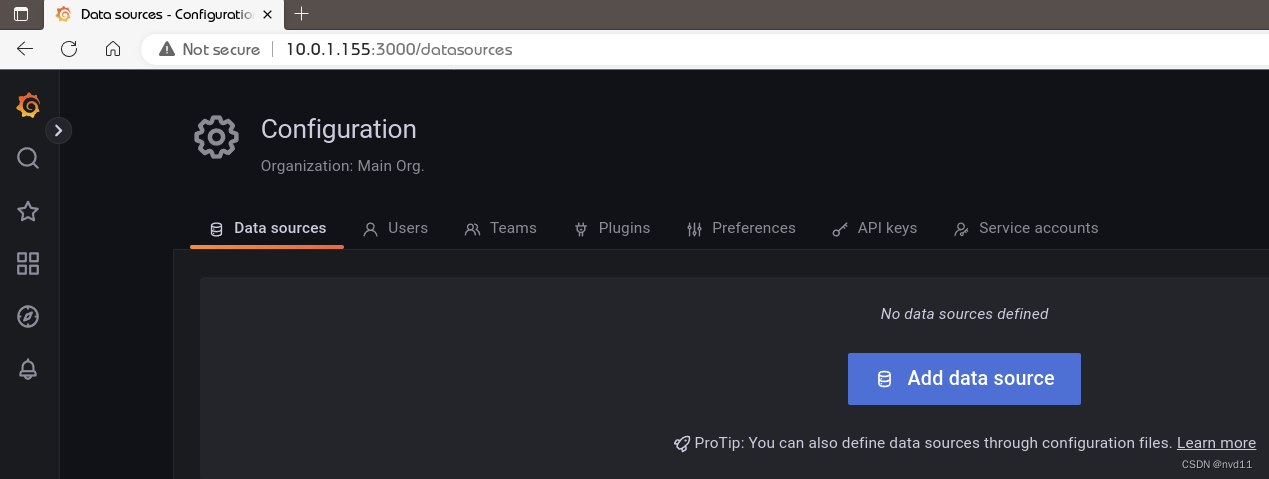
登录后马上要求你改密码的6.1 添加数据源
Configuration -> Data Sources ->add data source -> Prometheus


6.2 添加Dashboard
接下来我们先去下载一个模板
https://grafana.com/grafana/dashboards/?search=8919把Json文件下载下来就好
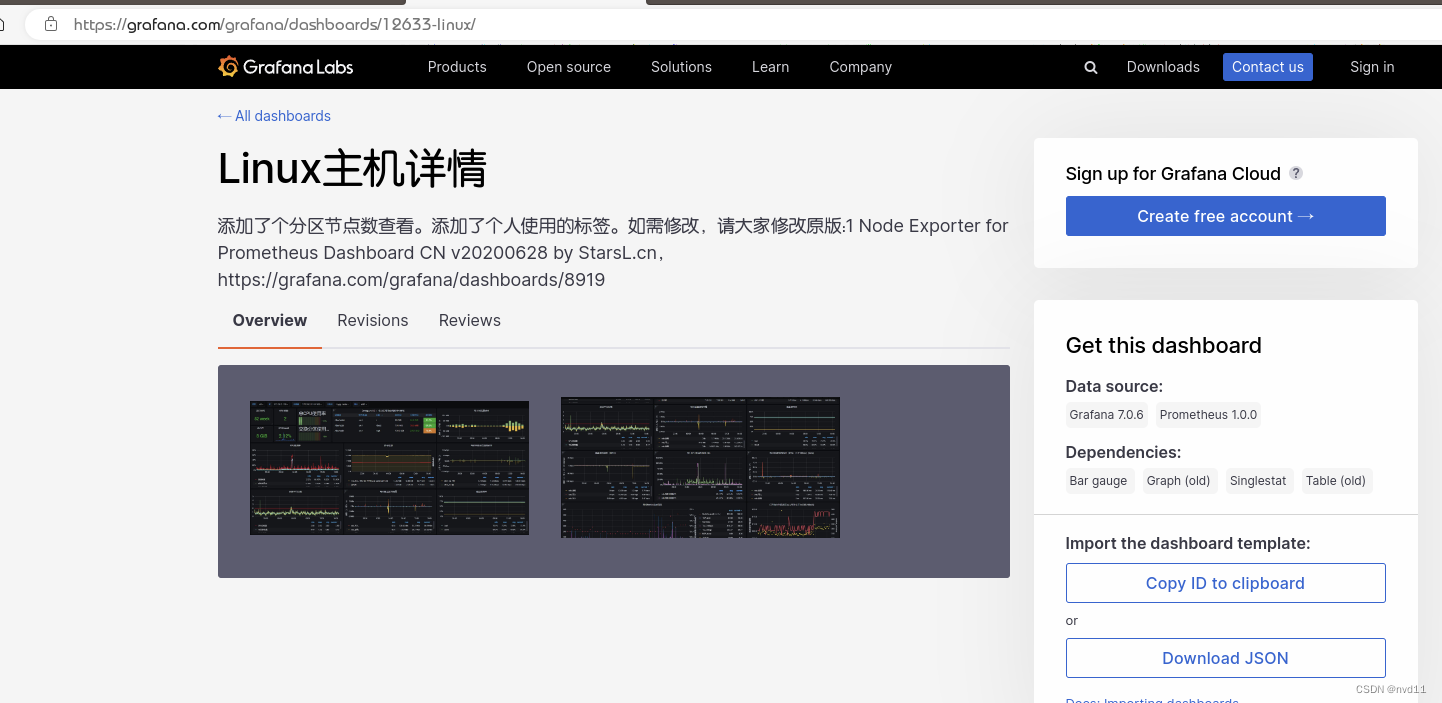
然后在grafana
New Dashboard -> Import Json
就得到1个比较完善的linux主机详情模板了
看着dashboard 效果, 各台服务器的状态一目了然, 不比那宝塔面板吊多了?
如何你的服务器太多, 想分组看?
那么prometheus 的配置文件可以这样编写- job_name: node # If prometheus-node-exporter is installed, grab stats about the local # machine by default. static_configs: - targets: - '10.0.1.156:9100' - '10.0.1.157:9100' - '10.0.1.158:9100' - '10.0.1.158:9100' - '10.0.1.154:9100' - '10.0.1.152:9100' labels: group: 'VM Group' - targets: - '10.0.1.198:9100' - '10.0.1.122:9100' - '10.0.1.107:9100' - '10.0.1.223:9182' labels: group: 'PHY Group'- 1
- 2
- 3
- 4
- 5
- 6
- 7
- 8
- 9
- 10
- 11
- 12
- 13
- 14
- 15
- 16
- 17
- 18
- 19
- 20
在grafana中就可以分组查看了

-
相关阅读:
Spark数据倾斜_产生原因及定位处理办法_生产环境
2022年武汉市企业入规奖励补贴政策以及申报条件汇总
python---设计模式(单例模式和工厂模式)
【JUC】三、集合的线程安全
【每日一题】Day37 选择题
MnTTS: 开源蒙古语语音合成数据集及其基线模型
springboot2+JPA 配置多数据源(不同类型数据库)
下载安装升讯威在线客服系统时提示风险的解决办法
php查询大量sql语句时内存溢出的解决方法
蓝牙技术|蓝牙Mesh在照明网络上的应用
- 原文地址:https://blog.csdn.net/nvd11/article/details/128030197
